Solved

How to edit a pop out / slide out window for "Register Inspection Results"

  • September 24, 2026
  • 3 replies
  • 24 views

Forum|alt.badge.img+7

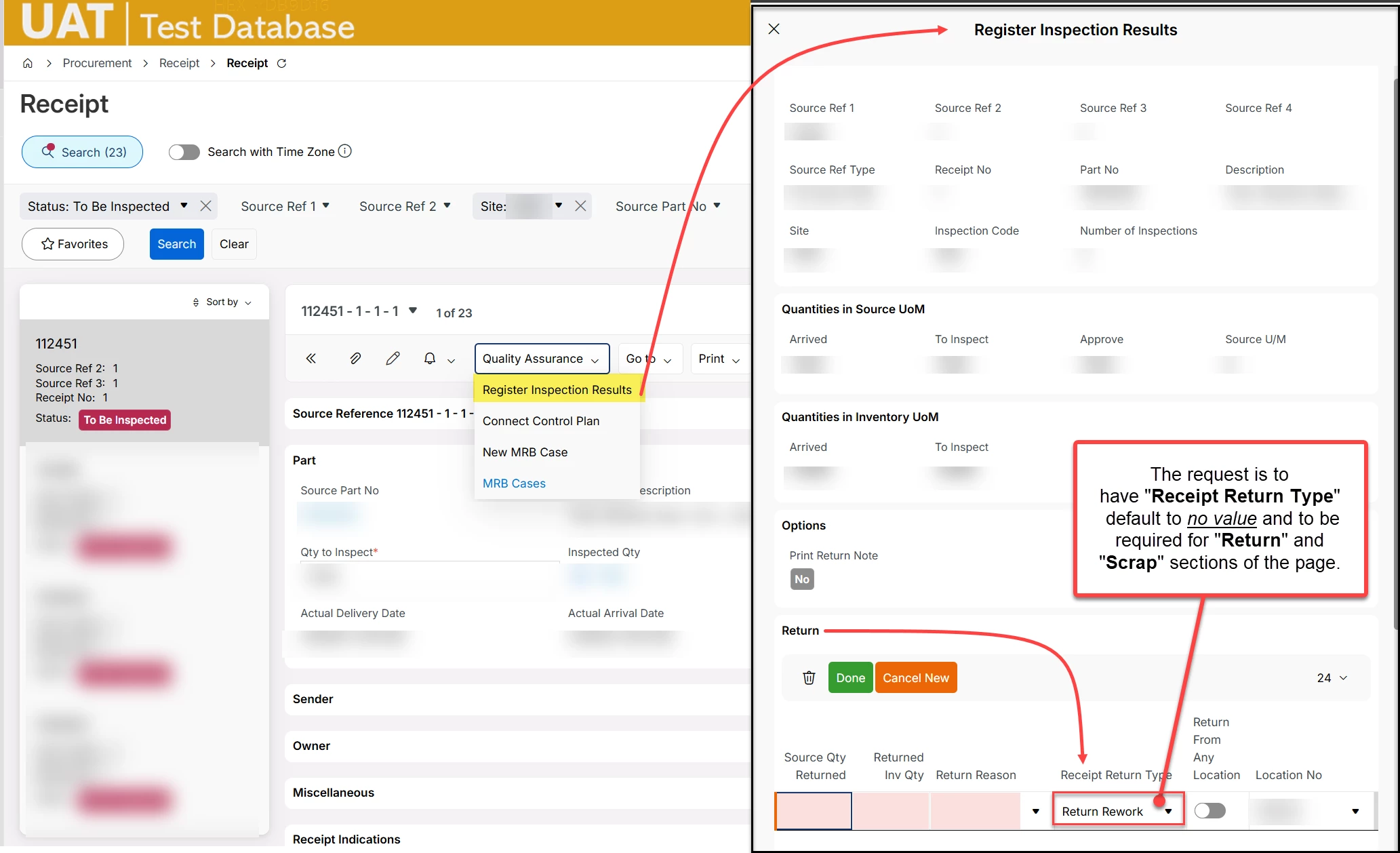
Hello.  We’d like to edit a value on a slide-out panel.  We’ve tried to find what “assistant” or page this might belong to, but haven’t had any luck. I changed the “default value” under several lists and groups for Return Type and none of them impact this slide out menu that I can find.
 

Question 1: Is there a way to edit this from the Receipt page designer, or in an assistant page? 
Question 2: How do we easily pinpoint what the URL (or segment in Page Designer) is related to these slide-out panels for future reference?  I’ve spent probably 45 minutes poking around page designer without success.  
 

Best answer by AO0001

Hi ​@Anna_B You can access page designer for an assistant by using a ‘dummy’ page:

https://<your_instance>/main/ifsapplications/web/assistant/RegisterInspectionResults/RegisterInspectionResultsAssistant

You can then open page designer, then the sections ‘Steps’, ‘Step 1’, ‘Content’ then click on the ‘Return’ link to access the content on the Return panel. You can then make the changes you need.

I hope this helps

3 replies

Forum|alt.badge.img+7
  • Do Gooder (Customer)
  • Answer
  • September 25, 2026

Hi ​@Anna_B You can access page designer for an assistant by using a ‘dummy’ page:

https://<your_instance>/main/ifsapplications/web/assistant/RegisterInspectionResults/RegisterInspectionResultsAssistant

You can then open page designer, then the sections ‘Steps’, ‘Step 1’, ‘Content’ then click on the ‘Return’ link to access the content on the Return panel. You can then make the changes you need.

I hope this helps


Forum|alt.badge.img+7
  • Author
  • Sidekick (Customer)
  • September 25, 2026

Hi ​@Anna_B You can access page designer for an assistant by using a ‘dummy’ page:

https://<your_instance>/main/ifsapplications/web/assistant/RegisterInspectionResults/RegisterInspectionResultsAssistant

You can then open page designer, then the sections ‘Steps’, ‘Step 1’, ‘Content’ then click on the ‘Return’ link to access the content on the Return panel. You can then make the changes you need.

I hope this helps

Fantastic!  Thank you, ​@AO0001   How did you figure out this URL?  Is there a list of assistant URLS somewhere I can reference? 


Forum|alt.badge.img+7
  • Author
  • Sidekick (Customer)
  • September 25, 2026

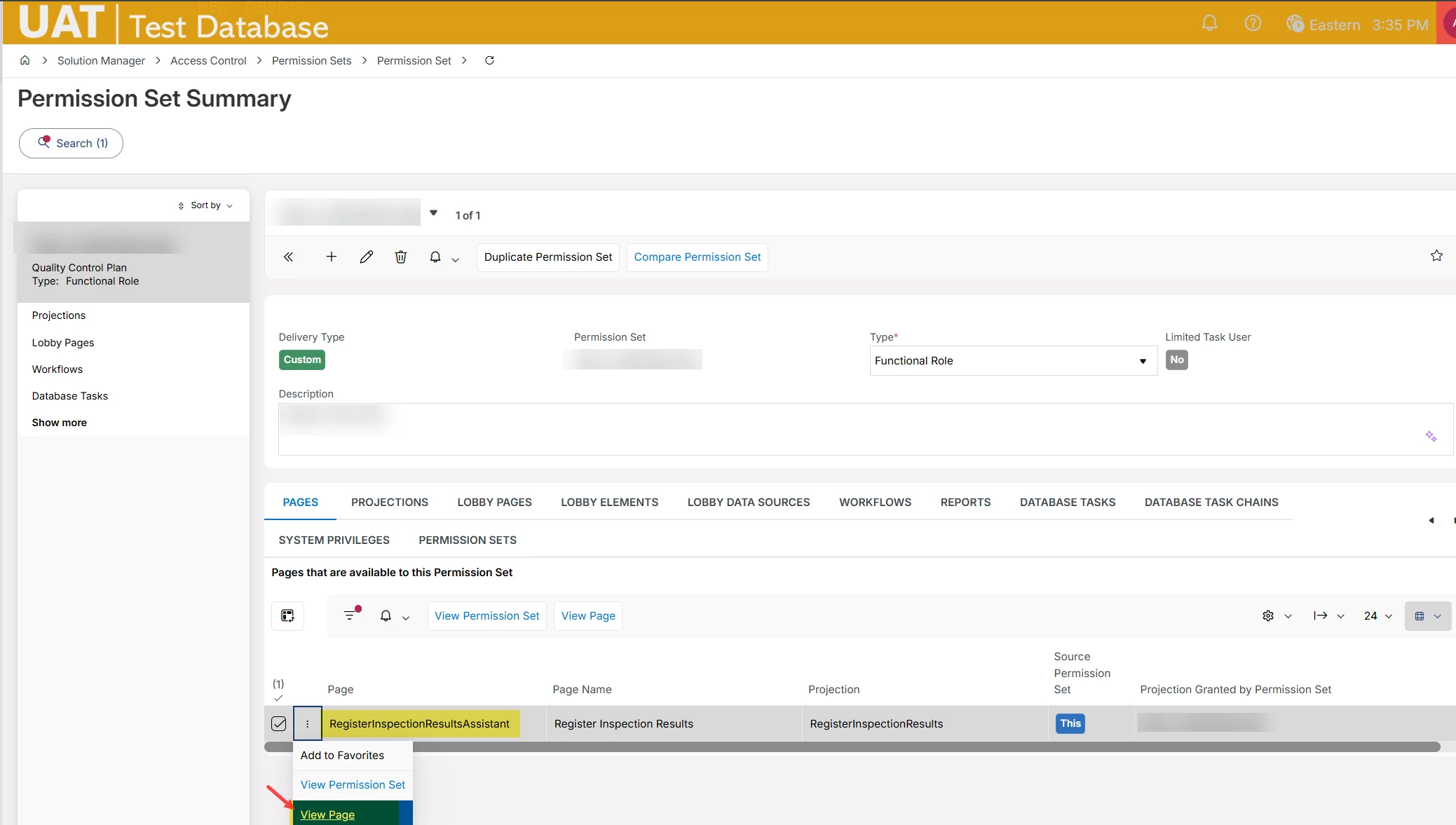
Hey ​@AO0001, we found we can get to the page from the permission set. 

Is this how you found it?  Either way, posting this screenshot here so others can find assistant pages easier.


Step 1 - Load a permission set that would have access to the assistant you’re trying to find the URL/page of

Step 2 - Filter to the name of the assistant (or the assumed name with % wild cards)

Step 3 - Click “View page” to be navigated to that assistnat page