Question

Unable to log in to IFS Field Service Management – Error A116

  • January 3, 2026
  • 1 reply
  • 65 views

  • Do Gooder (Customer)

I am unable to connect to the IFS Field Service Management application.

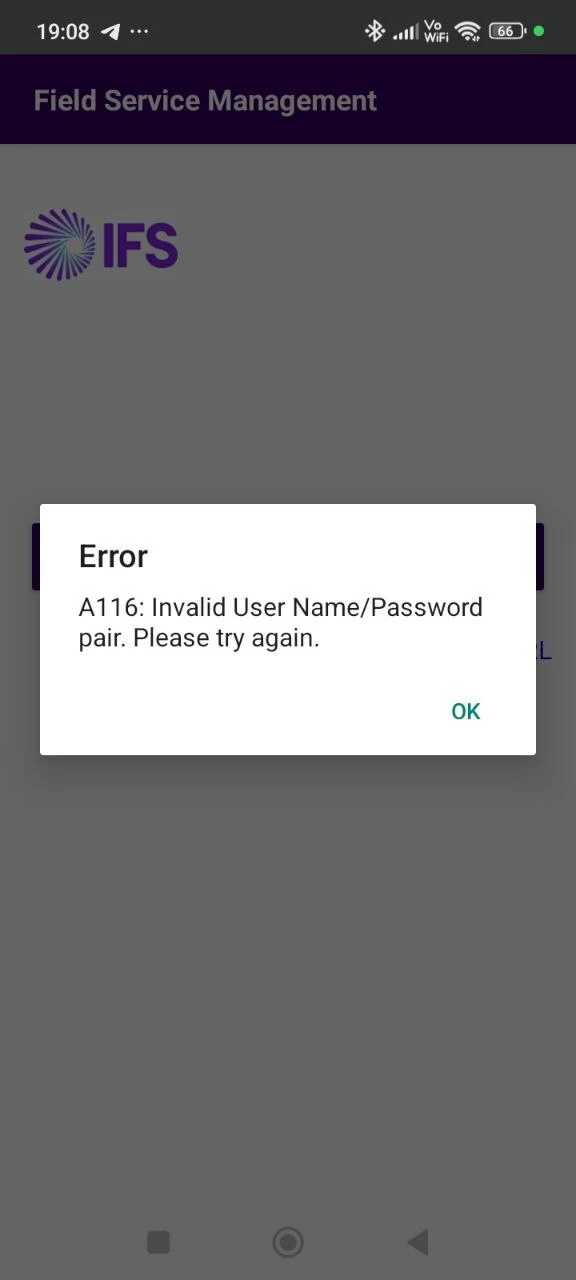
When attempting to log in, the application displays the following error message:

A116: Invalid User Name/Password pair. Please try again.

I have verified that:

  • The username and password are entered correctly

  • Caps Lock is disabled

  • The issue persists after multiple attempt

  •  

1 reply

SNIRLK
Hero (Employee)
Forum|alt.badge.img+9
  • Hero (Employee)
  • January 5, 2026

Hi ​@moose,

Greetings!

The error "A116: Invalid User Name/Password pair" when trying to connect to the IFS Field Service Management (FSM) application typically indicates authentication issues related to user credentials or account status.


Common Causes:

  • The internal service user account (e.g., METRIX or IFS_MOBILE) password has expired or been changed but not updated consistently across all required configurations.
  • The user account is locked due to multiple failed login attempts.
  • Password mismatch between the database and configuration files or application parameters.
  • Custom rules or constraints affecting user authentication.
  • Integration monitor or background services using outdated or incorrect credentials.
  • Issues specific to mobile users or mobile application initialization.


To resolve the "A116: Invalid User Name/Password pair" error in IFS FSM:

  1. Verify and synchronize passwords for internal service users (METRIX, IFS_MOBILE).
  • The METRIX user is a critical internal user for FSM mobile and integration services. If its password expires or is changed incorrectly, all mobile users may face login failures with the A116 error.
  • Similarly, the IFS_MOBILE user is used for mobile service communication and must have a valid, synchronized password.
  • To fix password-related issues:
    • Retrieve the password, nacl, and stretch values from a known working user (e.g., METRIX).
    • Update the IFS_MOBILE user with these values and unlock the account.
  • Ensure the password is updated in all relevant configuration files and application parameters.
  • After updating passwords, restart the FSM application server and mobile services to apply changes.


  1. Unlock any locked user accounts and set password expiration appropriately.
  • Confirm that the user account is not locked. If locked, unlock it manually by resetting the locked_dttm and num_failed_access fields in the person table.
  • Set the password expiration date far in the future (e.g., year 2099) to avoid unexpected expirations.


  1. Update all related configuration files and application parameters with the correct credentials.
  2. Restart FSM application and mobile services after changes.


  1. Check for and remove any custom rules causing authentication issues.
  • Check for any custom audit constraints or business rules that might interfere with authentication, such as invalid function calls in expressions (e.g., minutes() function error).
  • Remove or correct such rules to prevent authentication failures.


  1. For mobile app issues, verify license types, app distribution, and perform reinstallations if needed.
  2. Monitor integration monitor schedules and user lockout parameters to prevent account lockouts.


Hope this clarify your doubt. Let me know your feedback.


Cheers,

SN