
Answer

IFS Cloud- After adding element in newly created lobby page it's not showing

  • December 2, 2025
  • 9 replies
  • 72 views

Forum|alt.badge.img+4

Hi,

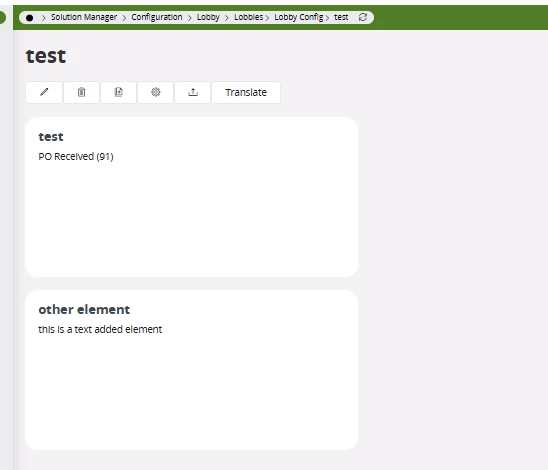
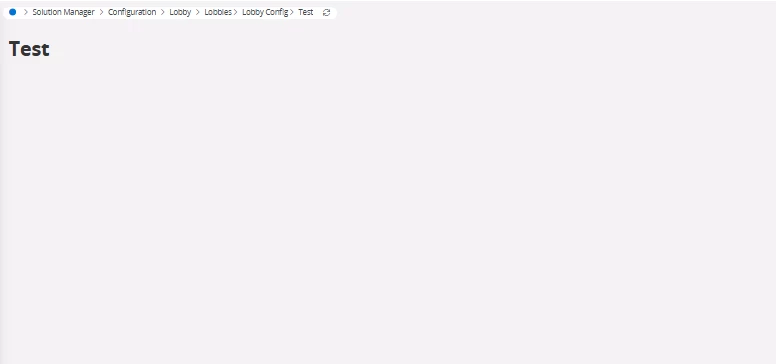
Created a lobby page and added the new element but after saving that element is not showing in the lobby page (page is empty) attached screenshot.

After creating lobby page or element do we need to make any steps to show in lobby page? please can someone help here
 

Best answer by Edwards

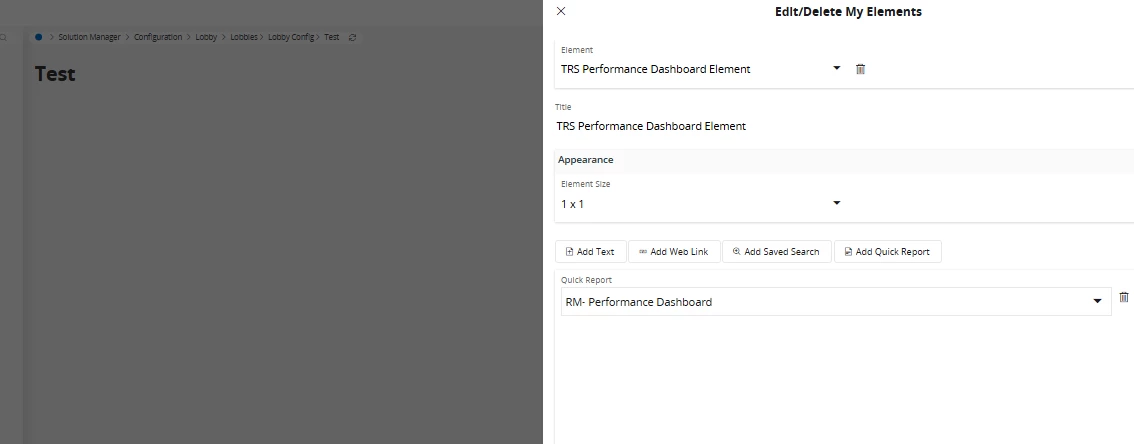
I find adding those to be a bit glitchy. When I tried to add it on its own it didn’t work at first for me either. What worked for me was to: 

  • Add a standard element, like a list
  • Add a quick report link element as you have done above
  • remove the standard element.

I think it might just need one standard element to be able to “see” the quick report element. After that I was able to add more without issue.


9 replies

Yathartha Karunananda
Hero (Employee)
Forum|alt.badge.img+11

Hi ​@Navya Indla,

Did you publish the lobby page? If yes, try to refresh the cache and see!


Forum|alt.badge.img+4
  • Author
  • Do Gooder (Customer)
  • December 2, 2025

Hi ​@Yathartha Karunananda,

Thanks for your response.

Details filled for lobby page creation and saved, if we need to do more steps please let me know from where we can publish the lobby page


Yathartha Karunananda
Hero (Employee)
Forum|alt.badge.img+11

Hi ​@Navya Indla,

Sorry my mistake. This is a lobby page not a custom page. There is no publish option. Do you have permission to view this lobby element? Did you try adding this element to another lobby page?


Forum|alt.badge.img+8
  • Hero (Customer)
  • Answer
  • December 2, 2025

I find adding those to be a bit glitchy. When I tried to add it on its own it didn’t work at first for me either. What worked for me was to: 

  • Add a standard element, like a list
  • Add a quick report link element as you have done above
  • remove the standard element.

I think it might just need one standard element to be able to “see” the quick report element. After that I was able to add more without issue.


Forum|alt.badge.img+11
  • Hero (Customer)
  • December 3, 2025

Hi ​@Navya Indla, what user did you create the lobby page under?

I have found that permissions are a pain when working with datasources, elements and lobby pages as even if your user creates them if the projection has not been granted then they don’t show. I would advise using the IFSADMIN or IFSAPP as the user when testing/creating lobbies to prevent this. 

To help now go and check the projection summary of the lobby element and see if your users has access, if not grant access.

Sarah


Forum|alt.badge.img+4
  • Author
  • Do Gooder (Customer)
  • December 3, 2025

Hi ​@Edwards,

Thanks for your response, it’s worked for me


Forum|alt.badge.img+4
  • Author
  • Do Gooder (Customer)
  • December 3, 2025

Hi ​@sholmes,

I have observed something like if we add any elements with IFSAPP user then we can’t see those elements if we login with other normal user and vice versa, why it’ll be happened, please let me know if you have any idea? 
(Note: To a normal user (which i’m using) granted all permission sets)


Forum|alt.badge.img+11
  • Hero (Customer)
  • December 3, 2025

@Navya Indla , projection need to be granted to permission sets and lobbies have their own section in the permission set so you can just grant a permission set the datasource access and not the element or vice versa (why you would I don’t know but you can). So if the lobby and the element is not there (it won’t be if you create one) then it needs adding to the permission set, so this is always worth checking once you have created a lobby that it is in the needed users permission set.

Hope that made sense, Sarah


Forum|alt.badge.img+8
  • Hero (Customer)
  • December 3, 2025

@Navya Indla 


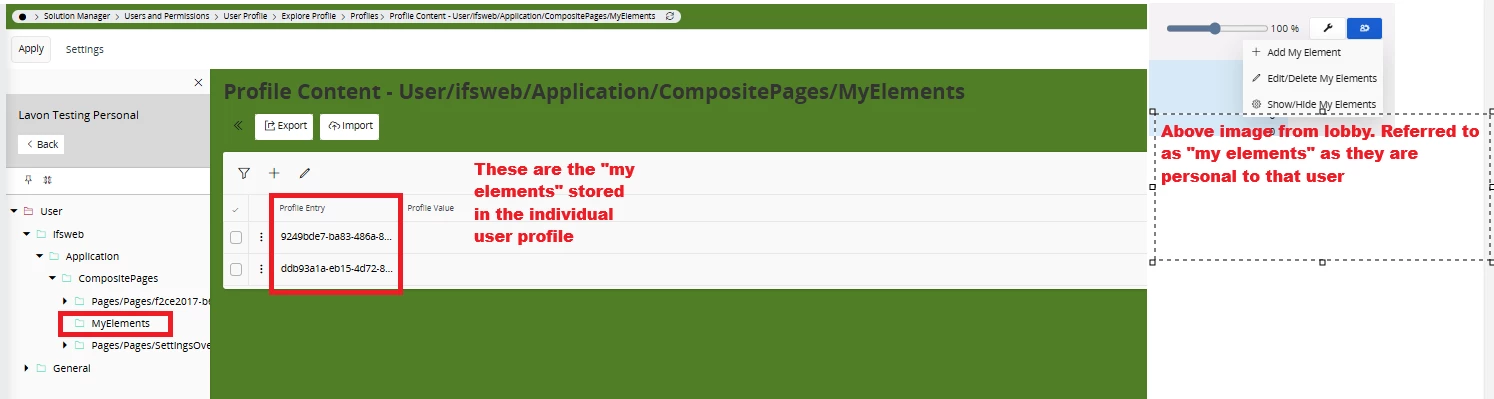
The elements you are adding in this instance are personalized, and unique for each user. Adding the personal elements nobody else will see them other than the user that they were added for. Thats why they refer to them as “my elements” here. If you REALLY wanted to copy these personalized elements to another user, you could export the profile settings from the user profile to import them into another user found in the image below. Just press Export on the page after selecting them and you can import them into another users profile.


If you want the element to be visible and available to all users when added to the lobby, as Sholmes is suggesting above you will need to create a typical type of lobby element via the lobby element designer, and grant it to the permission set used by the user. You could create an Image/Text element type with a URL Address set in the navigation section, or perhaps a linked list with similar. The only issue is that if you multiple IFS environments, the URLS are hardcoded for the environment you initially created the lobby in . . .


Or you could set up an element to use a datasource condition pointing to the order report form with the quick report ID. It would be one extra click for the user, but at least then the lobby element would be IFS environment agnostic.


Hope that helps

LEdwards