

How to Bulk Import Employee Records into IFS Applications 10 Using Excel Data Migration?

  • Nov 4, 2026 2:49 PM UTC
  • 1 reply
  • 18 views

Forum|alt.badge.img


Hello everyone,

I am using IFS Applications 10 and would like to bulk import employee records into IFS using an Excel file instead of creating each employee record manually.

I have started exploring the Data Migration functionality and created a Migration Job with the following settings:

  • Procedure Name: EXCEL_MIGRATION

  • View Name: I have come across options such as EMPLOYEE and EMPLOYEE_ACCESS.

However, I am not sure which View and corresponding methods should be used to create employee records correctly.

I would appreciate your guidance on the following questions:

  1. Is it possible to bulk create employee records in IFS Applications 10 using Excel Data Migration?

  2. Should I use the EMPLOYEE View for this purpose, or is there another recommended View?

  3. Which API methods should be added under the Method List tab?

  4. What is the correct Excel template or column structure required for this migration?

  5. Is there a recommended step-by-step procedure or official documentation for this process?

My goal is to create multiple employee records in one operation, rather than entering them individually through the IFS interface.

Thank you in advance for your help!

1 reply

tmartinkovic
Do Gooder (Customer)
Forum|alt.badge.img+1
  • Do Gooder (Customer)
  • Nov 12, 2026 4:43 PM UTC

With straight excel migration, meaning running from the Excel add-in, it’s going to be pretty difficult, as you’re really adding at least four tables’ worth of data. (Pers_tab, person_info_tab, company_person_tab, and company_emp_tab) and probably more around the addresses (person_info_address_tab), etc.

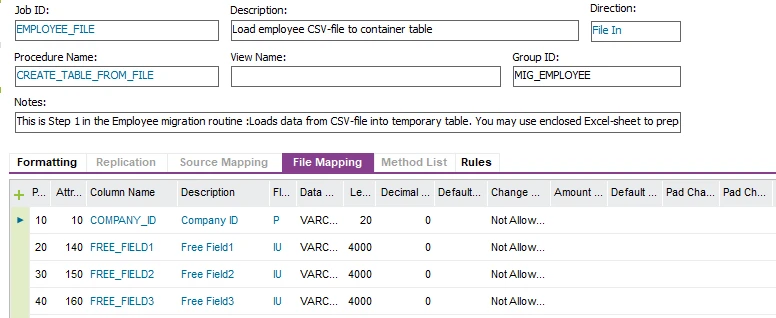
A better way is to create an excel sheet to be used for the straight migration, where a temporary table is used to load up the excel data, and then a second migration takes that temp table data and creates appropriate records for a “full” employee record.

For example: 

would load up the temp table.  You can export the file mapping tab’s data to an excel sheet, and then copy/transpose the Column Name field to a secondary tab to get the column names across the top of the excel sheet.
Add records to that csv sheet and use that as the input to the migration job to load up the temp table. 
You’ve got to make sure of your column formatting. Things like a “date” field wouldn’t be 01/31/2026, but 20260131. 

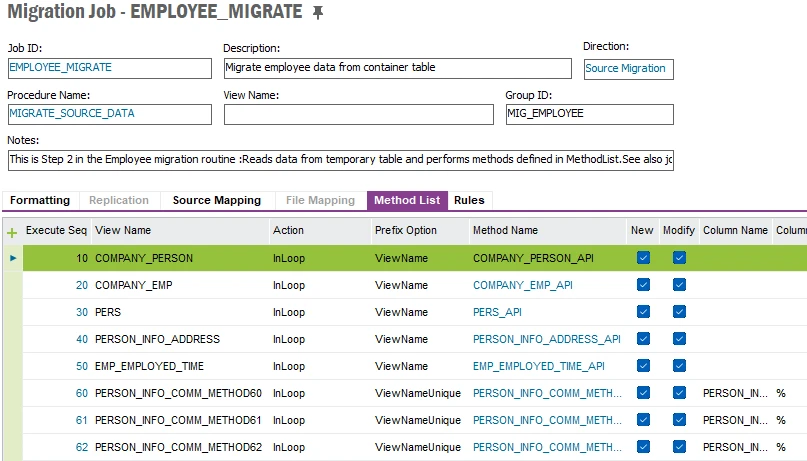
Then run the Employee_Migrate job:
 

to take the data from the temp table and load it into the person and employee tables. 
This screenshot shows why a straight ExcelMigration would be difficult, as you’re making eight entries and eight API calls to ensure the data is populated correctly.

As with all migrations like this, you’d do it in a test environment with a few records to ensure you’re getting formatting correct, and when that’s dialed in, do the full migration.