Solved

how do I make the additional details drop down always visible by default on time registration screen

  • March 5, 2026
  • 5 replies
  • 58 views

Forum|alt.badge.img+5

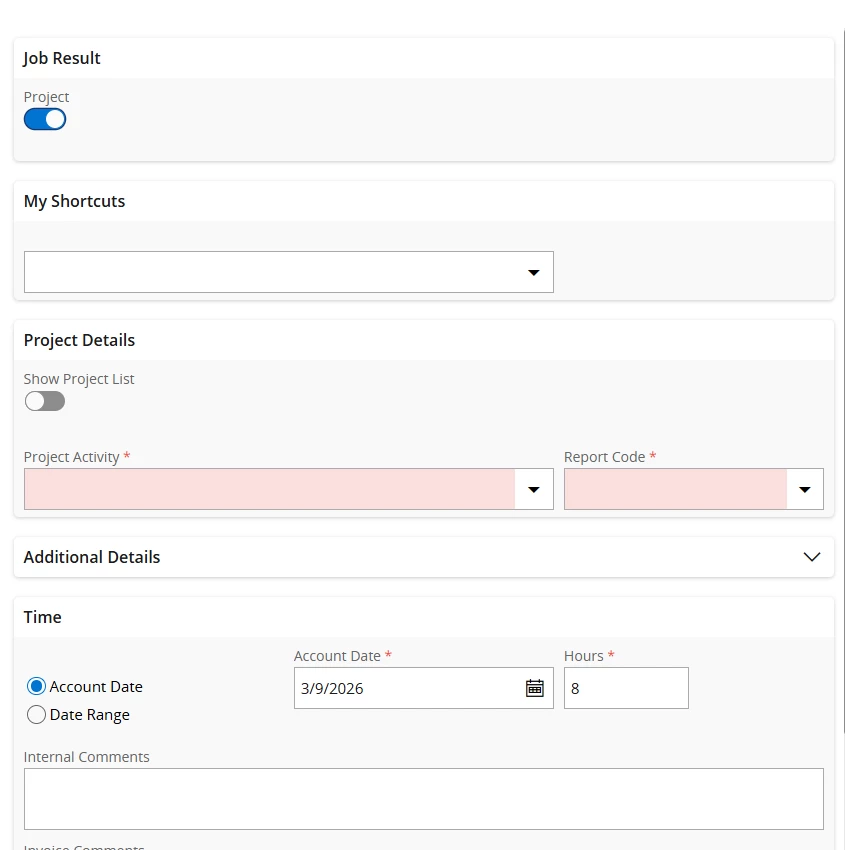
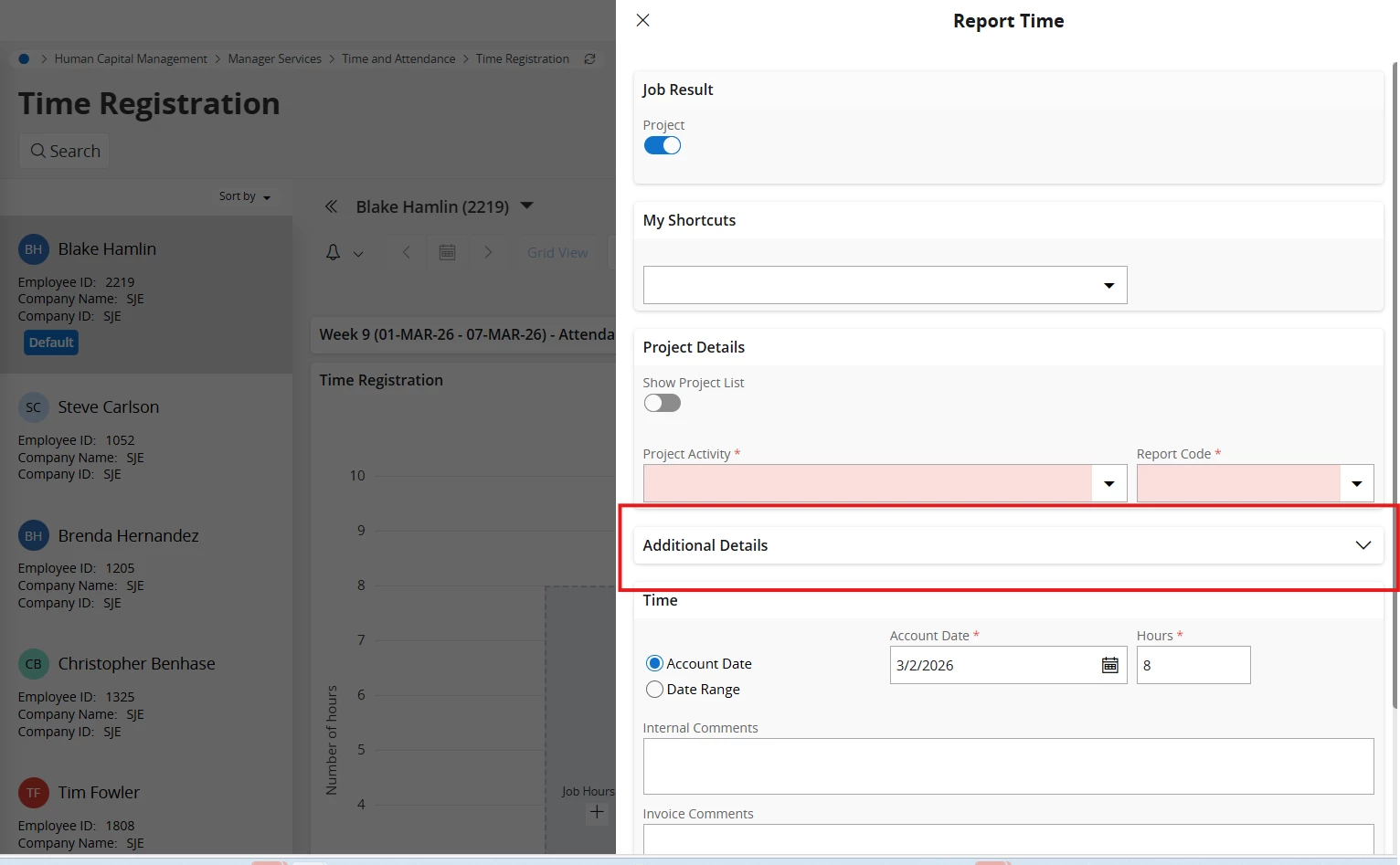
On the Time Registration screen > Report Time, How can I make the additional Details drop down always visible by default?

Best answer by AveTonitM

@blake.hamlin there is not a settings available for the end user to control the default visibility of the “Additional Details” group. 

However you can make it visible by default by using the ‘Page Designer’ editor with the following steps
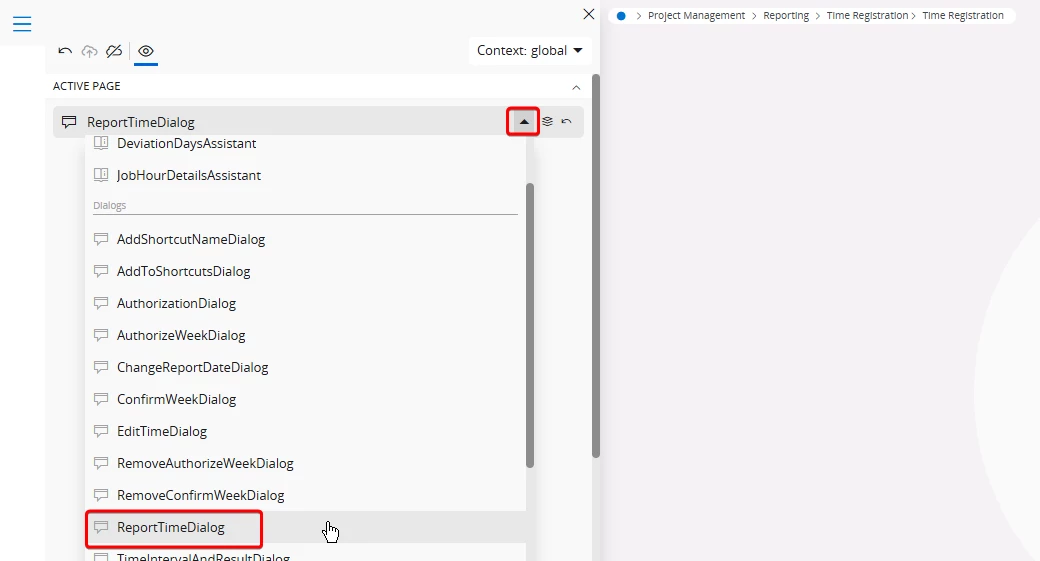
  1. Before you open the “Report Time” dialog, open the Page Designer editor from the Time Registration page (from the top right user menu)
  2. When Page Designer is loaded switch the editor to show the “ReportTimeDialog”
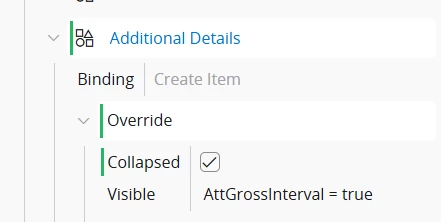
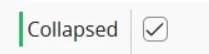
  3. Now open the Content / Additional Details branch. Make sure You are in the right branch as there might be several nodes named “Additional Details”. Click twice on the “Collapsed” tickbox. 
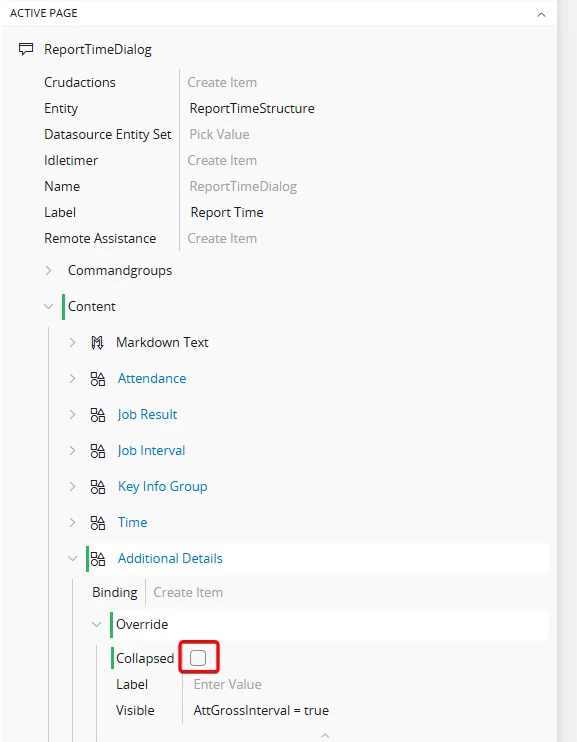
  4. Save and publish the changes. Now when reloading the Report Time dialog the additional details group is not collapsed

Hope this helps. I’m not sure what version you are in so there might be some differences to my examples from 24R2.

5 replies

AveTonitM
Hero (Partner)
Forum|alt.badge.img+10
  • Hero (Partner)
  • Answer
  • March 6, 2026

@blake.hamlin there is not a settings available for the end user to control the default visibility of the “Additional Details” group. 

However you can make it visible by default by using the ‘Page Designer’ editor with the following steps

  1. Before you open the “Report Time” dialog, open the Page Designer editor from the Time Registration page (from the top right user menu)
  2. When Page Designer is loaded switch the editor to show the “ReportTimeDialog”
  3. Now open the Content / Additional Details branch. Make sure You are in the right branch as there might be several nodes named “Additional Details”. Click twice on the “Collapsed” tickbox. 

  4. Save and publish the changes. Now when reloading the Report Time dialog the additional details group is not collapsed

Hope this helps. I’m not sure what version you are in so there might be some differences to my examples from 24R2.


Forum|alt.badge.img+5
  • Author
  • Sidekick (Customer)
  • March 11, 2026

@AveTonitM I am still not seeing the additional details automatically expanded. Is there any more to the page configuration I could be missing? 


  • Sidekick (Customer)
  • March 11, 2026

@AveTonitM I am still not seeing the additional details automatically expanded. Is there any more to the page configuration I could be missing? 


It seems to me that it should be unchecked


AveTonitM
Hero (Partner)
Forum|alt.badge.img+10
  • Hero (Partner)
  • March 12, 2026

@AveTonitM I am still not seeing the additional details automatically expanded. Is there any more to the page configuration I could be missing? 


It seems to me that it should be unchecked


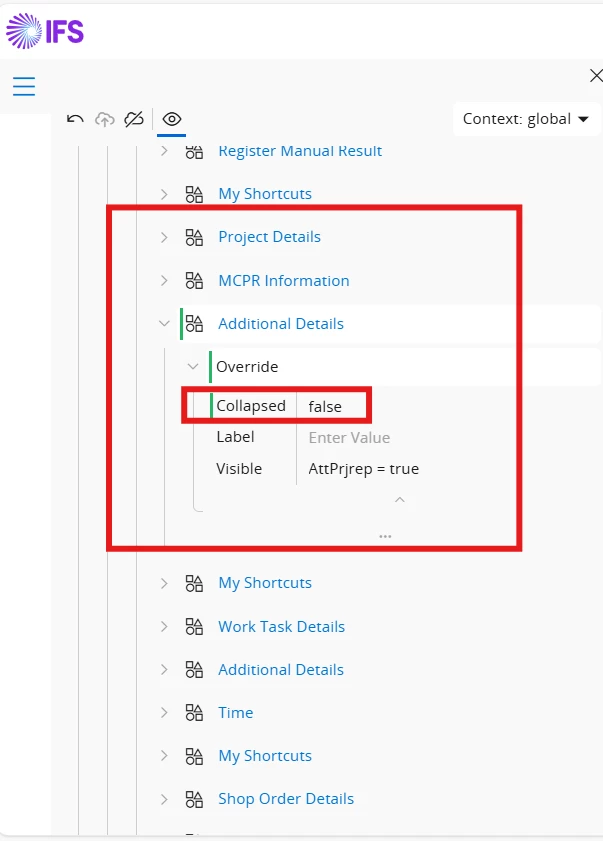
@JPyszny yes, the “Collapsed” attribute should be unticked. You can untick it save and publish the change. After reloading the page the “Additional Details” should be visible by default for all users


Abdul
Superhero (Partner)
Forum|alt.badge.img+20
  • Superhero (Partner)
  • March 12, 2026

@JPyszny, you are correct, it should be unchecked/false. 

@blake.hamlin, please refer to the screenshot below. I checked it's working.