

Question

Modifying forms containing custom fields.

  • August 17, 2026
  • 2 replies
  • 52 views

Forum|alt.badge.img+5

Hi,

After uploading a new release and service updates, warnings appeared on forms containing custom fields: "The configuration baseline is behind the latest update and should be rebased". What is the procedure for modifying settings on the form to prevent the added custom fields from disappearing? What is the best practice in this matter?



2 replies

Forum|alt.badge.img+12
  • Hero (Customer)
  • August 17, 2026

If you go and look in the technical docs and search Rebase Client Configurations there is details there on how to complete this process in the UI.  Rebase Client Configurations - Technical Documentation For IFS Cloud (this link is for 24R2)


tashah
Do Gooder (Partner)
Forum|alt.badge.img+1
  • Do Gooder (Partner)
  • August 17, 2026

“The configuration baseline is behind the latest update and should be rebased.”


does not mean that your custom fields have been deleted. It means that the standard IFS page has changed in the new release, while your Page Designer configuration was created against an older version of that page.

IFS calls this a “Behind” configuration. When the core application is updated, the baseline used by your configuration may become outdated, so IFS requires the configuration to be rebased against the new core version.

Recommended solution

Do not delete and recreate the custom fields. Do not simply use “Mark as Rebased” as the normal solution.

Instead, use the Rebase Designer.

A typical procedure is:

  1. Open the affected page in Page Designer.
    • Open the page containing the custom fields.
    • You will see the warning/“behind” indicator.
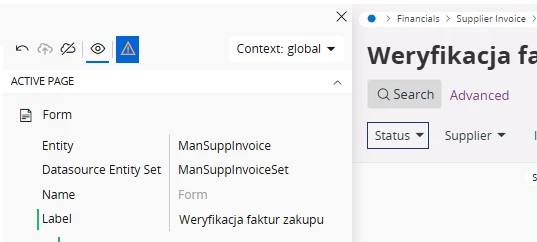
  2. Open the Rebase Designer.
    • Select the warning icon.
    • IFS will show the differences between:
      • the previous configuration baseline,
      • the new IFS application baseline, and
      • your existing configuration.
  3. Review each change introduced by the IFS update.
    • The left side represents changes in the new IFS core.
    • The right side represents your existing configuration.
    • Pay particular attention to fields, groups, lists, labels and other page elements where both IFS and your organization have made changes.
  4. Apply the baseline update.
    • Start the rebase operation for the affected element.
    • IFS applies the new core change to the configuration baseline.
  5. Preserve your custom configuration.
    • If the rebase operation temporarily overwrites your custom field/layout configuration, use Undo for that particular configuration change.
    • This allows the baseline to be updated while retaining your existing customization. This is particularly important for custom fields that you want to keep.
  6. Save the rebase.
  7. Repeat until all “Behind” indicators are resolved.
  8. Publish the configuration.
    • Once the rebase is complete and there are no remaining baseline changes, publish the configuration.
    • The configuration will then be aligned with the new IFS release.