Question

Display user and system environment

  • March 23, 2026
  • 5 replies
  • 53 views

Dear IFS Team,

we are currently working with multiple environments (e.g. UAT and PROD) and different users.

At the moment, it is not clearly visible in the IFS UI which environment and which user is currently active. This makes it easy to accidentally work in the wrong system.

Is there a way to display the current environment (e.g. UAT/PROD) and the logged-in user more prominently in the interface?

Thank you in advance.

Kind regards,
Johanna Geiselhart

5 replies

Forum|alt.badge.img+4
  • Do Gooder (Partner)
  • March 23, 2026

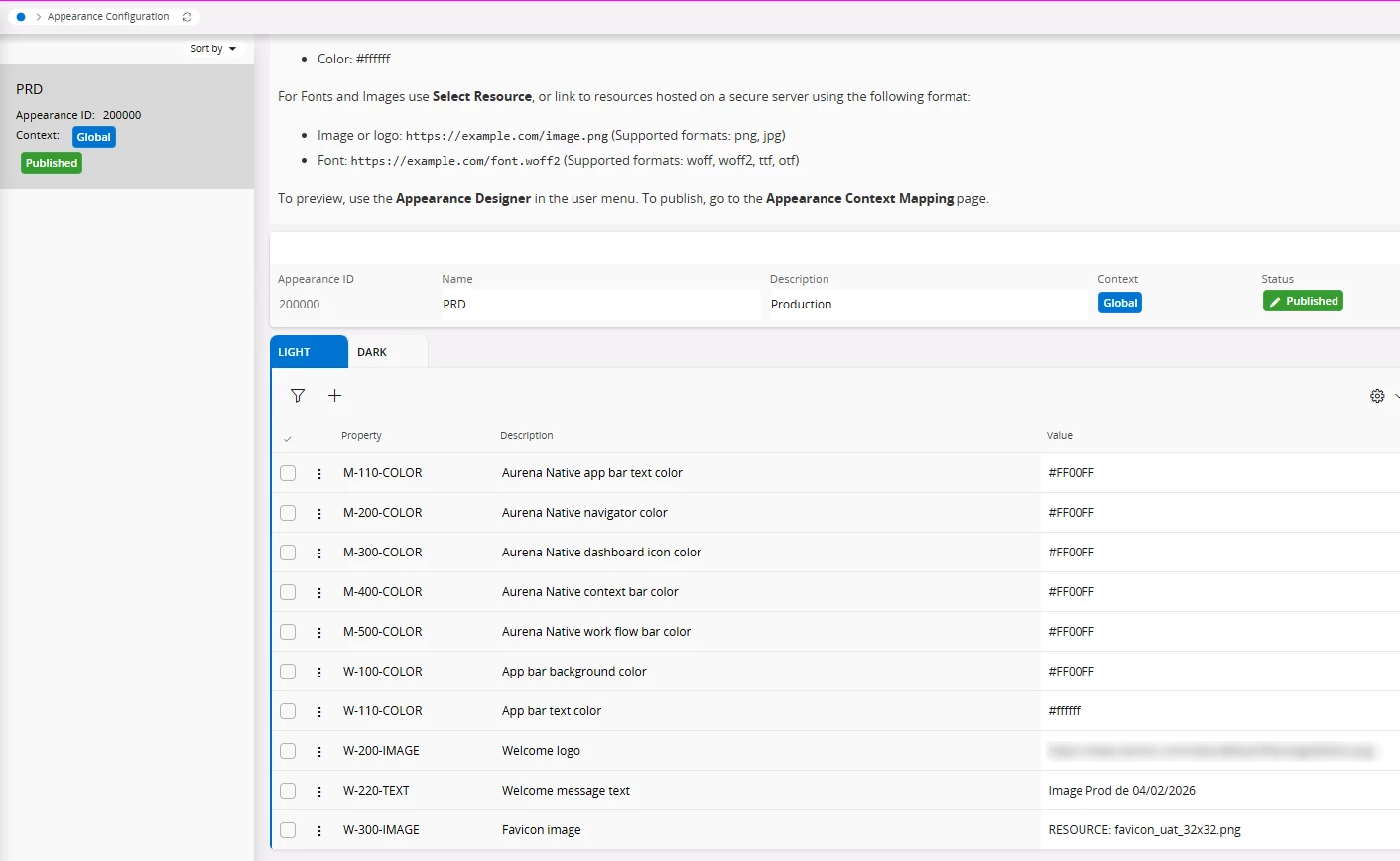
In Cloud you can achieve different colour schemes using Appearance Configuration

Click on the user menu in the top right of the screen.

Go to Appearance Designer > Appearance Configuration

Create a new record for Global Context

Create new records that set a unique colour scheme for each environment.

Ensure it published to the Global context so all users see the same colour scheme.


Full information on how to set and publish appearances can be found in the tech documents:

Appearance Designer Overview - Technical Documentation For IFS Cloud


Best,

Stephen Aldington


Forum|alt.badge.img+9
  • Hero (Customer)
  • March 23, 2026


Each environment can be personalized with custom colors and logos.


You can even add the logo in the AppBar if needed : W-100-IMAGE


  • Superhero (Employee)
  • March 23, 2026

In 25R2 we also introduced the option to display a message banner in the environment (called Broadcast Message). You could use that to clearly indicate which environment the user is currently connected to. 


Forum|alt.badge.img+2
  • Do Gooder (Partner)
  • March 23, 2026

Hi Johanna,

In IFS Cloud (Aurena UI), there is currently no standard out-of-the-box feature to prominently display the environment (UAT/PROD) in the top bar together with the user.

However, you can achieve this effectively using Appearance Designer and Lobby customization, which is the recommended approach in IFS Cloud.

  1. Use Appearance Designer (Best Practice)

In IFS Cloud, Appearance Designer allows you to visually differentiate environments.

You can:

  • Change header color/theme
  • Add a custom banner or logo
  • Apply environment-specific styling

Example:

  • PROD → Red header (warning style)
  • UAT → Yellow/orange header
  • TEST → Blue/green header

This is the most effective method because it is always visible on every screen.

  1. Display Environment via Welcome Message

You can configure environment-specific text using:

Solution Manager → Appearance Designer → Customer Text
Key: W-220-TEXT

Example messages:

  • “You are in PRODUCTION”
  • “UAT Environment – Test Only”

This message appears on the welcome/login screen and helps users identify the environment immediately.

  1. Create Environment-Specific Lobby (Home Page)

In IFS Cloud, Lobby Pages are commonly used.

Approach:

  • Create a custom lobby
  • Add a large text widget like:
    “PRODUCTION ENVIRONMENT” or “UAT ENVIRONMENT”
  • Set it as the default landing page

This ensures users clearly see the environment after login.

Important (During Environment Refresh)

If environments are refreshed (e.g. PROD to UAT), make sure to exclude the following tables to preserve branding:

  • fnd_branding_tab
  • fnd_branding_property_tab
  • fnd_branding_resource_tab
  • fnd_branding_token_tab

Summary

  • No native top-bar environment indicator in IFS Cloud
  • Use Appearance Designer for visual differentiation
  • Add welcome text for login-level clarity
  • Use Lobby page for strong visibility

Combining these approaches significantly reduces the risk of working in the wrong environment.


martin.surasky
Sidekick (Customer)
Forum|alt.badge.img+9
  • Sidekick (Customer)
  • March 23, 2026

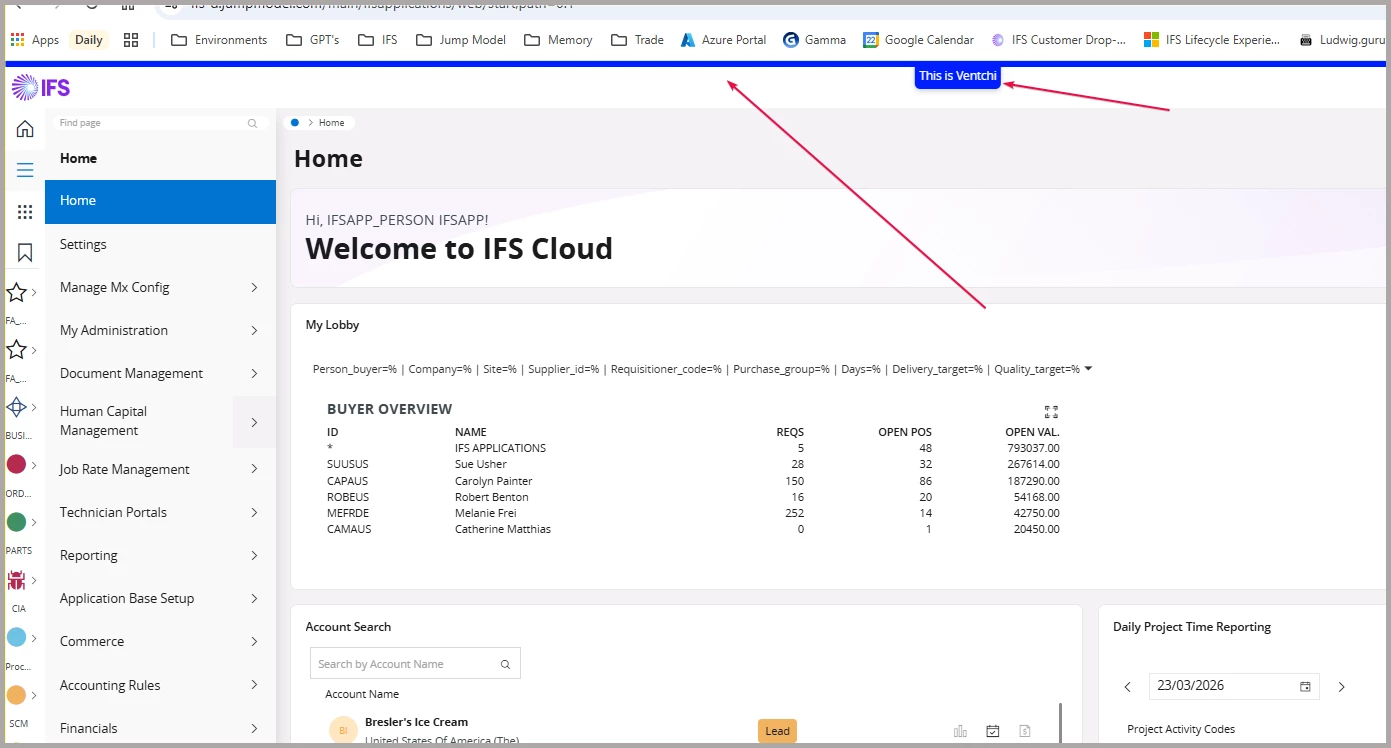
There is been a lot and great suggestions already, but I would like to add one that requires almost no configuration and delivers precisely what you look for (easily and clearly tell one environment from the other to avoid confusion).

The solution I use is the IFS Aurena Insight Add-On for Chrome Browsers (I believe it works in Edge as well)


IFS Instance with IFS Aurena Insight Add-On


Notice the “colored rim” and the text on top. Hard to miss!