

Solved

TimeClockExe issue - file not found

  • Jul 12, 2021 2:37 PM UTC
  • 3 replies
  • 378 views

Forum|alt.badge.img+8

Hi

We’re struggling with some errors, when trying to run TimeClockExe.exe after installation from .msi

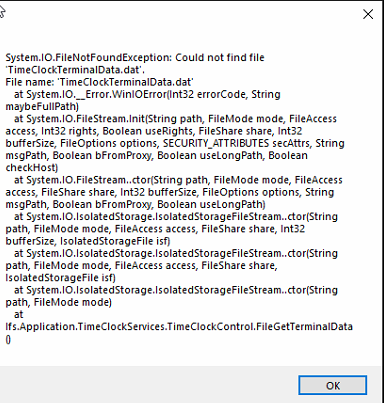
We tried to run it, but every time it shows a message: Could not find file: TimeClockTerminalData.dat
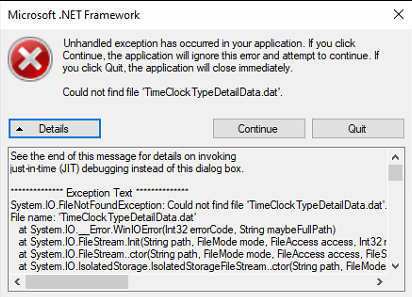
after clicking OK, it shows other error message, with different file name being not found TimeClockTypeDetailsData.dat:
 

When trying to run IFS Applications on this machine there is no issue, unless we try to show Time Clock, then it says then more than one Time Clock window is open.

There is no issue run TimeClockExe on my computer (other than the pne mentioned above), under the same account.


  1. What are the reasons behind those missing files error messages and this more than one Time Clock window is open?
  1. Is there some full spec on IFS user settings used in Time Clock? I found it won’t connect to database (shows “Offline”) unless i added some higher permission set, like IFSADMIN or IFSAPP.   

/Wiktor


Best answer by Kevin Curtis

Hi Wiktor:

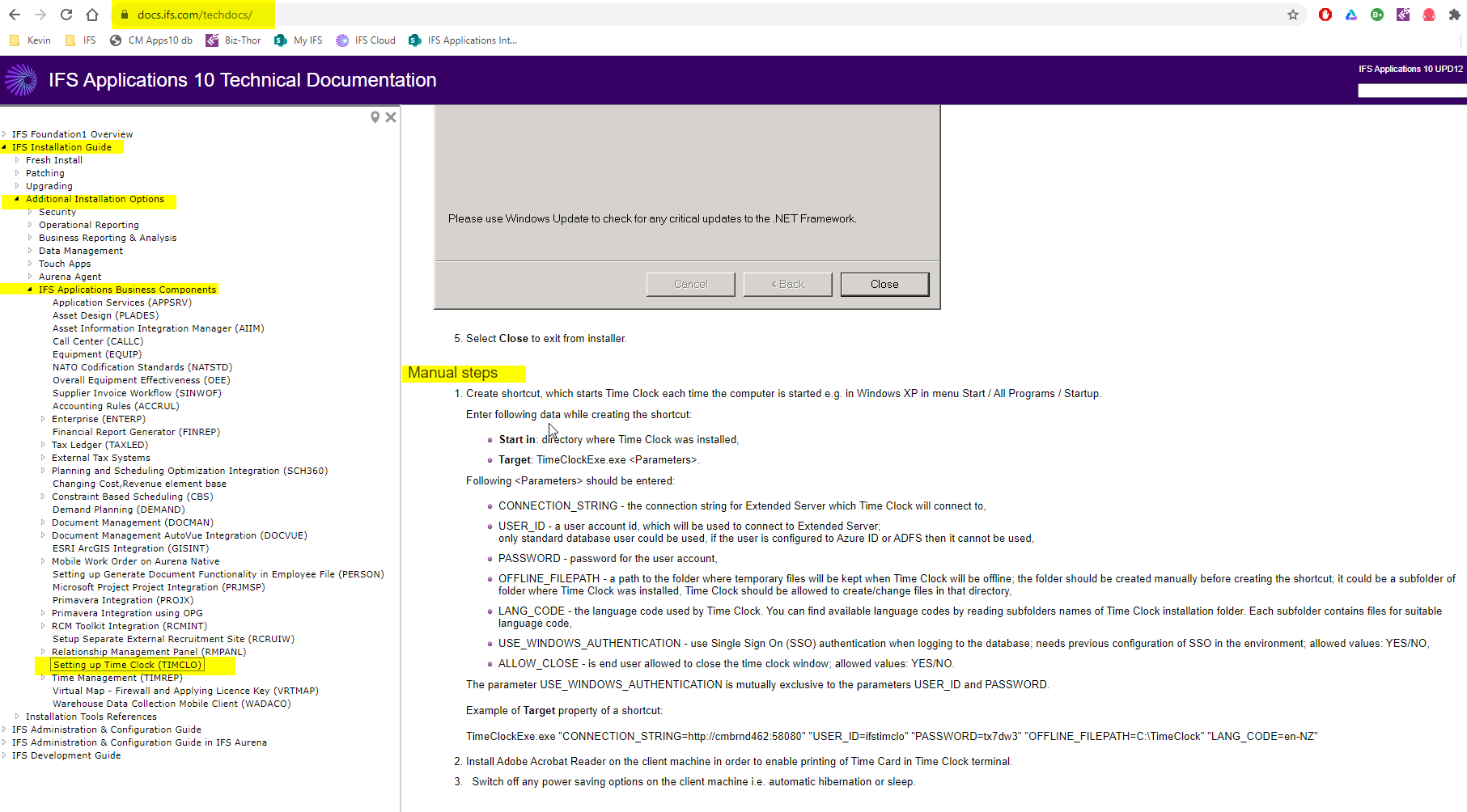
Just checking to see if you’ve followed the manual steps from the Technical Documentation  from https://docs.ifs.com/techdocs/.   Here’s the path to the instructions if you don’t have them.


View original
This topic has been closed for replies.

3 replies

Forum|alt.badge.img+5
  • Sidekick (Employee)
  • Answer
  • Jul 12, 2021 5:00 PM UTC

Hi Wiktor:

Just checking to see if you’ve followed the manual steps from the Technical Documentation  from https://docs.ifs.com/techdocs/.   Here’s the path to the instructions if you don’t have them.


Forum|alt.badge.img+8
  • Author
  • Sidekick (Customer)
  • Jul 12, 2021 6:34 PM UTC

Hi Kevin

Yes, we did follow it with manual steps as well.

Is there something in particular to take into account?

/Wiktor


Forum|alt.badge.img+8
  • Author
  • Sidekick (Customer)
  • Jul 13, 2021 2:09 PM UTC

Finally we did manage to do it.

Something went wrong when installing the program.

Thank you @Kevin Curtis 

/Wiktor