

Question

IFS Cloud navegator node translation with different context

  • September 7, 2026
  • 2 replies
  • 32 views

lopespetro
Hero (Customer)
Forum|alt.badge.img+13

Hi all,

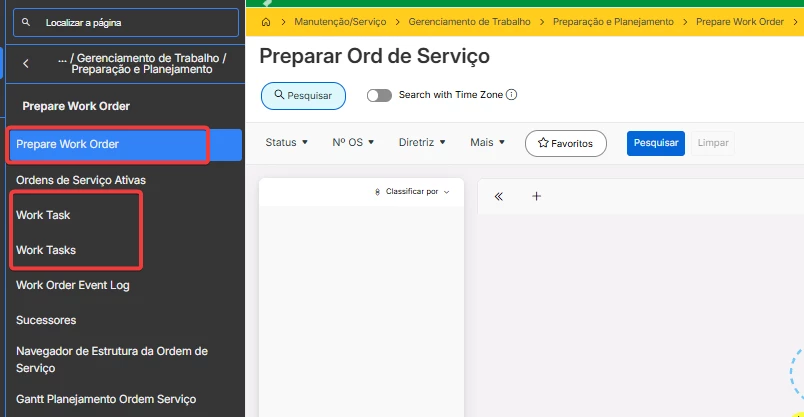
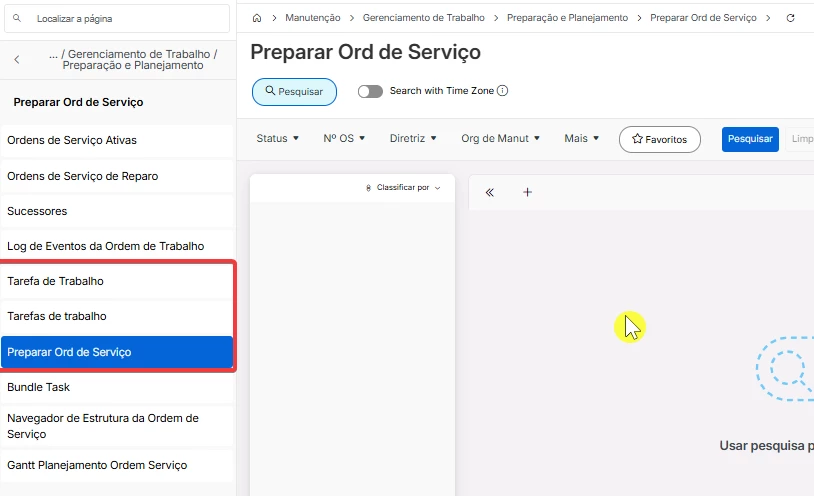
Does anyone know how I can fix the translations after creating a different context and reordering the nodes?

After I reorder the nodes, IFS no longer translates the terms correctly, even after refresh the cache.

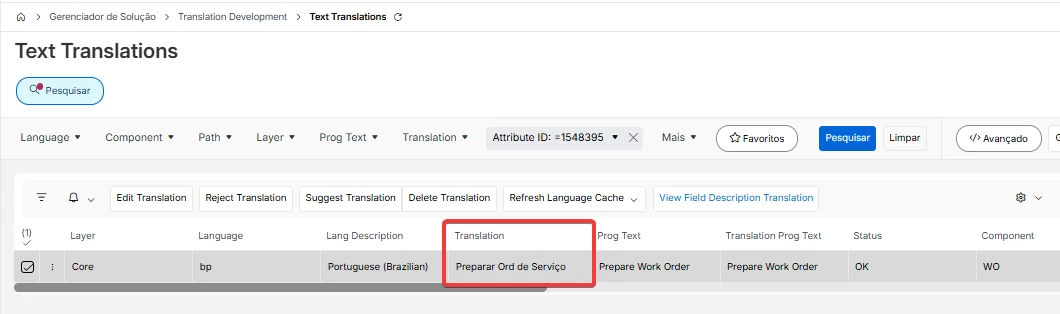
The translations under Text Translations are correct, but they don’t seem to be applied when using a context with reordered nodes.

Has anyone experienced this issue or knows how to fix it?

Thanks!
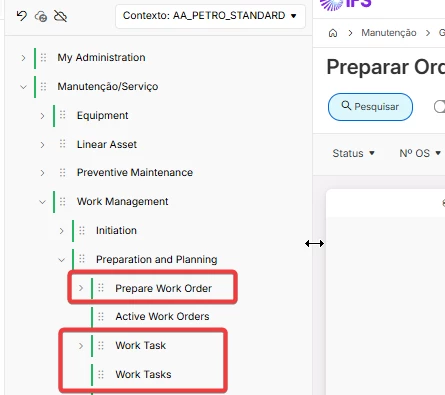
 

Global context without any change in navegatior design.
 

2 replies

Forum|alt.badge.img+10
  • Hero (Employee)
  • September 8, 2026

Hi.  I found the following information -


In IFS Cloud, when you create a custom Navigation Context and reorder or restructure navigator nodes, the framework creates context-specific configuration overrides (CONFIG layer entries) for those nodes.

Even though the translations exist under Text Translations for the core layer, the reordered nodes in your custom context reference context-layer keys. Until the context layer is scanned and the language/navigator caches are fully refreshed, IFS defaults to the base English (Prog Text).

How to Fix Navigation Context Node Translations

1. Verify Node Prog Text (Base Text)

  • Open your Navigation Context in the Navigator Designer.

  • Ensure the base label / Prog Text of the reordered nodes exactly matches the original core text (case-sensitive). If the base string was modified during reordering, the translation lookup key changes.

2. Scan Translatable Text for Configurations

Because new context structures introduce context-level text entries, you must scan the configuration layer:

  1. Navigate to Solution Manager > Setup > Translation > Scan Translatable Text (or Scan Configuration Texts).

  2. Select Configuration / Custom Context as the target layer.

  3. Run the scan job to register the newly reordered context nodes into the translation database.

3. Verify Translation Layer Mapping

  1. Go to Solution Manager > Setup > Translation > Text Translations.

  2. Search for the term(s) and filter by:

    • Main Type: NAVIGATOR (or CONFIG)

    • Module: FNDBAS (or relevant component)

  3. Ensure the translated strings are populated for both the Core and CONFIG / Context layers for your target language(s).

4. Refresh Language & Navigation Server Caches

Refreshing only the standard browser cache is often insufficient because navigator structures and translations are cached separately on the IFS Application Server:

  1. Go to Solution Manager > Setup > Translation > Refresh Language Cache.

  2. Run Refresh Language Cache for the affected language(s).

  3. Go to Solution Manager > Setup > System Administration > Refresh Server Caches.

  4. Select and execute Navigator / Context Cache and Dictionary / Language Cache.

5. Reset Client Session

  1. Log out of IFS Cloud completely.

  2. Clear your browser cache / local storage or open a fresh private/incognito session.

  3. Log back in under the custom Navigation Context and switch to the target language.


I hope this information helps!  Jane


lopespetro
Hero (Customer)
Forum|alt.badge.img+13
  • Author
  • Hero (Customer)
  • September 10, 2026

Hi.  I found the following information -


In IFS Cloud, when you create a custom Navigation Context and reorder or restructure navigator nodes, the framework creates context-specific configuration overrides (CONFIG layer entries) for those nodes.

Even though the translations exist under Text Translations for the core layer, the reordered nodes in your custom context reference context-layer keys. Until the context layer is scanned and the language/navigator caches are fully refreshed, IFS defaults to the base English (Prog Text).

How to Fix Navigation Context Node Translations

1. Verify Node Prog Text (Base Text)

  • Open your Navigation Context in the Navigator Designer.

  • Ensure the base label / Prog Text of the reordered nodes exactly matches the original core text (case-sensitive). If the base string was modified during reordering, the translation lookup key changes.

2. Scan Translatable Text for Configurations

Because new context structures introduce context-level text entries, you must scan the configuration layer:

  1. Navigate to Solution Manager > Setup > Translation > Scan Translatable Text (or Scan Configuration Texts).

  2. Select Configuration / Custom Context as the target layer.

  3. Run the scan job to register the newly reordered context nodes into the translation database.

3. Verify Translation Layer Mapping

  1. Go to Solution Manager > Setup > Translation > Text Translations.

  2. Search for the term(s) and filter by:

    • Main Type: NAVIGATOR (or CONFIG)

    • Module: FNDBAS (or relevant component)

  3. Ensure the translated strings are populated for both the Core and CONFIG / Context layers for your target language(s).

4. Refresh Language & Navigation Server Caches

Refreshing only the standard browser cache is often insufficient because navigator structures and translations are cached separately on the IFS Application Server:

  1. Go to Solution Manager > Setup > Translation > Refresh Language Cache.

  2. Run Refresh Language Cache for the affected language(s).

  3. Go to Solution Manager > Setup > System Administration > Refresh Server Caches.

  4. Select and execute Navigator / Context Cache and Dictionary / Language Cache.

5. Reset Client Session

  1. Log out of IFS Cloud completely.

  2. Clear your browser cache / local storage or open a fresh private/incognito session.

  3. Log back in under the custom Navigation Context and switch to the target language.


I hope this information helps!  Jane

Hi ​@Jane Perry, Tks for the info and quick reponse. I’ll take a look this week and let you know if it worked.