
ISSUE/QUESTION: Within Alliance Partner Portal, how can I remove or disable Cancel Order from the Orders drop-down?
ENVIRONMENT: Alliance Partner Portal
AUDIENCE: External / Internal
RESOLUTION/ANSWER:
You can accomplish this by following these steps:
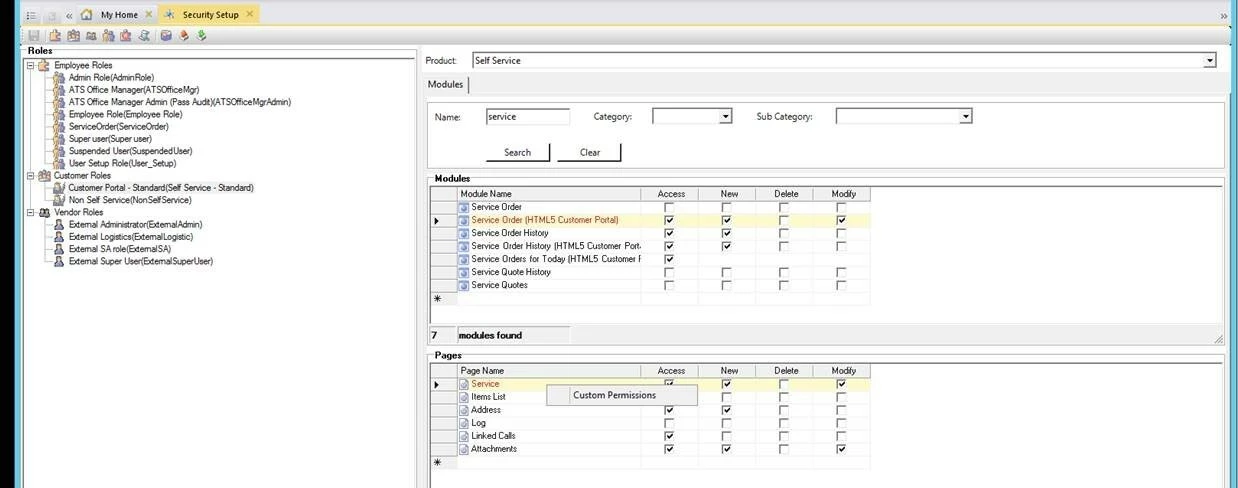
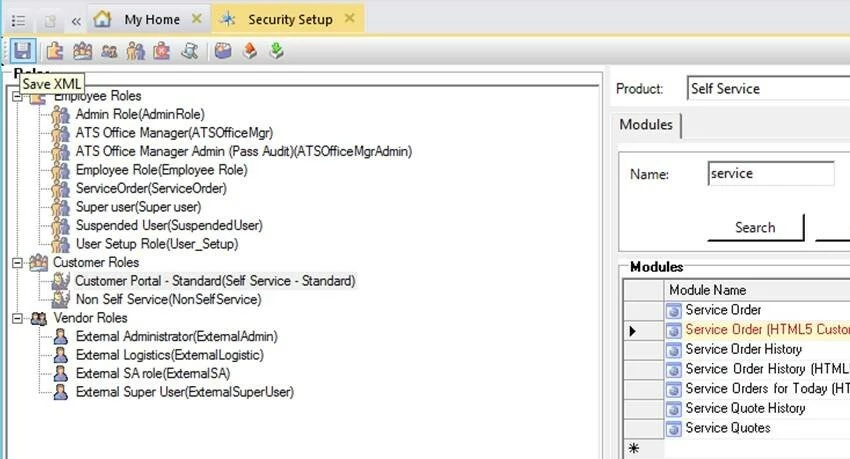
- Go to Security Setup module.
- Click on the Employee Role, i.e. under Customer Roles, select Customer Portal – Standard(Self Service – Standard)
- Under Modules, search for ‘service’ and select Service Order (HTML5 Customer Portal) and then the bottom section Pages should display.
- On the Pages section, highlight the Service line and right click. The will open a window with the words ‘Custom Permissions’. Click on this box to open it.
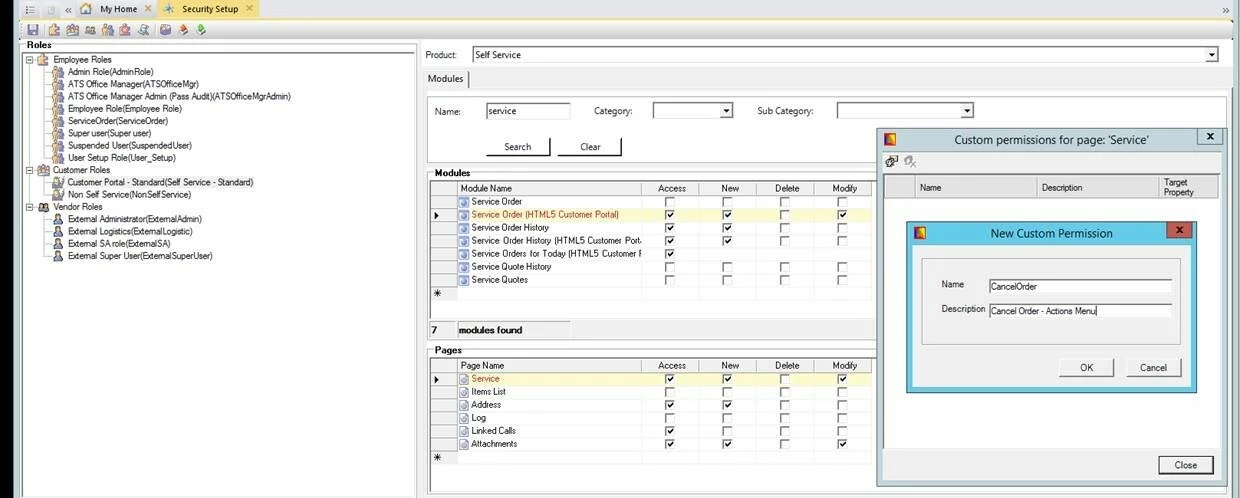
- You will then see two icons under the blue banner ‘Custom permissions for page ‘Service’. Click on the first icon to Insert new permission.

- Another window will open ‘New Custom Permission’. In the Name field, enter CancelOrder (all one word), and in the Description field, enter Cancel Order – Actions Menu. Click OK.
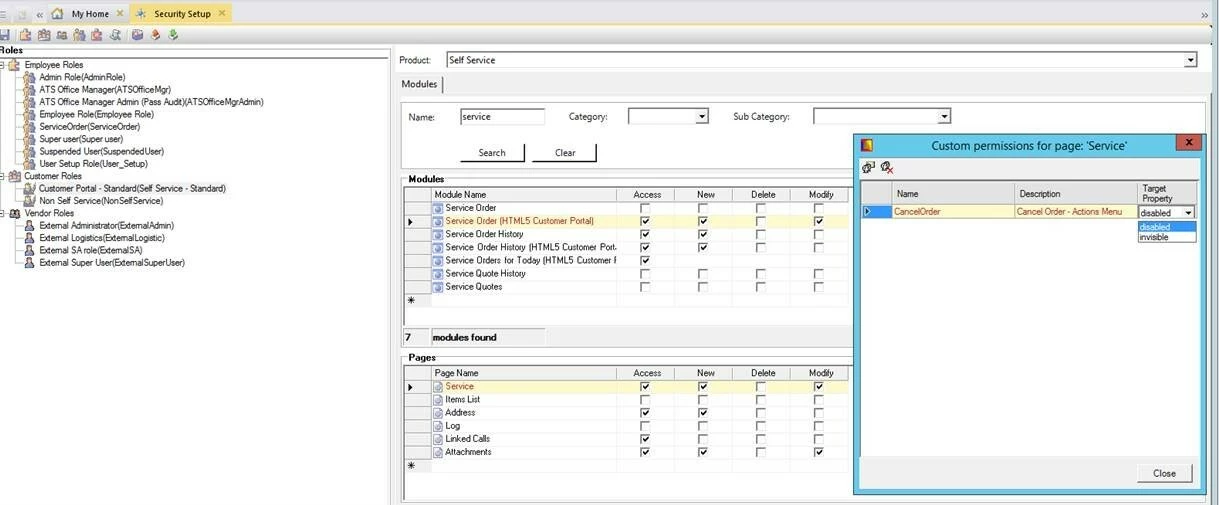
- Click on the Target Property dropdown and select ‘disabled’ or ‘invisible’ (although I selected disabled, it functioned the same as invisible as you will see below). Click Close to close the window.
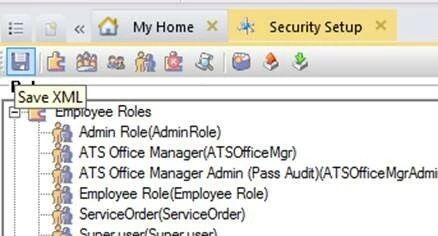
- You will then need to save the changes by clicking on the blue Save XML icon on the top left part of the screen, just above the Employee Roles (first icon listed).
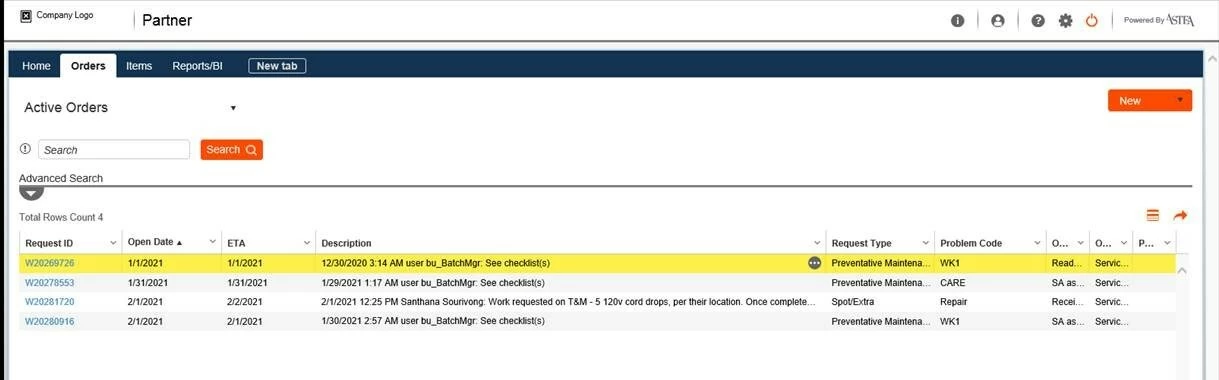
- Log in to the Partner Portal. Go to Orders and select an order.
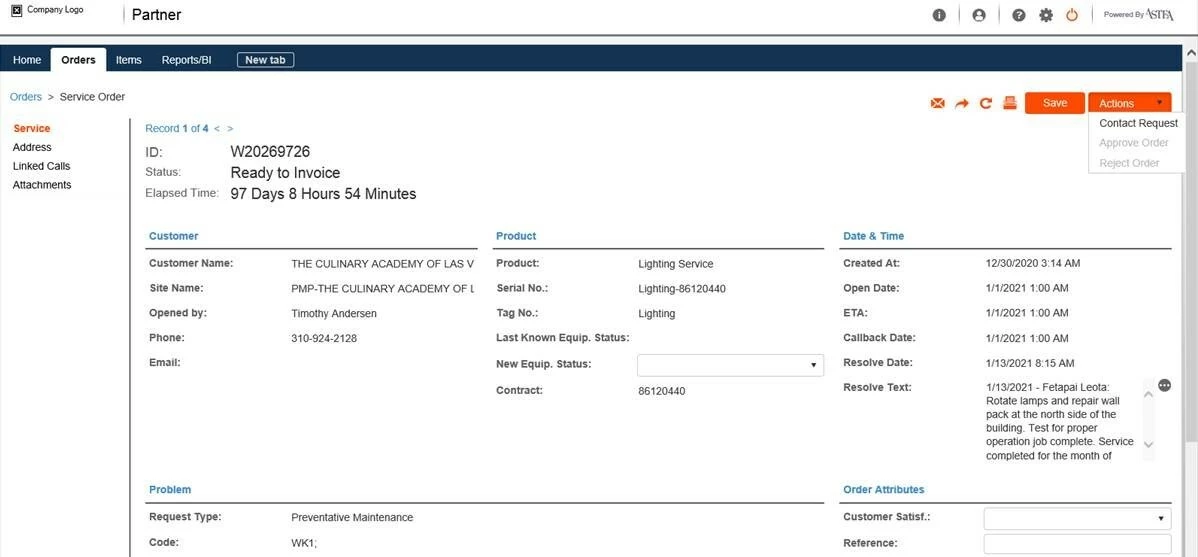
- Now when you click the Actions dropdown, Cancel Order will not be available to the user.
NOTE: I thought that ‘disable’ would gray it out, but it seems to function as ‘invisible’ and hide it altogether.
- If you want to remove the Custom Permissions later, follow the same steps up to step 5, but select the second icon, Delete current permission. Click Yes to prompt to Delete.
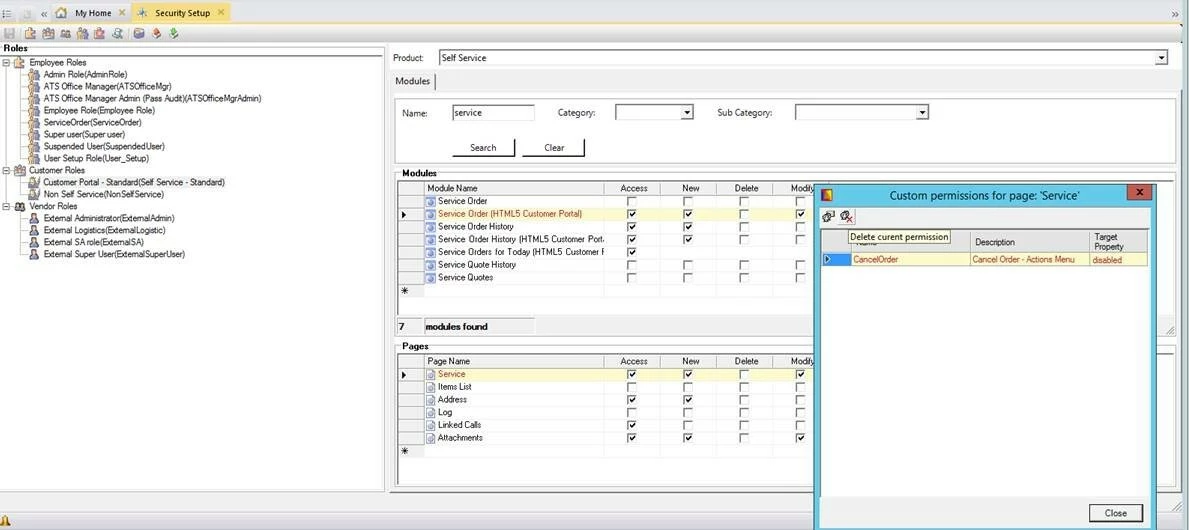
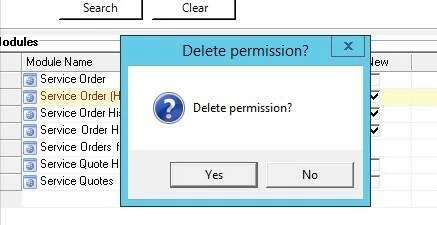
- You will then have to click Save XML again.