

Solved

Limited search criteria

  • March 13, 2026
  • 2 replies
  • 41 views

SPLPAWWOR
Do Gooder (Customer)
Forum|alt.badge.img+1

IFS Cloud 25R1

In dialog screens within the system, it is currently not possible to add additional filter fields or search columns. 
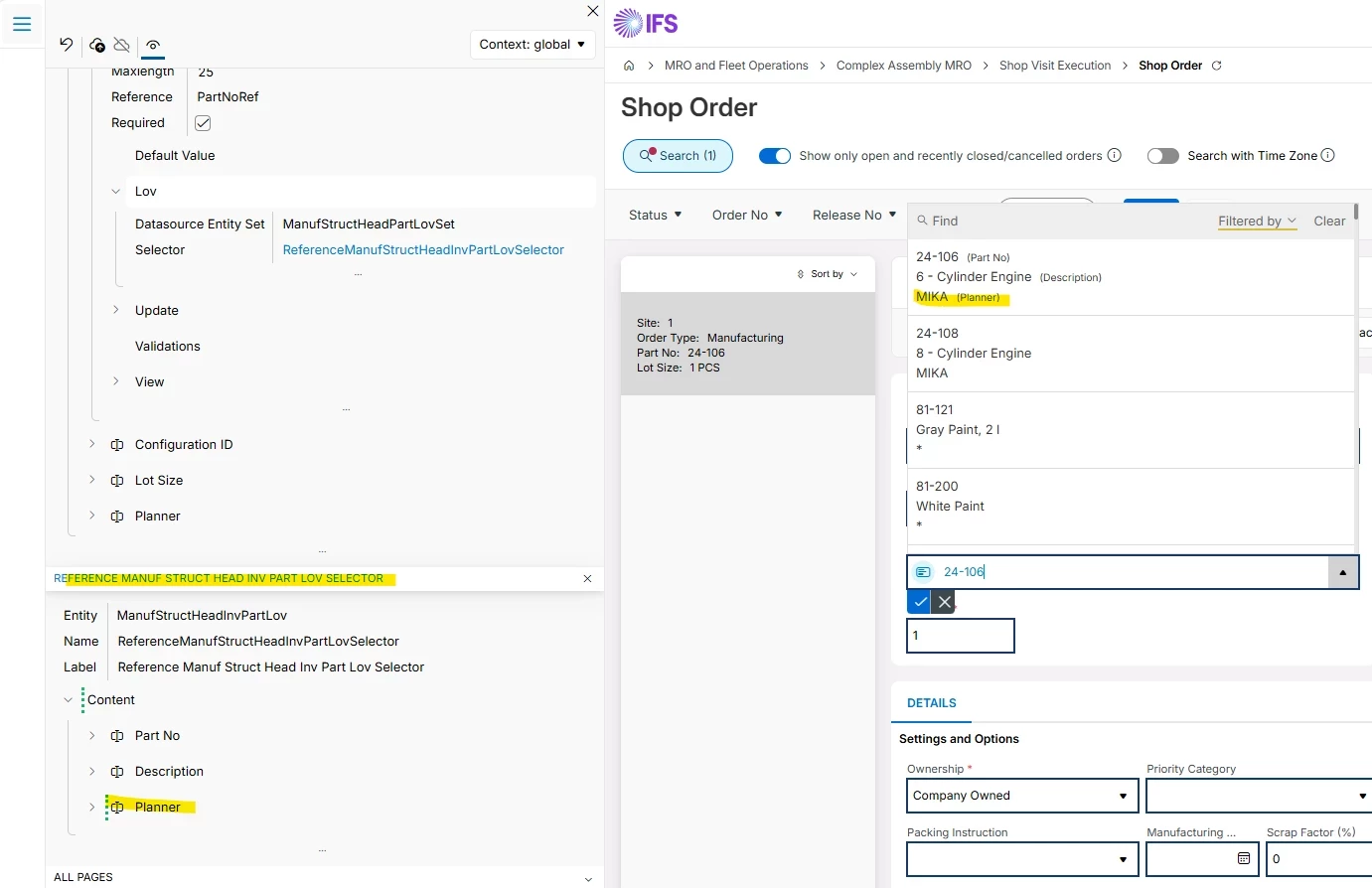
For example, in the Shop Order view, when adding a part that should be produced, users can use the Find function. After selecting this option, the Part dialog window appears. In this window, it is only possible to search using two columns: Part No and Description. 


However, this dialog does not include other important fields that are available in views such as Inventory Part or Inventory Part in Stock, for example Planner Buyer or Production Line. 

As a result, users cannot filter or search parts using these additional attributes directly in the dialog window. 

The Favorites functionality was considered as a possible workaround, but it does not solve the issue. Favorites allow users to store only specific individual parts_no, without the possibility to categorize or group them. In practice, one user may be responsible for multiple production departments and needs to distinguish parts between them. This separation can be achieved using attributes such as Planner Buyer, but it cannot be replicated using Favorites. 

Business Impact 

Because only limited search criteria are available, it is difficult for users to quickly identify the correct parts for a specific production department or planner. Users often need to search for the part number in other screens (such as Inventory Part) before returning to the Shop Order screen, which increases the time required to create production orders and introduces inefficiencies in daily operations. 

Question 

Is it possible to extend the dialog search window by adding additional searchable columns (e.g., Planner Buyer, Production Line)? 

If this is not possible, what workaround or alternative approach could be recommended? 
 

Best answer by Björn Hultgren

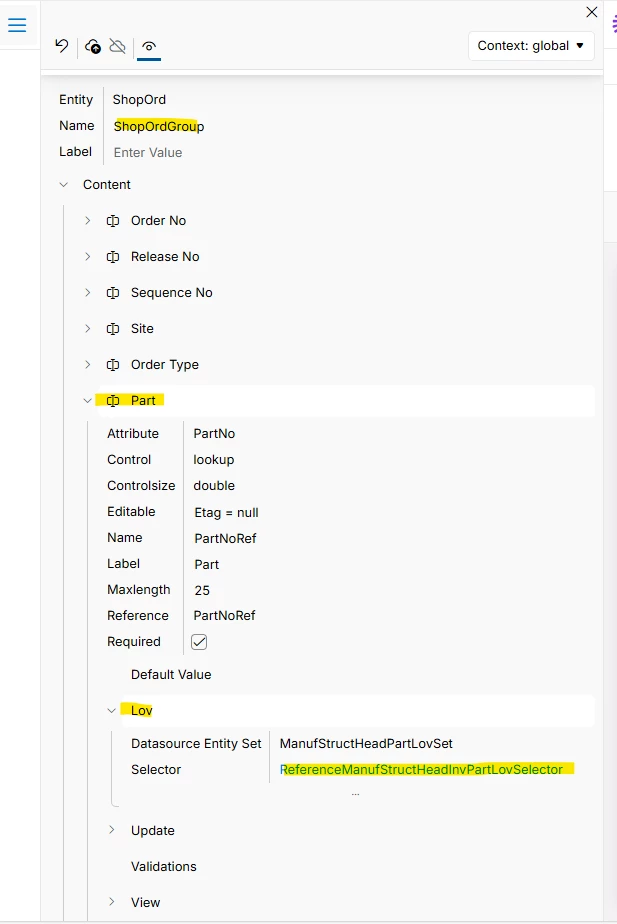
It’s possible to configure the content of the LoV using the page designer from the Shop Order page. First find the Part field and then expand the LoV section and you will find the link to the selector that is used.


Jump to that selector and you can modify its content. The Planner is simple to add as it is already an attribute of the inventory part.


However, Production Line is not as simple as there’s not a 1-1 relationship between a part and a production line. One part can be linked to several production lines. If you want to create a shop order for a specific production line you may instead use the Production Line Management/Shop Orders page to create the shop order. It will automatically be linked to that production line.

2 replies

Björn Hultgren
Hero (Employee)
Forum|alt.badge.img+25

It’s possible to configure the content of the LoV using the page designer from the Shop Order page. First find the Part field and then expand the LoV section and you will find the link to the selector that is used.


Jump to that selector and you can modify its content. The Planner is simple to add as it is already an attribute of the inventory part.


However, Production Line is not as simple as there’s not a 1-1 relationship between a part and a production line. One part can be linked to several production lines. If you want to create a shop order for a specific production line you may instead use the Production Line Management/Shop Orders page to create the shop order. It will automatically be linked to that production line.


SPLPAWWOR
Do Gooder (Customer)
Forum|alt.badge.img+1
  • Author
  • Do Gooder (Customer)
  • March 16, 2026

Thanks a lot, that’s really helpful.