
Question

Supplier order email default on Purchase order?

  • August 18, 2026
  • 4 replies
  • 42 views

Forum|alt.badge.img+4

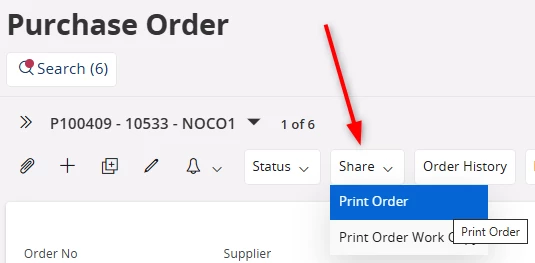
I want to have a Suppliers order email as default selected when press Share on a Purchase order.

Is it possible to add a order email on supplier somehow without having to create a person named “Order”?


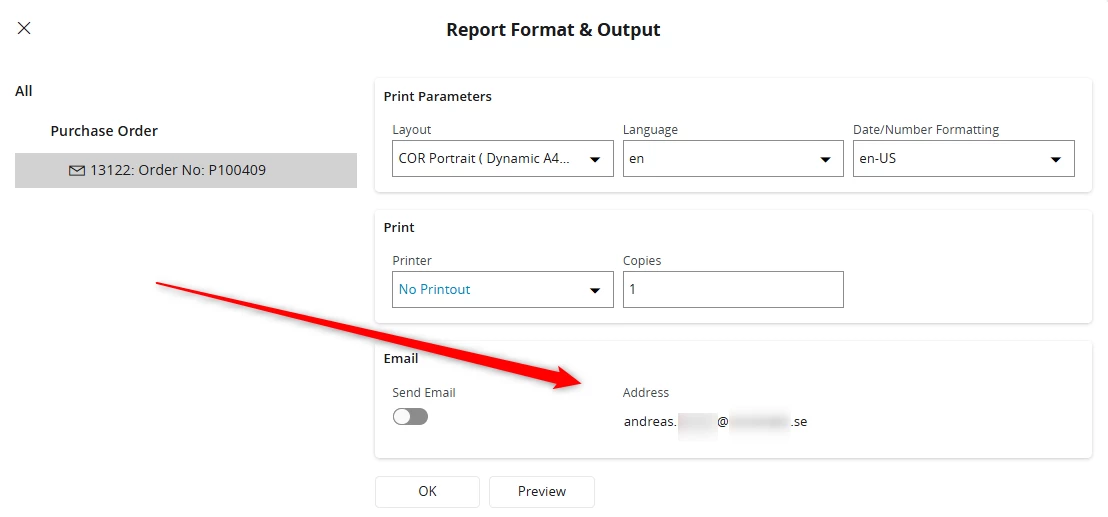
(Today my own email adress gets pre-selected when press share on Purchase order).
(Order@supplier.com is not quite a person which seems wrong to create as a person).


Guidance of how to setup an order email on a supplier that gets pre-selected on purchase order is welcomed.


IFS Cloud

4 replies

Piyal Perera
Hero (Partner)
Forum|alt.badge.img+12
  • Hero (Partner)
  • August 18, 2026

Hi ​@ModinA 

To ensure that an ordering email like Order@supplier.com is automatically pre-selected when sharing a Purchase Order—without creating a fictional "Order" person—you can leverage the standard Supplier Communication Methods and Purchase/Delivery defaults within IFS Cloud

Here is the step-by-step guidance to set this up:

Step 1 — Define the Ordering Email on the Supplier

Instead of creating a new Person ID, you can add a generic communication line directly to the supplier's address block.

  1. Navigate to Enterprise → Supplier → Supplier and open your supplier record.
  2. Go to the Address Information tab and select the relevant Address ID used for purchasing/ordering.
  3. Under the Communication Method sub-tab, click New to add a row:
    • Communication Method: E-Mail
    • Value: Order@supplier.com
    • Description: e.g., Main Ordering Desk
  4. Crucial Step: Check the Default per Method box for this email row under this specific address.

Step 2 — Link the Address to Purchase Defaults

The system needs to know that this address is the default destination for purchasing operations so it pulls the correct communication methods.

  1. While still on the Supplier window for that supplier, navigate to the Purchase tab.
  2. Ensure that the Delivery Address field points to the Address ID where you just added the email in Step 1.
  3. If your system relies on specific Procurement Communication Types, look for a sub-tab or command named Supplier Address Communication or Purchasing Contact under the Purchase tab and ensure no specific personal contact override is forcing your own email address.

Step 3 — Verify the Pre-selection

  1. Create a new test Purchase Order for this supplier or open an unreleased one.
  2. Verify that the order default address pulls the correct Address ID.
  3. Click Share (or Print / Email Purchase Order depending on your exact client layout).
  4. The system will now look at the default email method connected to that active ordering address and should automatically pre-populate Order@supplier.com in the recipient field rather than defaulting to your internal user profile email.

Please note that I don’t have any access to check this with IFS Cloud, but my expectation is - this is possible. It is worth to have a try.

regards,

Piyal


Forum|alt.badge.img+4
  • Author
  • Do Gooder (Customer)
  • August 19, 2026

Thanks for very detailed answer.

With this I came a long way.
Perfect to not having to create a person.
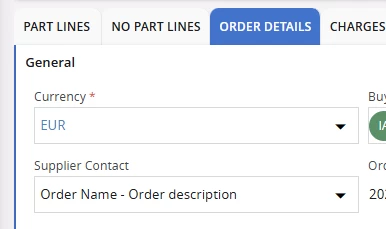
I now have the “Order” come up automatically as Supplier Contact.


When print order it unfortunately looks the same (my own email adress is pre defined).
My suspicion is that we have some general default settings that fetches the users email when printing Purchase order.
Any ideas if here exist any general print-settings for Purchase orders?


Piyal Perera
Hero (Partner)
Forum|alt.badge.img+12
  • Hero (Partner)
  • August 19, 2026

Hi ​@ModinA

Nice to hear that you are near. Currently, I don’t have any environment access to check. But, please do check the followings. Ideas are based on the Help documentation.

  1. What to check: Navigate to Procurement → Basic Data → Purchase Order Processing Types.The Logic: If a processing type is assigned to your Purchase Order or Supplier, check the details of that process code. Look for a configuration step related to "Email" or "Print". If the parameters are configured to look for a User/Sender property rather than a Supplier/Receiver metadata property, it will continually force your active user email address into the pre-defined layout field.
  2. What to check: Navigate to Solution Manager → Reporting and Output → Report Rules (or Report Routing).The Logic: Search for rules targeting the report ID PURCHASE_ORDER_RECEPTION_REP. Often, organizations set up a global fallback rule here to simplify distribution. If a rule contains an Email Event Action where the "To:" field uses a system variable like &USER_EMAIL or &FND_USER instead of the operational supplier data (&SUPPLIER_EMAIL or address communication methods), your own email address will always pre-populate as the destination.

regards,

Piyal


Forum|alt.badge.img+4
  • Author
  • Do Gooder (Customer)
  • August 19, 2026

Did unfortunately not find anything there.
But thanks for the effort.


Warm regards Andreas