

Question

Resources are not visible in Scheduling Workbench

  • April 24, 2026
  • 10 replies
  • 45 views

kasunhp
Hero (Partner)
Forum|alt.badge.img+10

Hi All,


We recently installed PSO and set up necessary data to run it. We plant to use PSO for manual scheduling. 

A dataset is created as shown below.
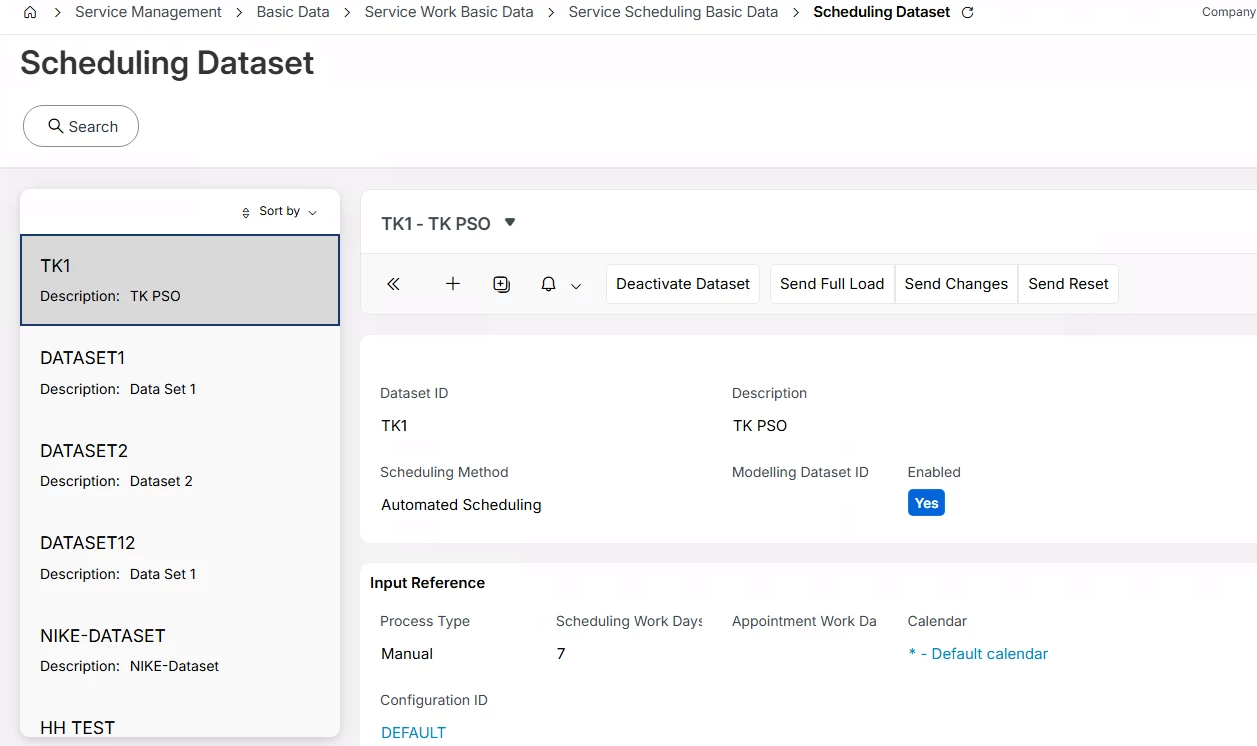


Dataset is linked to some resources and service delivery units. Capacities were calculated and scheduling activity (marked as manually scheduled) types were created. 

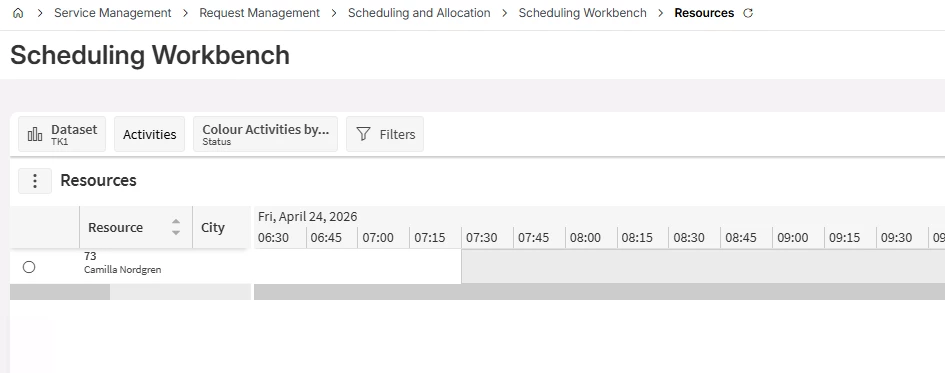
After activating dataset, activities can be seen in the workbench but not resources.

No errors are shown in application messages. But we cannot see resources in the workbench. 
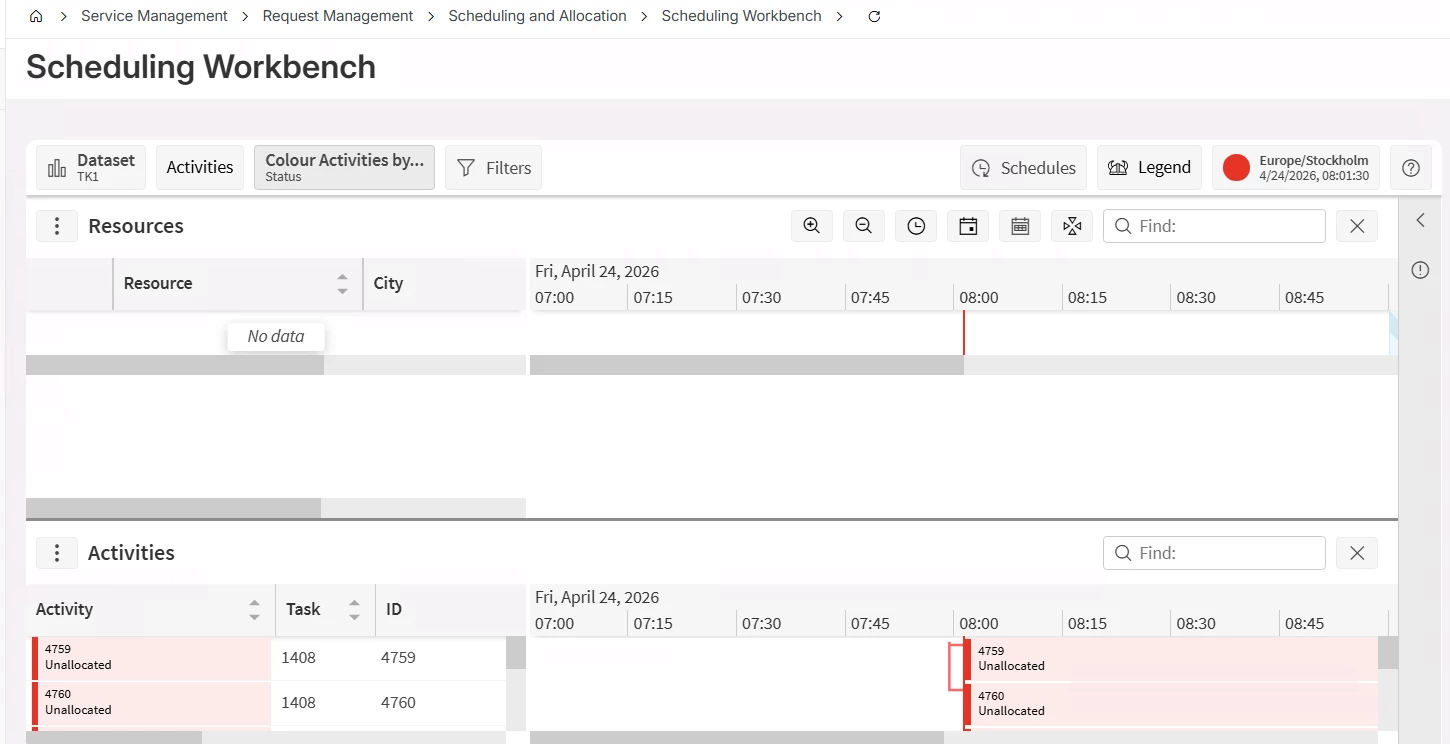
 

This exception can be seen also.
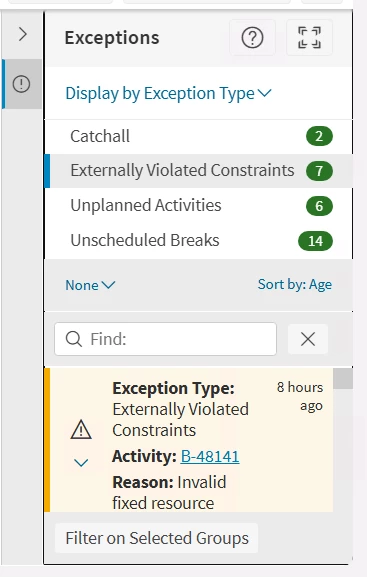
 

Can you guide me to solve this?

TIA.

10 replies

Alexander Heinze
Ultimate Hero (Employee)
Forum|alt.badge.img+25

In PSO>Archive>Audits, find the LOAD message and review the resource-related tabs.

  • No resource at all: Check if they belong to the correct SO/SDU.
  • Resource location missing → Edit resource details in IFS Cloud
  • Does the resource have shifts? → If not, generate shifts in IFS Cloud, make sure they are associated with the correct dataset.
  • Are you using Object Groups on your Scheduling Dataset? Could also filter out resources.

kasunhp
Hero (Partner)
Forum|alt.badge.img+10
  • Author
  • April 24, 2026

Thanks ​@Alexander Heinze .

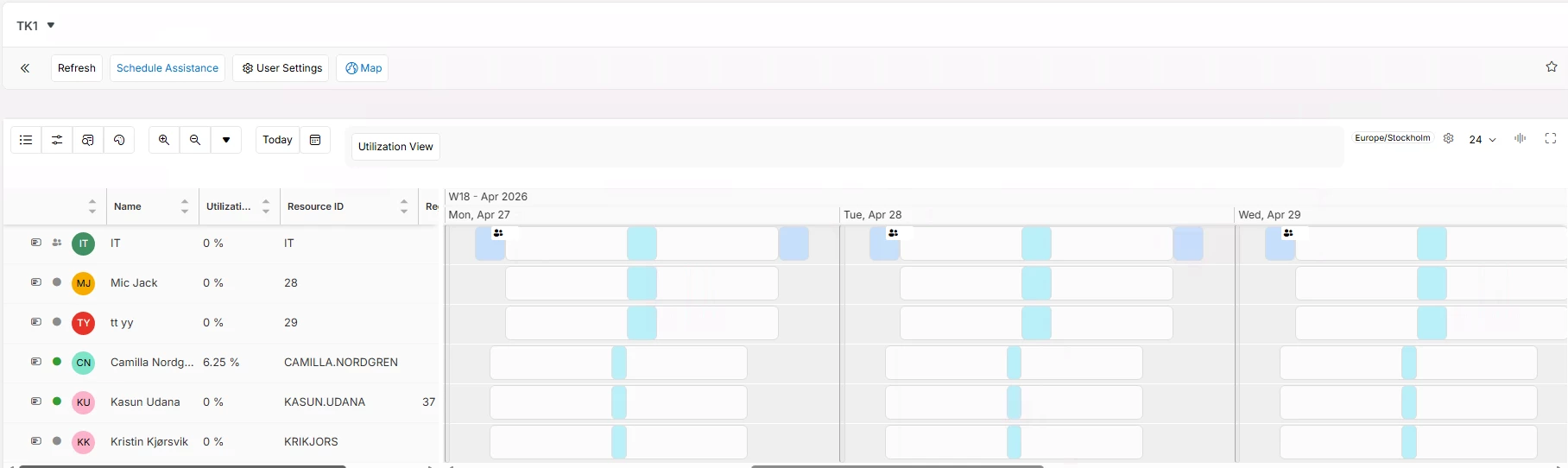
I recalculated shifts and brought three resources in to same shifts. So, SDU and dataset. The dataset is visible in dispatch console with three resources in it (last three resources).


But only one in Sch WB. Working on the issue still. I don’t use any object groups.


  • Superhero (Employee)
  • April 24, 2026

Thanks ​@Alexander Heinze .

I recalculated shifts and brought three resources in to same shifts. So, SDU and dataset. The dataset is visible in dispatch console with three resources in it (last three resources).


But only one in Sch WB. Working on the issue still. I don’t use any object groups.


On the scheduling dataset, make sure you have parameter OBJECT_GROUP_FILTER - Object Group Filter set to None. And then send a new LOAD.


Alexander Heinze
Ultimate Hero (Employee)
Forum|alt.badge.img+25

One resource is a success already, now you can compare the missing resources against Camilla. If André’s hint doesn’t help, check the LOAD audit again, in particular the location.


kasunhp
Hero (Partner)
Forum|alt.badge.img+10
  • Author
  • April 27, 2026

Hi ​@anmise ​@Alexander Heinze 


Your hints are really heedful. Now, I’m bringing the resources to the workbench.  

I’m new to PSO and solving issues one by one. Following documentations, Activities, Map and Assistance components are also got to work.

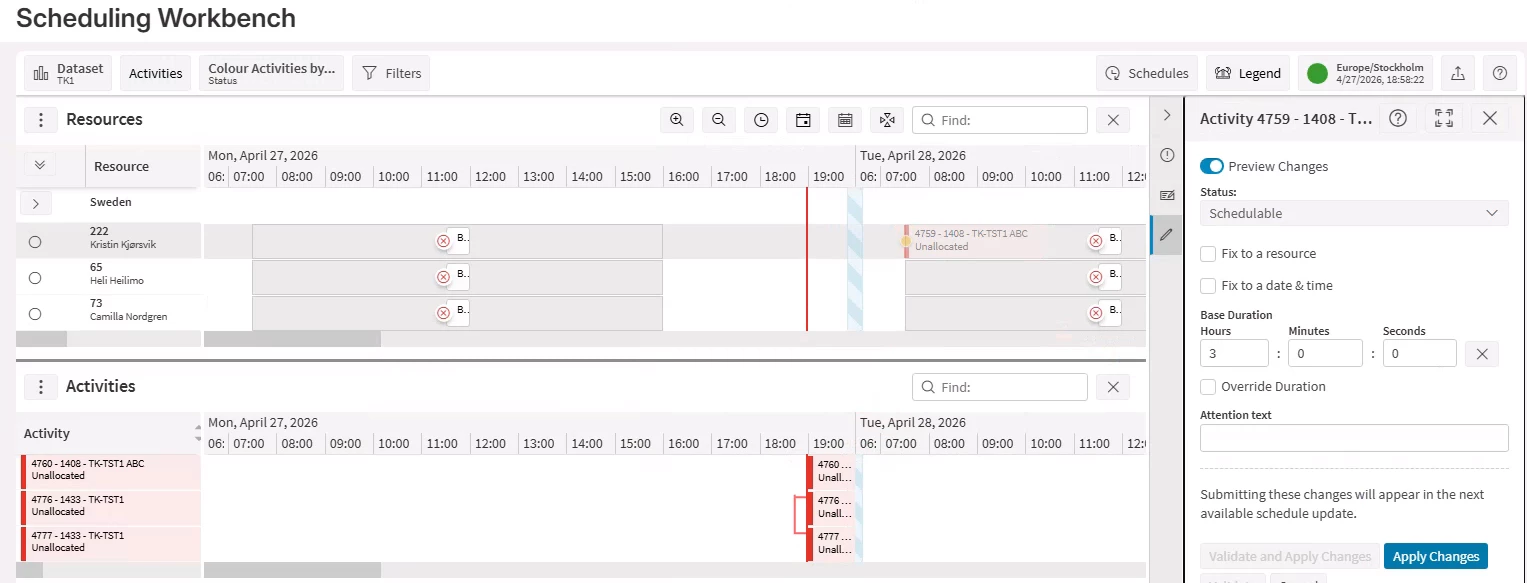
I enabled the drag drop option since customer only needs manual scheduling. However, when I try to assign via drag and drop it is not possible to allocate.


I created the dataset with Process Type “Manual” and Scheduling Activity types “marked as Manually scheduled”. 
I tried to use below options as well. But, that made task disappeared from the Gannt.


Customer does not need any travel times at the beginning. What additional settings do I need schedule work manually? Any hints?

Thanks again. 


Alexander Heinze
Ultimate Hero (Employee)
Forum|alt.badge.img+25

Hi ​@anmise ​@Alexander Heinze 


Your hints are really heedful. Now, I’m bringing the resources to the workbench.  

I’m new to PSO and solving issues one by one. Following documentations, Activities, Map and Assistance components are also got to work.

I enabled the drag drop option since customer only needs manual scheduling. However, when I try to assign via drag and drop it is not possible to allocate.


I created the dataset with Process Type “Manual” and Scheduling Activity types “marked as Manually scheduled”. 
I tried to use below options as well. But, that made task disappeared from the Gannt.


Customer does not need any travel times at the beginning. What additional settings do I need schedule work manually? Any hints?

Thanks again. 

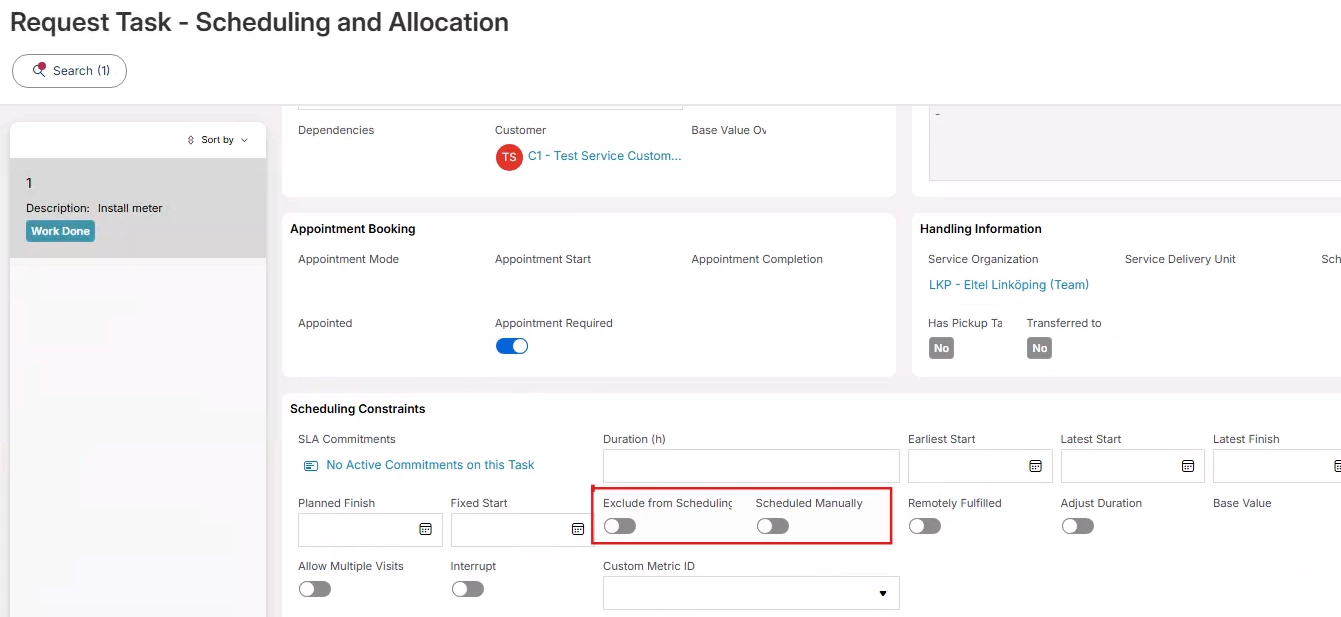
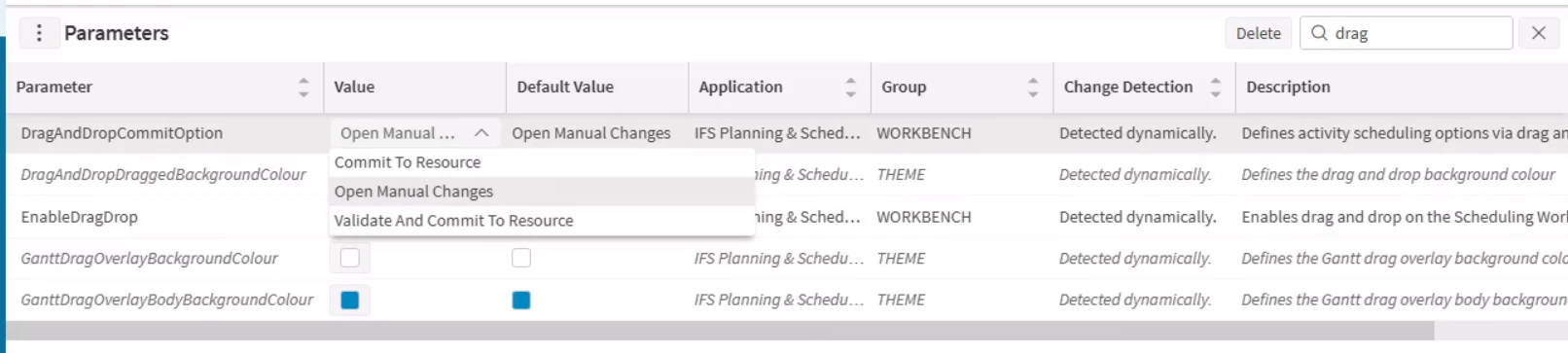
Is the upper screenshot what you see when you drag & drop? Then it’s the expected behavior, which can be altered using the parameter “DragAndDropCommitOption”. “Exclude from Scheduling” removes the task from DC and PSO entirely, whereas “Scheduled Manually” only prevents PSO from auto-scheduling. And to avoid travel, try setting “SpeedFactor” to something like 0.0000001.


kasunhp
Hero (Partner)
Forum|alt.badge.img+10
  • Author
  • April 28, 2026

Hi ​@Alexander Heinze 

Thanks for your input.

but, this is what I see under Parameters. I cannot see “Scheduled Manually” option. 🤔


Alexander Heinze
Ultimate Hero (Employee)
Forum|alt.badge.img+25

Hi ​@Alexander Heinze 

Thanks for your input.

but, this is what I see under Parameters. I cannot see “Scheduled Manually” option. 🤔


“Exclude from Scheduling” and “Scheduled Manually” are on your task screenshot. Only the parameters are in PSO.


kasunhp
Hero (Partner)
Forum|alt.badge.img+10
  • Author
  • April 28, 2026

Hi ​@Alexander Heinze 

Thanks for your input.

but, this is what I see under Parameters. I cannot see “Scheduled Manually” option. 🤔


“Exclude from Scheduling” and “Scheduled Manually” are on your task screenshot. Only the parameters are in PSO.

 ​@Alexander Heinze When I set “Scheduled Manually” in task level, then the task disappears from the workbench.


Alexander Heinze
Ultimate Hero (Employee)
Forum|alt.badge.img+25
  • Ultimate Hero (Employee)
  • April 28, 2026

Hi ​@Alexander Heinze 

Thanks for your input.

but, this is what I see under Parameters. I cannot see “Scheduled Manually” option. 🤔


“Exclude from Scheduling” and “Scheduled Manually” are on your task screenshot. Only the parameters are in PSO.

 ​@Alexander Heinze When I set “Scheduled Manually” in task level, then the task disappears from the workbench.

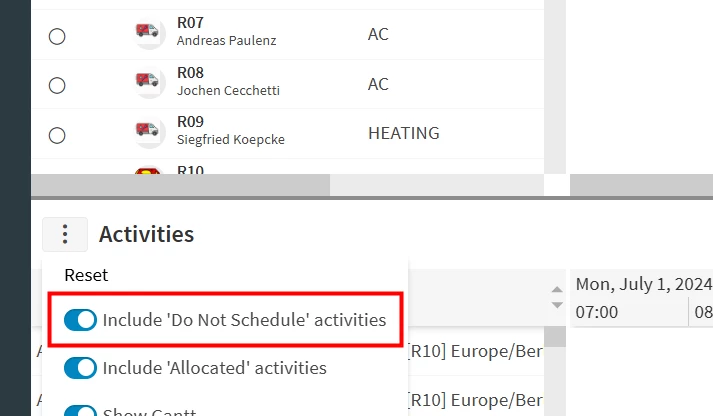
Where does it disappear from? It should still show up in the list at the bottom of your initial screenshot. Make sure this toggle is enabled: