Question

MWO Service App - Page designer

  • July 15, 2026
  • 4 replies
  • 38 views

Hello,


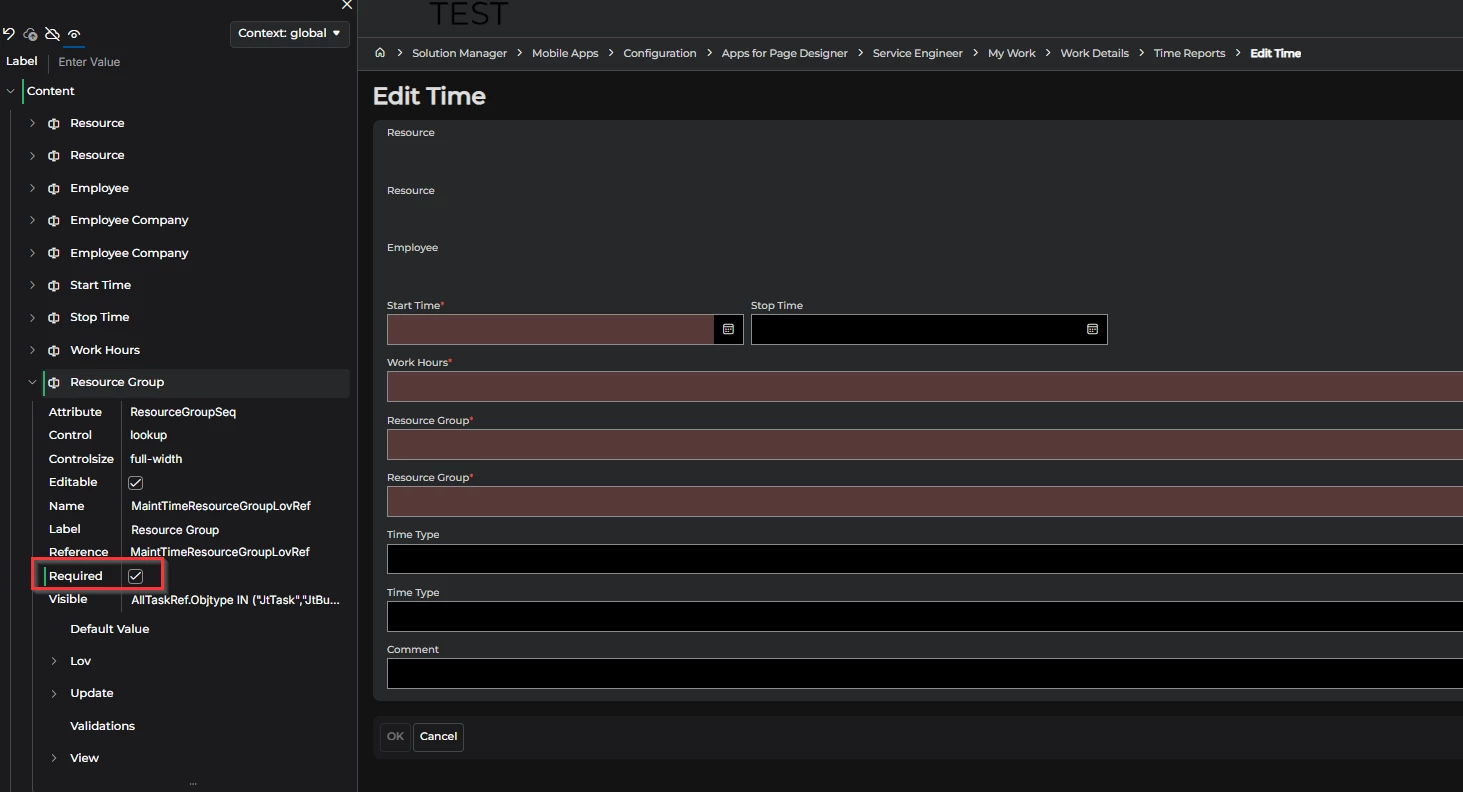
Using Apps for Page Designer, I configured a field as Required to ensure users do not overlook it when entering time through the MWO Service App. However, this change does not appear to be reflected in the MWO Service App, as users are still able to save their entries without completing the field.

Could you please advise if I am missing any additional configuration or step required for this change to take effect in the MWO Service App?

IFS version 25R2

Thank you,

Wafaa

4 replies

skullk
Hero (Employee)
Forum|alt.badge.img+11
  • Hero (Employee)
  • July 16, 2026

Hi,

Is it a custom field or a standard field?

Did you check if the configuration is done on the correct context (global, etc) so it applies to the user?

Can you share a screenshot of the PD configuration?

Thanks

Sampath


  • Author
  • July 16, 2026

Hi,

It is a standard field, i have just checked the required option. See acreenshot below.

We have only Global context.

I have don the change for Dit page and New time page.


Best Regards


skullk
Hero (Employee)
Forum|alt.badge.img+11
  • Hero (Employee)
  • July 17, 2026

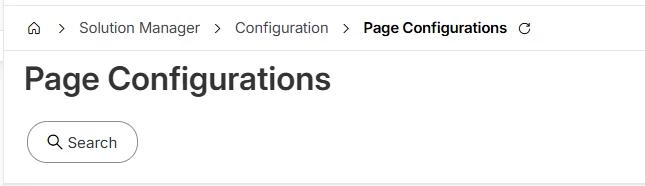
A bit strange. Check if the page configuration is correctly created in IFS Cloud first. I think you can check it here.


dirolk
Do Gooder (Employee)
Forum|alt.badge.img+4
  • Do Gooder (Employee)
  • August 1, 2026

Hi ​@Wafaa 

There's an update on this. What you're seeing was a known product issue, and a fix has now been delivered.

Importantly, the fix ships with the mobile app, not with an IFS Cloud upgrade .So you don't need to move off 25R2 to pick it up. It's been verified working on the Store version 26.4.3813 of the MWO Service app.

Could you please:

  1. Update the MWO Service app from the store and confirm the installed version is 26.4.3813 or later (check in-app, under About). Please also confirm you're on the MAUI-based app the older Xamarin/Classic apps no longer receive fixes.
  2. Re-publish the page configuration for the field.
  3. Run Sync Monitor > Sync > Initialize on the device. If you use a configuration context, also logout → disconnect → reconnect.