
Question

Ressource capacity and absence

  • December 2, 2024
  • 6 replies
  • 143 views

Forum|alt.badge.img+3

Hi Community,
 

I am currently exploring some features related to "Resource Management."

I have created a resource as a "person group," and the group's capacity is based  individuals within it.

I planned the resource on a project and made an allocation for one employee in the group.
Based on HR calendar, the employee has some days OFF.

I don't understand why the scheduled capacity does not consider this absence in its calculation.

When using the "Resource Analysis" screen, project managers can view resource scheduling, but it appears that the capacity is not adjusted for absences.

Has anyone else encountered this issue? Is this expected behavior?


6 replies

AveTonitM
Hero (Partner)
Forum|alt.badge.img+10
  • Hero (Partner)
  • December 3, 2024

I’ve found that one needs to perform the “refresh snapshot” whenever there is a change in the background data and the changes should be reflected in the Resource Analysis view. Have You tried pressing the “Refresh Snapshot” button in the top row on the page?


Forum|alt.badge.img+3
  • Author
  • Do Gooder (Partner)
  • December 3, 2024

Hi ​@AveTonitM . Thanks for your message.
I tried recalculating the capacity for the group and clicking the button, but unfortunately, nothing has changed. Do you have any idea why this might be happening?
Are you experiencing the same behavior?


Forum|alt.badge.img+7
  • Sidekick (Partner)
  • August 1, 2025

Hi all,
We also face similar occurrences with our business users. Is anyone aware of the setup required to adjust resource capacity based on employee absence?

Thank you


Forum|alt.badge.img+5
  • Sidekick (Partner)
  • November 24, 2025

Hi ​@mmoulie 
What is the setup for absence to show in resource analysis window and did you get the capacity drop when employee has absence?

Best regards,
Oskari


AveTonitM
Hero (Partner)
Forum|alt.badge.img+10
  • Hero (Partner)
  • November 28, 2025

Hi Community,
 

I am currently exploring some features related to "Resource Management."

I have created a resource as a "person group," and the group's capacity is based  individuals within it.

I planned the resource on a project and made an allocation for one employee in the group.
Based on HR calendar, the employee has some days OFF.

I don't understand why the scheduled capacity does not consider this absence in its calculation.

When using the "Resource Analysis" screen, project managers can view resource scheduling, but it appears that the capacity is not adjusted for absences.

Has anyone else encountered this issue? Is this expected behavior?



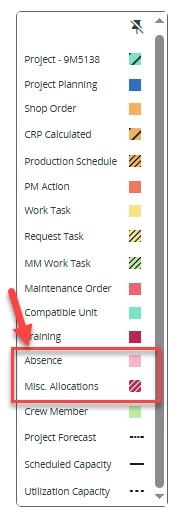
@mmoulie What steps did You perform to get the pink absence bars? If I add a absence calendar record for a employee, it will show in Resource Analysis with the same color just as a project allocation would.


desilvasachitha
Hero (Partner)
Forum|alt.badge.img+8

Hello ​@mmoulie/ ​@XitThilaB,
Here’s how I've come to understand the concepts behind ‘Resource Analysis’. Please note that both “HR Absences” and “Absences created from Misc. Resource Allocations” are considered(designed to be treated this way) as “Resource Demands”. Hence, scheduled capacity not taking absences in to account is by way of design and is to be expected.

As you've already observed, by design all resource demands are illustrated by different colored “bars” on the Resource Analysis graph whereas different capacity types(scheduled and utilization) are shown with line charts. This makes it easy to compare a Resource’s Capacity against demands coming from different objects in IFS including absences. 


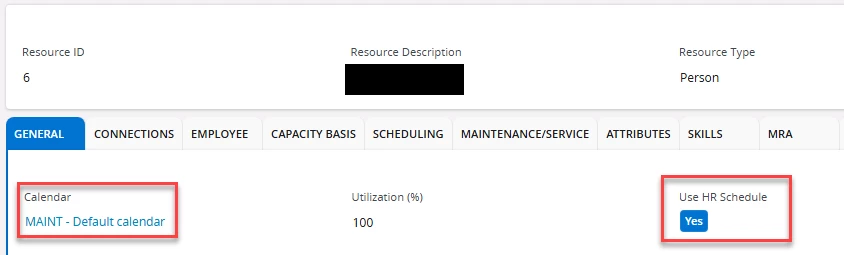
Furthermore, a Resource’s “Scheduled Capacity” is derived from the respective resource's ‘Calendar’ or ‘HR Schedule’, whatever that is selected in the “Resource Details” page. However, it is worth noting that if both are toggled on, ‘HR Schedule’ gets precedence over the ‘Calendar’ for capacity calculations.  

 
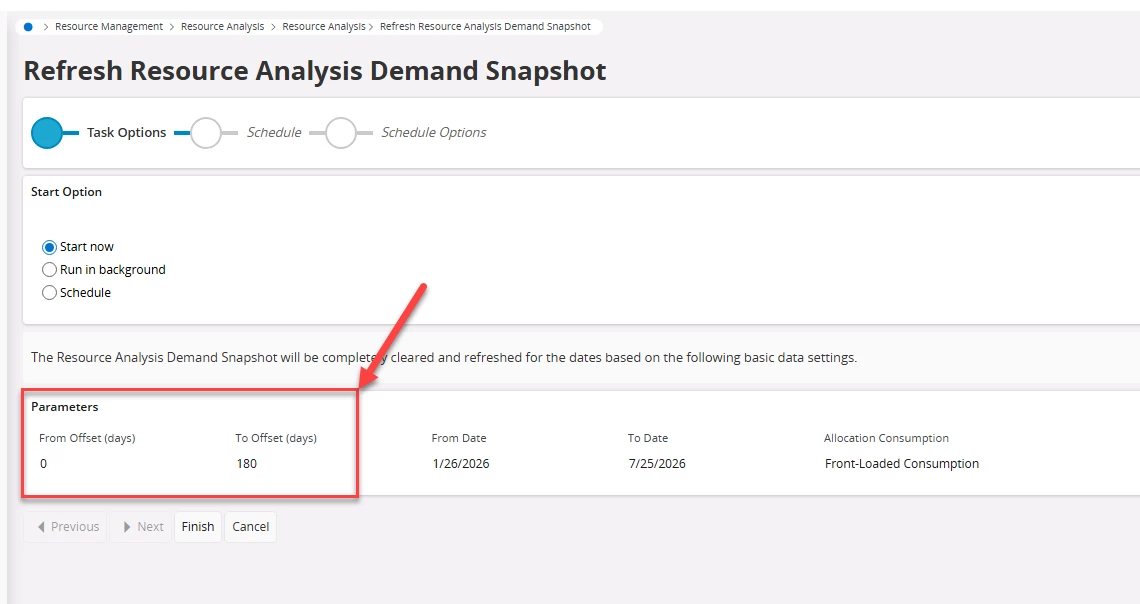
@OskariB as the answer to your question, at any given time when users adjust(add, modify and/or delete) a Resource demand (work order demand, project demand, absence and/or any other object that is listed in the “Resource Analysis’ graph’s legend with a color) in the system, performing “refresh demand snapshot” for the correct time period(that encompasses the said demand) becomes a mandatory pre-requisite. Which acts as the trigger for the said demand to appear in the Resource Analysis graph correctly. I believe this was implemented as a way to manage any performance degradation on the Resource Analysis graph. 

But note that performing the ‘Refresh demand snapshot’ has no bearing on Resource Capacity as it only refreshes ‘demands’ as the name itself implies and has no effect on capacity. 

Having explained all of this, i also share your concern on “how intuitive it is to have  ‘Absences’ designed to affect resource demand versus it affecting resource capacity!!”. Since one could argue that “Scheduled Capacity” depicts a resource’s available hours to work which effectively gets taken our with an “Absence”. But this i believe is a design problem and we have to live with the way it was originally designed and treat ‘absences’ as a demand that doesn’t affect a resource’s capacity the way we want it. 

@AveTonitM for the phenomenon that you’ve encountered, I personally don’t believe that an absence would show up as a ‘Project Allocation” in blue - since it isn’t designed that way. 

you could run following checks to ensure that right setup is there and steps were performed. 

1. Make sure when you performed the “Refresh demand snapshot’ AFTER you created the absence correct from and to dates were uses that included the Absence date. 


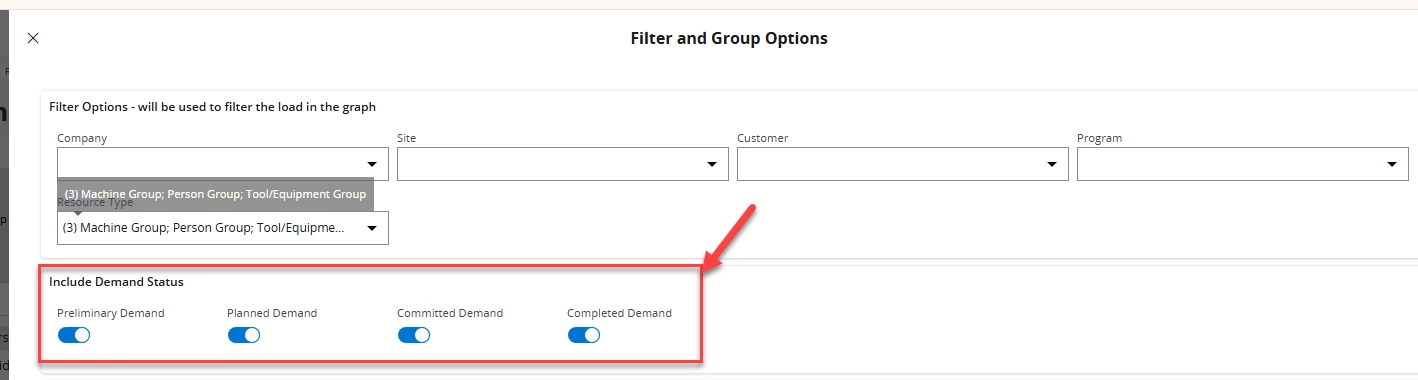
2. Check if you have all the following ‘toggles’ turned on. If one or more of these toggles are turned ‘off’ depending on the status of the Resource Demand it will get filtered out from the graph. 


3. Also note that all the ‘Bars’ in the ‘Resource Analysis’ graph are ‘click through’. Hence, if you think the blue bars in your case shows the absence you can click it and in the resulting “Resource Activity Load Detail” page verify the demand origin using “Activity Origin’ column which will show you what type of demand this is (absence or not).


Apologies for the long rant but Hope this helps you guys in someway! 

Cheers!
Sachitha