
Question

Activity Resource Planning

  • April 24, 2026
  • 3 replies
  • 12 views

Forum|alt.badge.img+8
  • Sidekick (Partner)

Good morning.

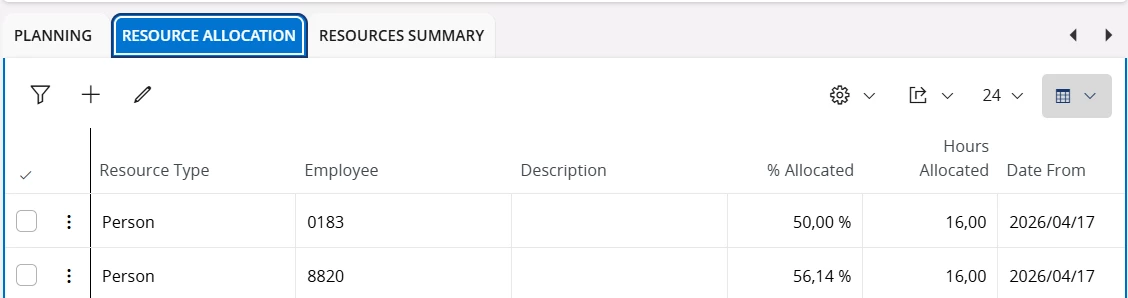
I need assistance please.  I have two resources allocated to a Project Activity.  The hours allocation is exactly the same, they have the same Calendar, both have the HR Schedule but when their Allocated % is calculated based on the Hours Allocated, it differs.  One shows as 50% which is correct since they will both only spend 4 hours per day of their 8 hours on the project for the duration of the activity.  The other resource’ Allocated % though shows as 56.14%.  What could be the reason for this and how do I resolve it?


Thank you.

Anya

3 replies

AveTonitM
Hero (Partner)
Forum|alt.badge.img+11
  • Hero (Partner)
  • April 24, 2026

One reason that comes into mind is that the second resource is allocated also to another project.


But you can also check few resource basic data definitions and see if there are differences. If you compare the two resources (persons) and their setup in “Resource Details” page, are there any differences:

  1. General tab: use HR schedule is set to true
  2. Capacity basis tab: resource capacity - “% in group” value is identical

Forum|alt.badge.img+8
  • Author
  • Sidekick (Partner)
  • April 24, 2026

Morning Toni

Thank you for your feedback.  I have checked the Resource Details tabs as per your feedback and they are identical for the two resources.  Both of them are also allocated to only one Project Activity.

Thank you.

Anya


AveTonitM
Hero (Partner)
Forum|alt.badge.img+11
  • Hero (Partner)
  • April 24, 2026

When the system calculates the % allocated it will look for the hours allocated and hours available for every resource. As it seems you have the same allocation for both resources, I would start by comparing if the resource availability (capacity) differences.

IFS Cloud calculates the resource hours available with the RESOURCE_AVAILABLE_UTIL_API package and this will need a calculated capacity.

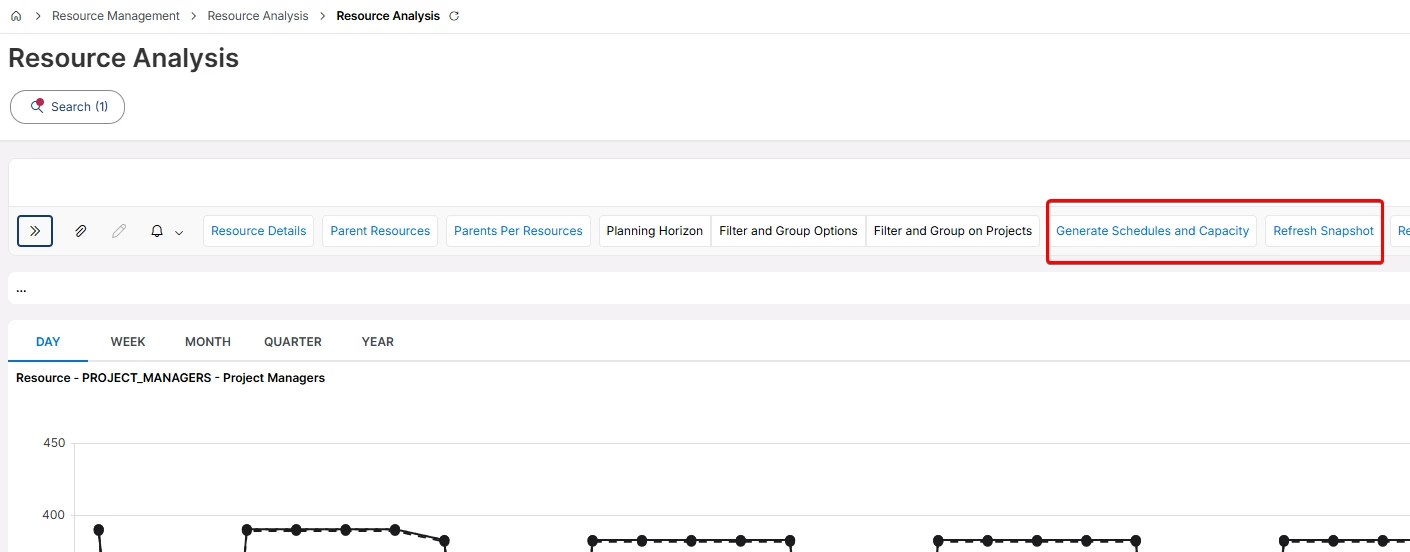
Start by  generating capacity for both individual resources (Resource Analysis page: “generate Schedules and capacity” + “Refresh snapshot”)


After this you can compare the “Resource Availability” page in the “Capacity” tab if both resources have same capacity for the activity time period.