



Issue Description: An issue occurs when creating an MRB case from the Shop Floor Workbench (Dispatch List). Although the MRB case is created successfully, the application becomes stuck on the "Enter and View Results" screen within the Control Plan, preventing users from continuing or interacting further with the page.
Due to this behavior, users are unable to proceed with workshop activities and demonstrate the expected business process flow, which is impacting ongoing project validations and progress.
Environment: IFS CLOUD 25R2
Test Plan:
Step 1: Create a Shop Order with an Active Control Plan status, enter the required Need Date, and release the Shop Order after assigning an operation number to a material line.
Example: Shop Order 213204, Site X.
Step 2: Open Shop Floor Workbench, filter by Shop Order 213204, select the operation line with quality controls defined (Operation 30), and create an analysis from the Control Plan menu.
Step 3: Open Enter Inspection Results, enter a valid result value, dismiss the SPC alarm message by clicking Cancel, and then click Confirm Analysis.
Step 4: Create a new MRB case by selecting New MRB, enter the required Non-Conformance Code, disable Print Labels, and click OK.
Step 5: Close the Enter and View Results window.
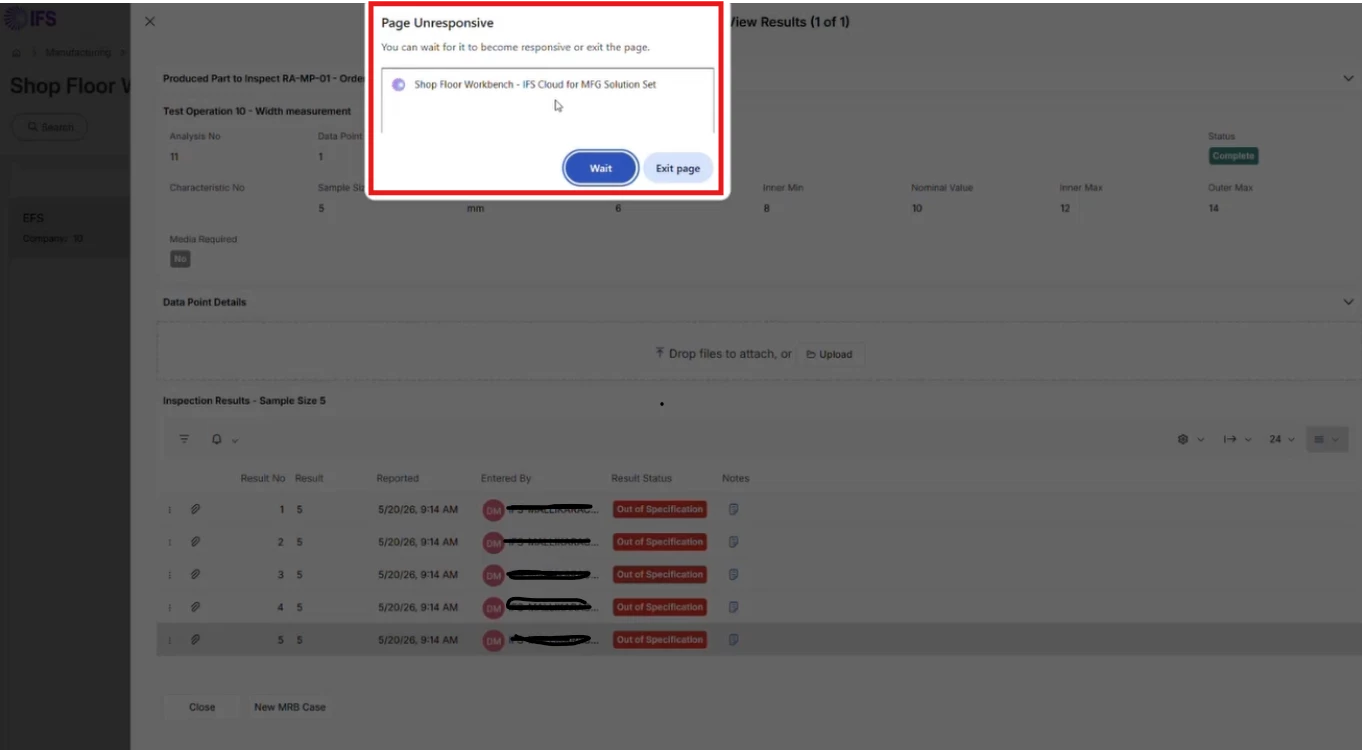
Actual Result: When the “Enter and View Results window is closed, the application becomes unresponsive and users are unable to continue processing.
Expected Result: The Enter and View Results window should close successfully, returning the user to the Shop Floor Workbench. The application should remain responsive, allowing users to continue processing the Shop Order and related workshop activities.