


Question

Error Attempting to Print

  • September 8, 2026
  • 1 reply
  • 14 views

Forum|alt.badge.img+2

We are receiving the following error when attempting to test print a Custom Label from the Shop Order Workbench in DEV:
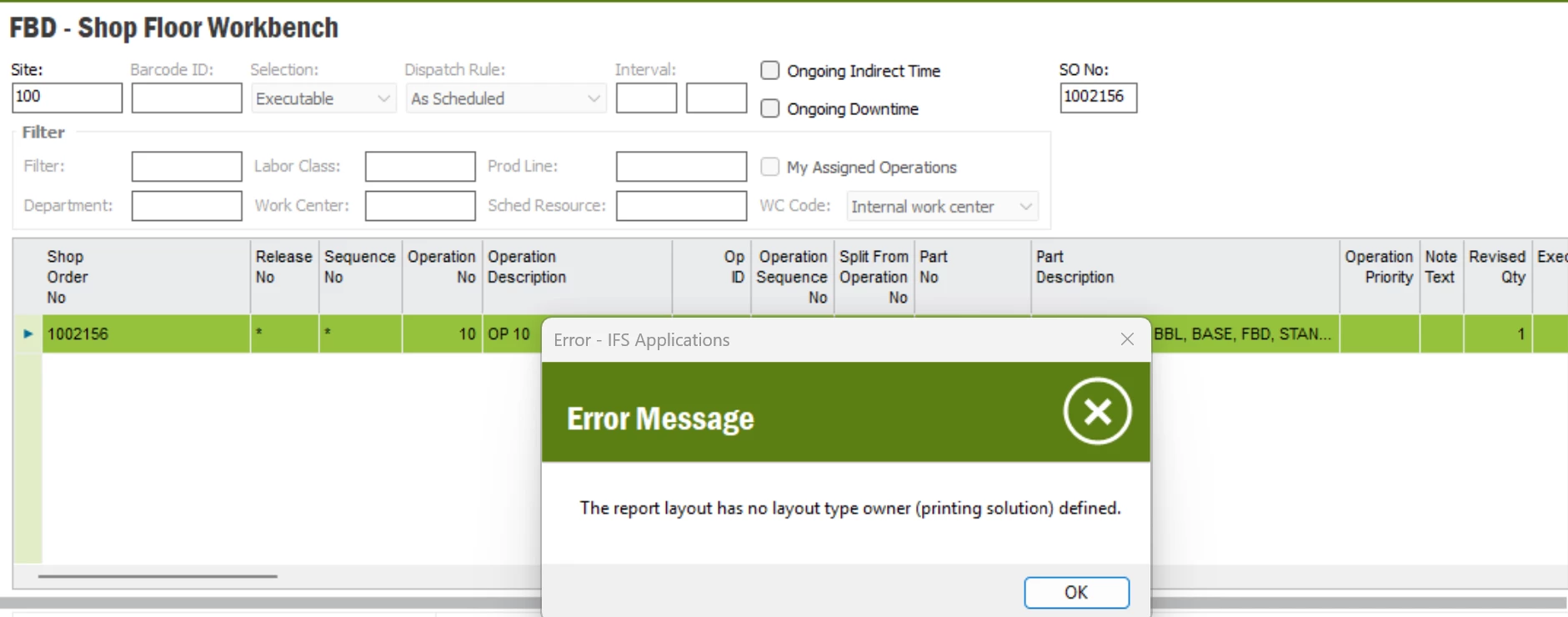


The report definition has been configured, and the layout has been successfully imported. What is the recommended approach to resolve this issue?


1 reply

Forum|alt.badge.img+9
  • Hero (Employee)
  • September 9, 2026

Hi.  I foud the following information -


This error occurs because the IFS Operational Reporting framework cannot determine which rendering engine / plugin (e.g., Report Studio, Report Designer, Zebra/ZPL, etc.) is assigned to process the custom layout during execution.

Even though the report definition is configured and the layout file has been imported, the layout record itself is missing its Layout Type Owner (Printing Solution / Layout Plugin mapping).

Root Cause

When a print request is initiated from the Shop Order Workbench, the reporting engine inspects the layout properties in the database (REPORT_SYS_LAYOUT_TAB). If the Layout Type Owner (or Printing Solution) field is null, unassigned, or not linked to an active reporting plugin, the system throws:

"the report layout has no layout type owner (printing solution) defined"

Step 1: Update the Layout Properties on the Report Definition

  1. Navigate to Solution Manager → Reporting & Analysis → Operational Reporting → Report Definitions.

  2. Search for and open your Custom Label Report Definition.

  3. Go to the Layouts tab / section.

  4. Locate the imported layout record and click Edit.

  5. Set/update the following fields:

    • Layout Type Owner / Printing Solution: Select the appropriate owner for your label layout (e.g., Report Studio, Report Designer, Zebra / ZPL, or your custom label plugin).

    • Layout Type: Ensure the extension/type matches the layout file format (e.g., REP, RDL, ZPL).

    • Active: Ensure the toggle/checkbox is set to Enabled / Active.

  6. Save the changes.

Step 2: Verify Layout Type Mappings in Operational Report Basic Data

If the Layout Type Owner drop-down is empty or missing the required plugin:

  1. Go to Solution Manager → Reporting & Analysis → Operational Reporting → Operational Report Basic Data (or Report Layout Types).

  2. Check the Layout Types / Report Plugins tab.

  3. Verify that your layout extension/type (e.g., ZPL or REP) is registered and mapped to an active Printing Solution / Layout Type Owner.

Step 3: Verify Report Rules / Printing Setup (Shop Order Workbench)

  1. On the Report Definition page for your Custom Label, ensure the updated layout is designated as the Default Layout (or configured in your Report Rules for Shop Order Workbench print events).

  2. Clear the browser cache or refresh the session.

  3. Return to Shop Order Workbench and execute the test print.


I hope this information helps.  Thanks!  Jane