Question

Best practice for Shop Order "Disassembly"

  • August 12, 2026
  • 4 replies
  • 37 views

Forum|alt.badge.img+10

We are producing Product A (Produced Part) using Product B (Component) at a 1 to 1 ratio.

We over-produced Product A by qty 10.

We want to “disassemble” product A.  

What is the best process to follow so:

  1. Product A (Produced Part) inventory reduces by 10
  2. Product B (Component Part) inventory increases by 10

We have used just the Unreceive functionality but it causes financial issues with the component part.


4 replies

Yohan Rajapaksha
Hero (Employee)
Forum|alt.badge.img+7

 Hi ​@TTRACY,
 

Please check whether the following approach works for your scenario.


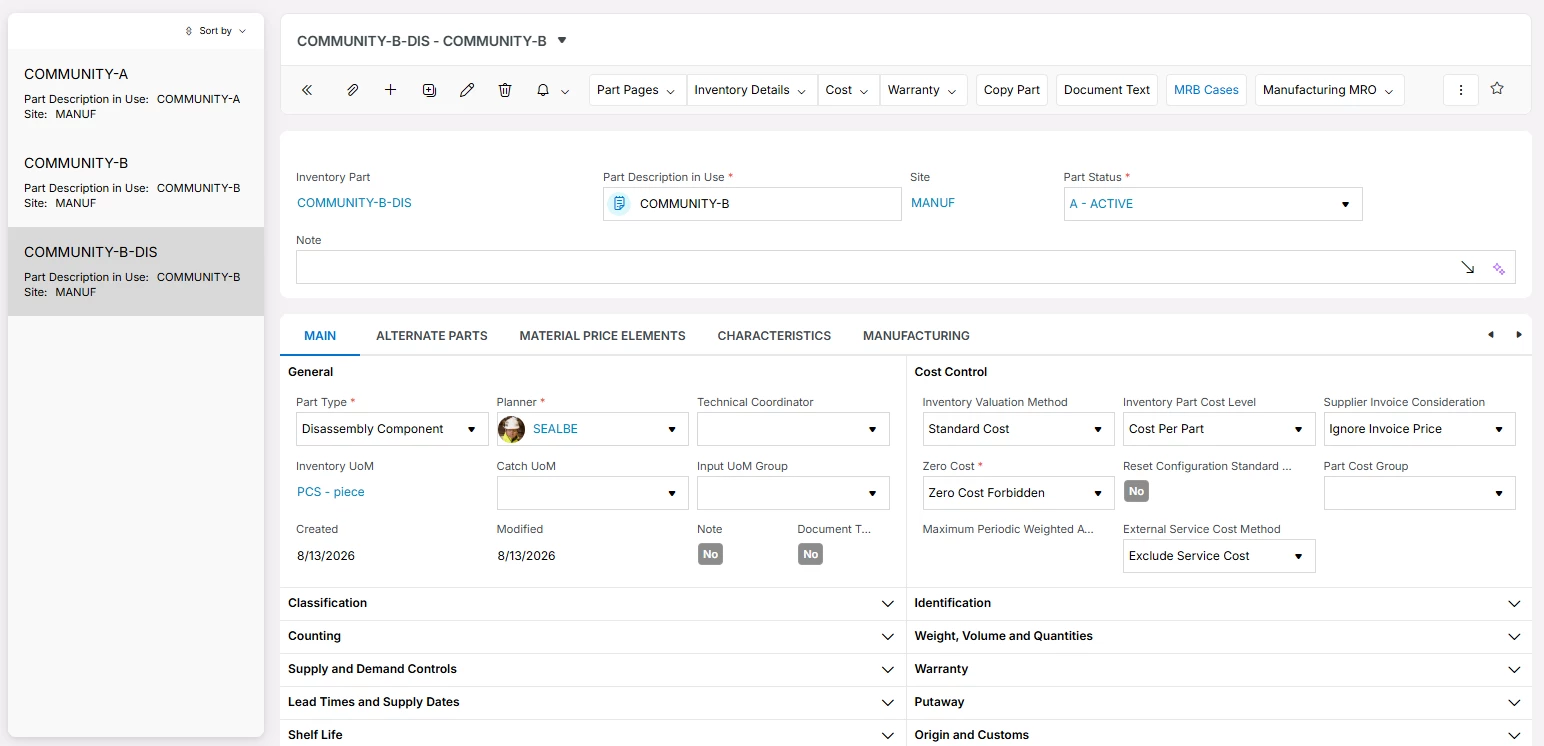
Create a new part called "Part-B-Dis", with the Part Type set to Disassembly Component. Since the part was originally assembled and later disassembled, the status should be identifiable from the part name.


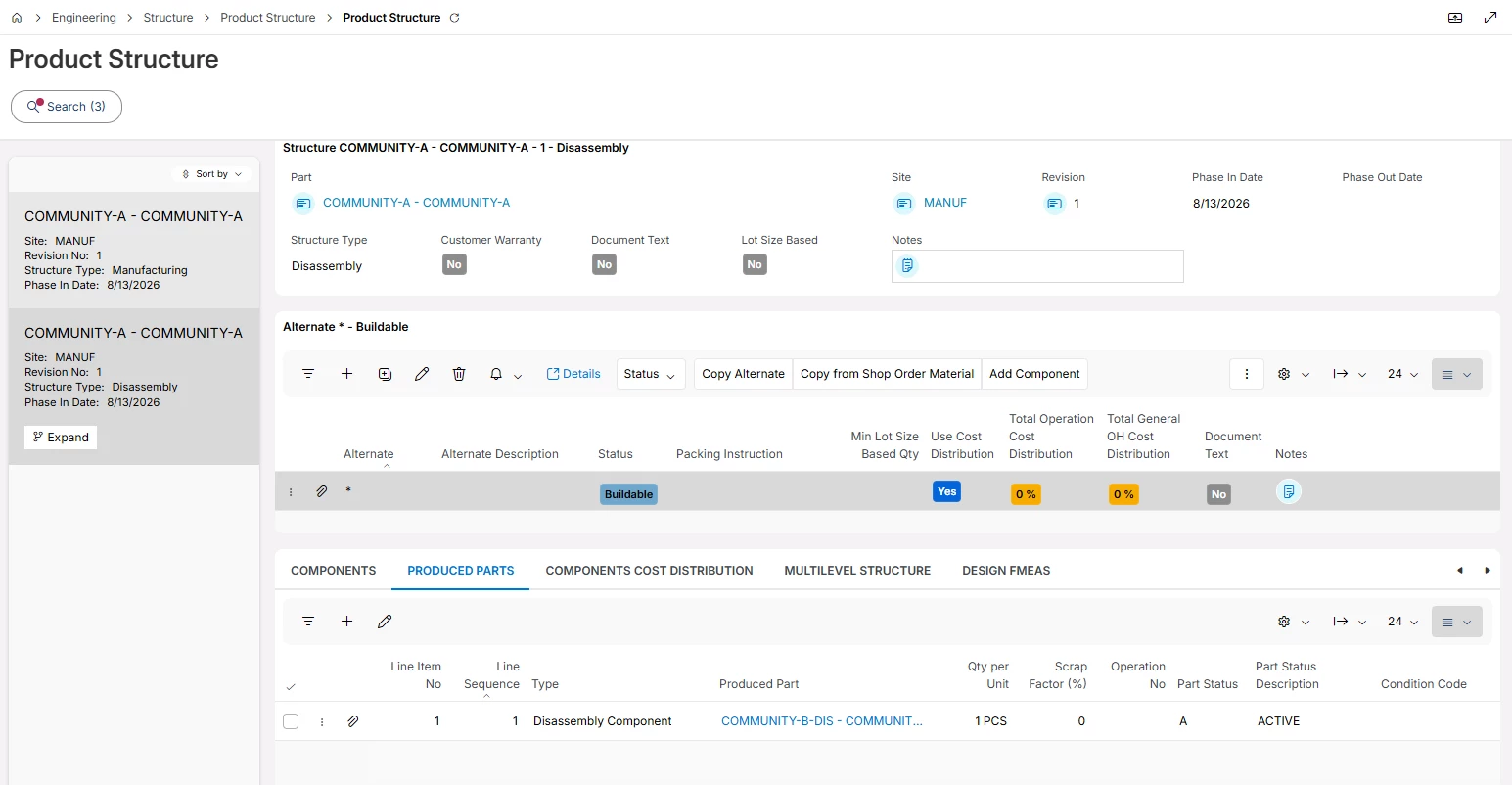
Next, create a Disassembly Structure for "Part-A", which is the original manufactured part. Then, add "Part-B-Dis" under the Produced Parts tab.
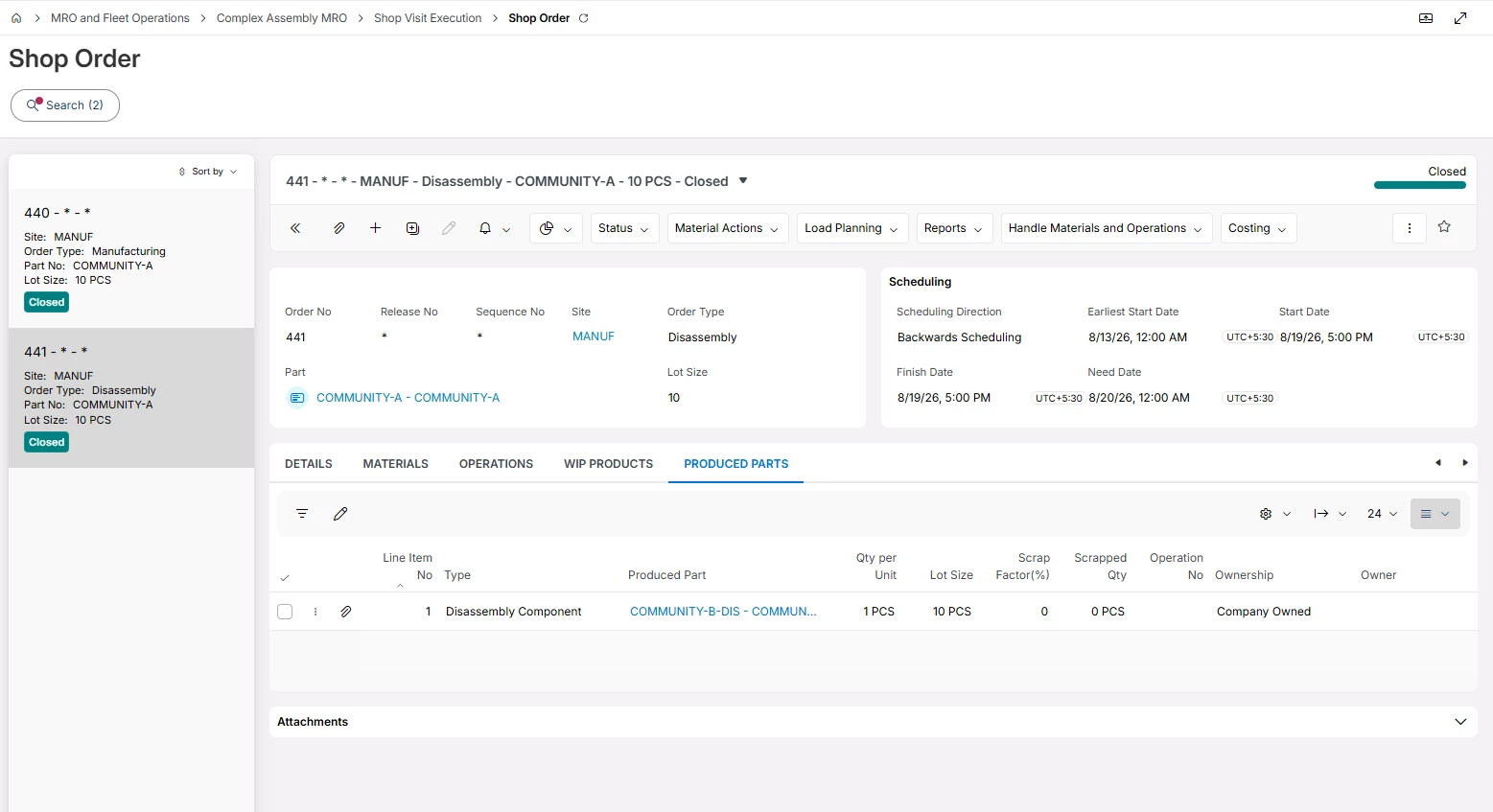
Create and process a new Shop Order with a quantity of 10, ensuring that the Shop Order Type is set to Disassembly. Once processing is complete, close the shop order.


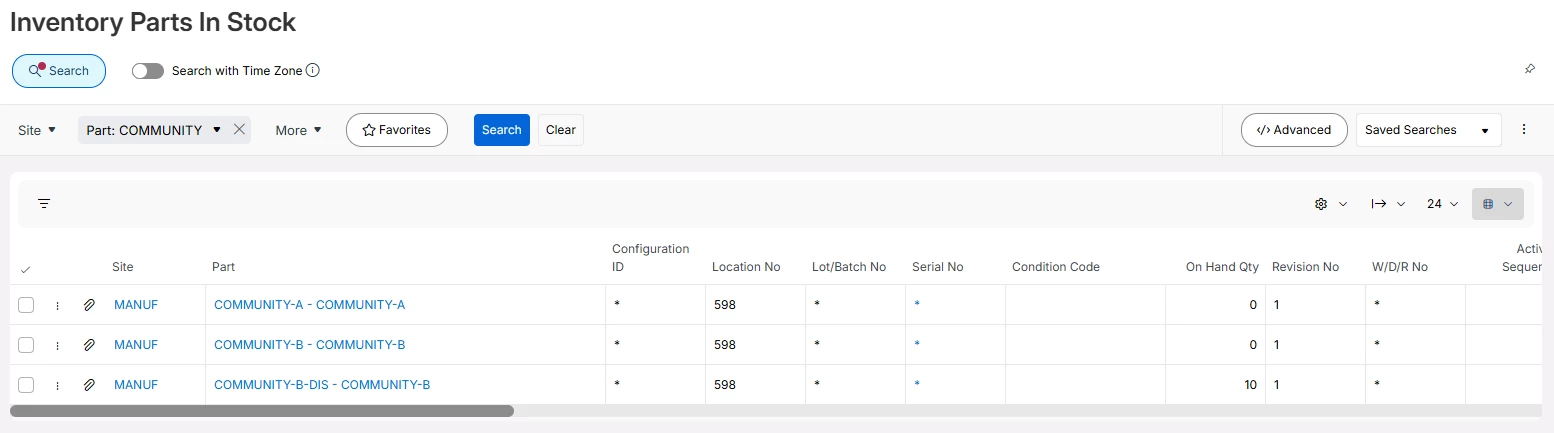
The inventory balance should then be reflected as shown below.


If you need to use "Part-B-Dis" in the creation of other new items, you can utilize the Alternate Component functionality to consume it.

Thanks,
YohanR


Björn Hultgren
Hero (Employee)
Forum|alt.badge.img+25

Alternatively, you can create a Disassembly-type structure for Product A that directly includes Product B as a disassembly component (it can be even though the part type isn’t). Then, create a Disassembly-type shop order for Product A. Issue Product A from stock and receive Product B into stock.

However, if you want the stock value of Product B to reflect both the cost of Product A and the cost of the disassembly process itself, so that Product B is received into stock with a higher value than before, it may be more beneficial to use a separate part number to which the cost of Product A can be distributed.


Forum|alt.badge.img+10
  • Author
  • Sidekick (Customer)
  • August 13, 2026

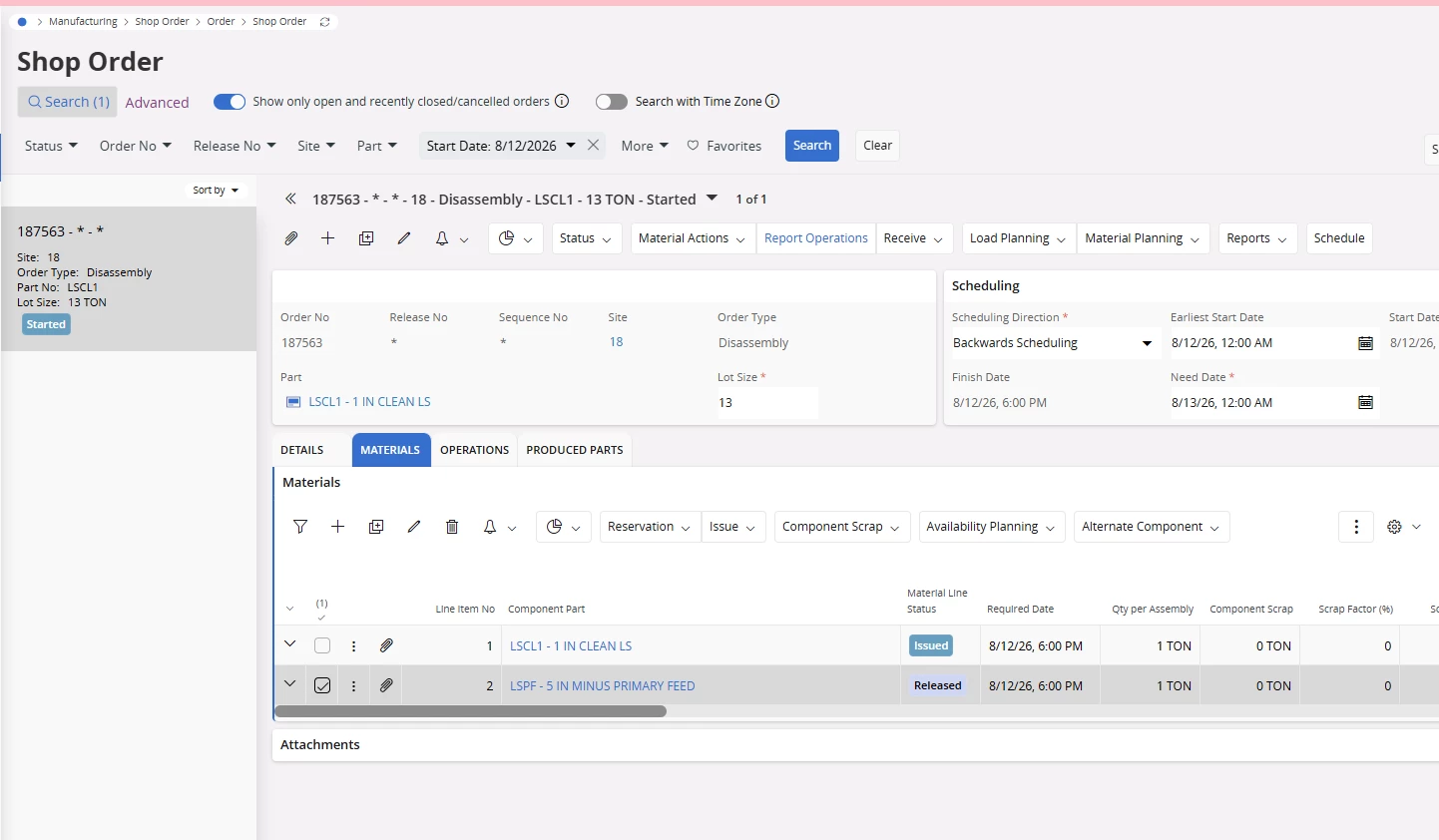
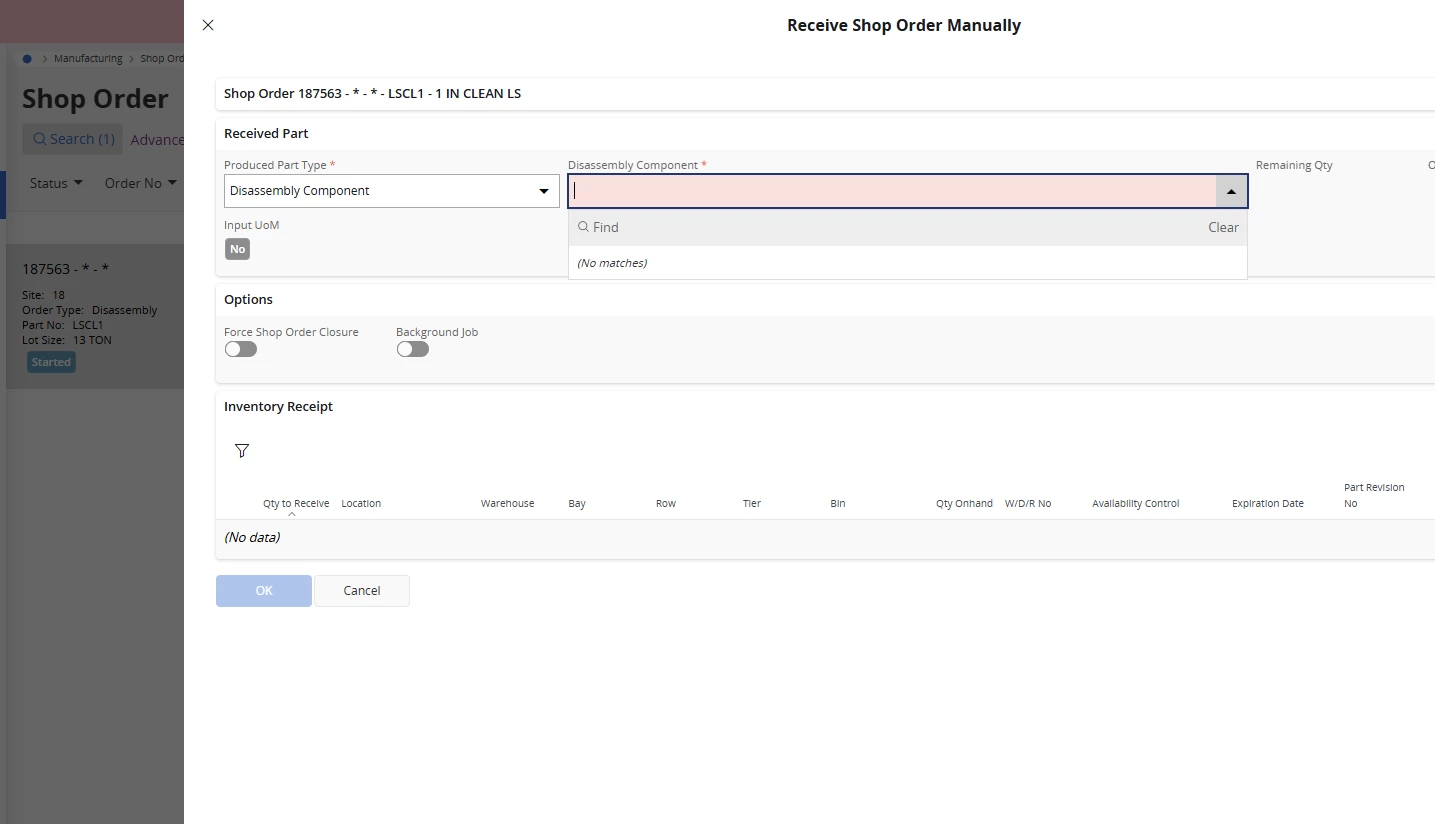
I have a disassembly structure setup for Part A.  I have created a disassembly shop order for it and Part A and Part B both showed up under the Materials Tab as Component Parts (nothing under Produced Parts).  I can issue Part A but when I go to Receive and Manually Receive, Part B is not available from the dropdown.  I think I may be missing a step.  The only option I have for Part B is Reserve or Issue at the line level.


Abdul
Superhero (Partner)
Forum|alt.badge.img+20
  • Superhero (Partner)
  • August 13, 2026

Hi ​@TTRACY,

Seems, your disassembly structure is not correctly configured.

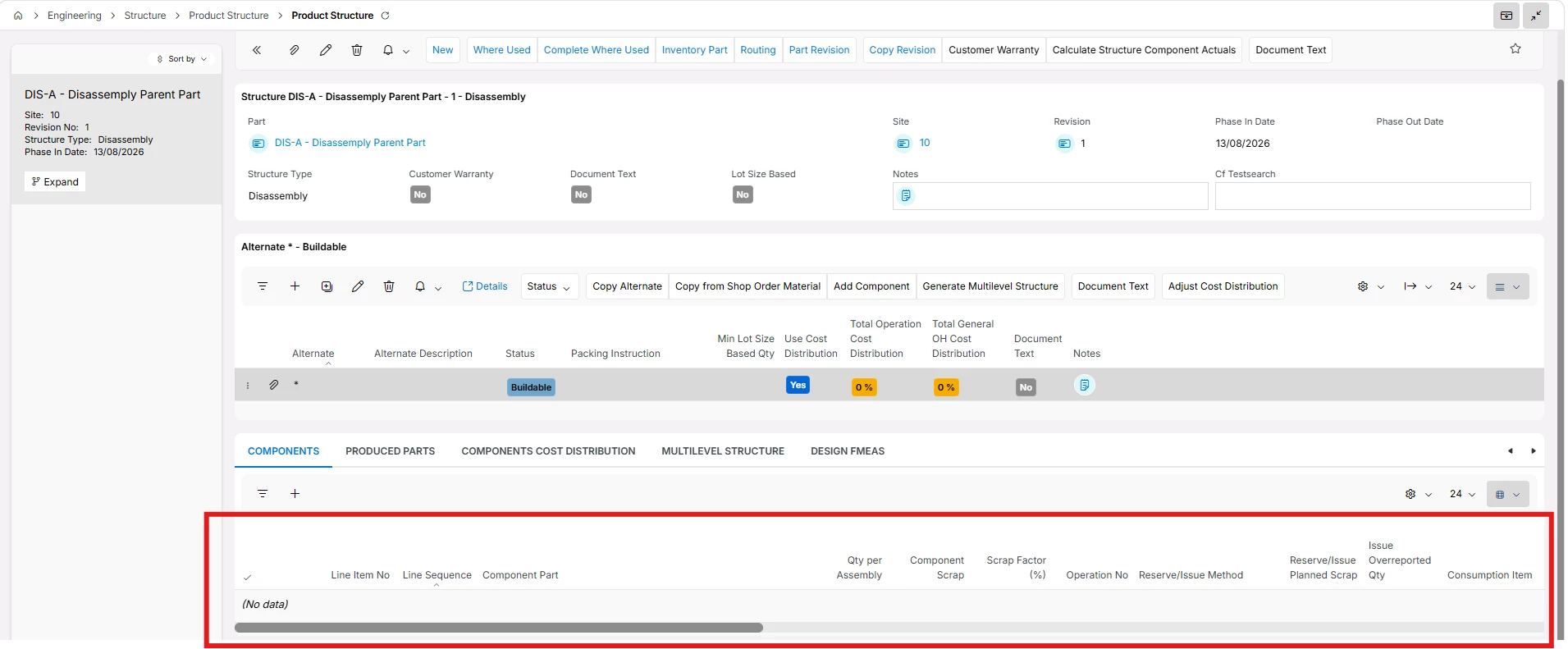
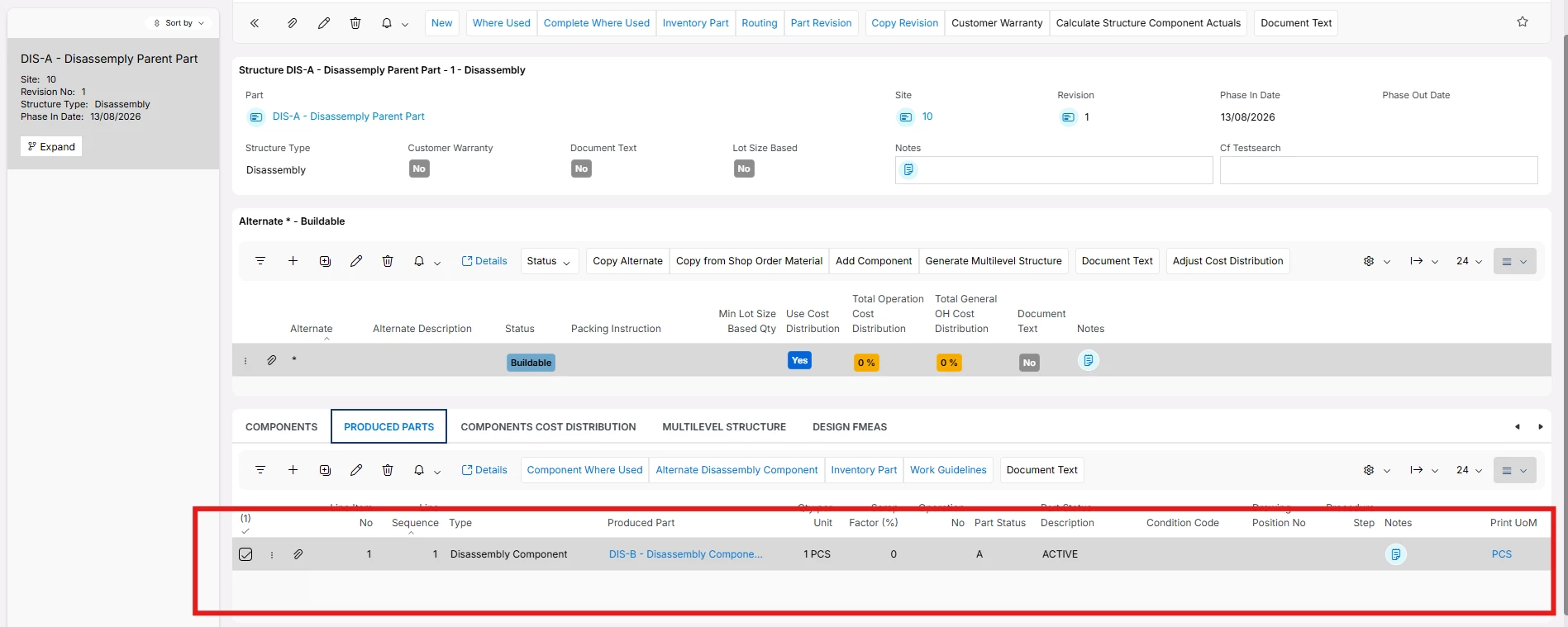
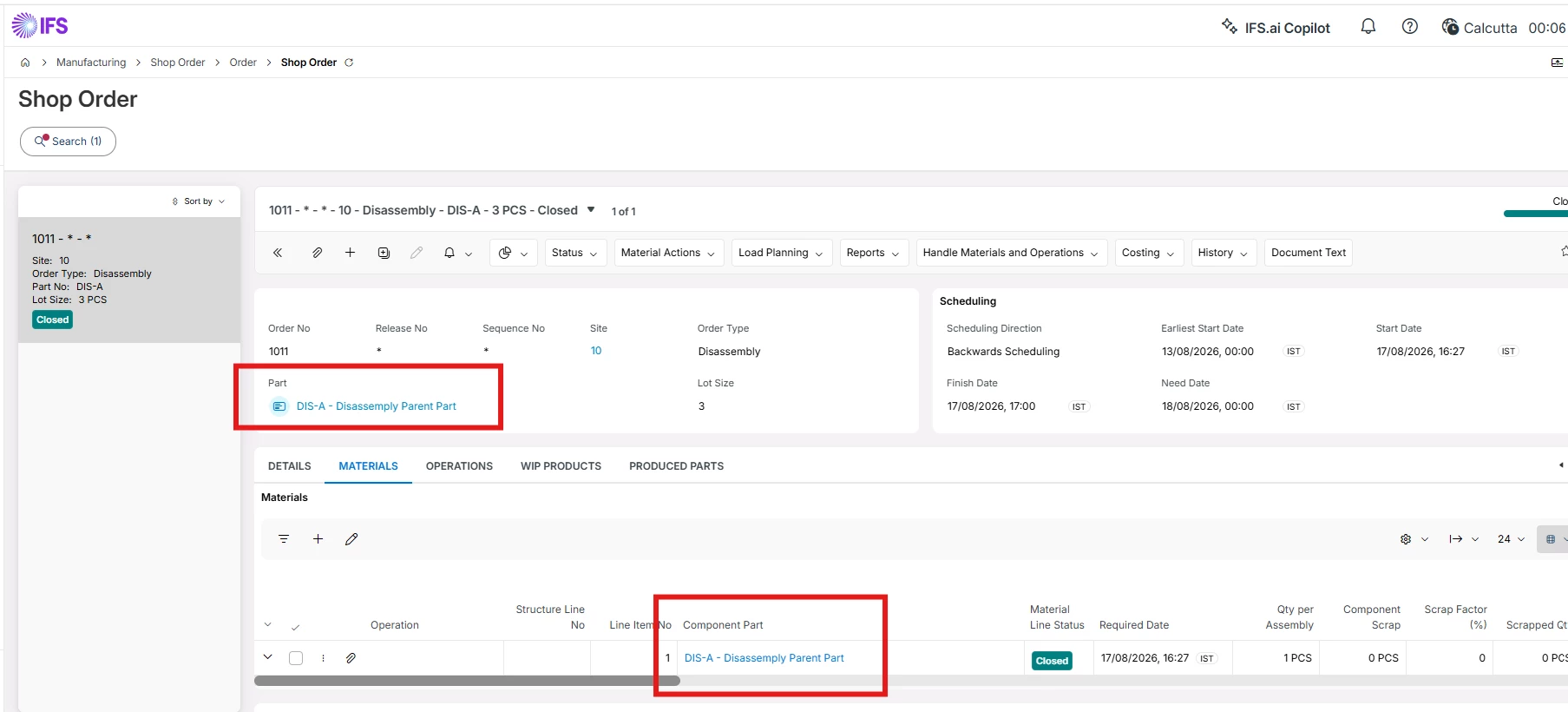
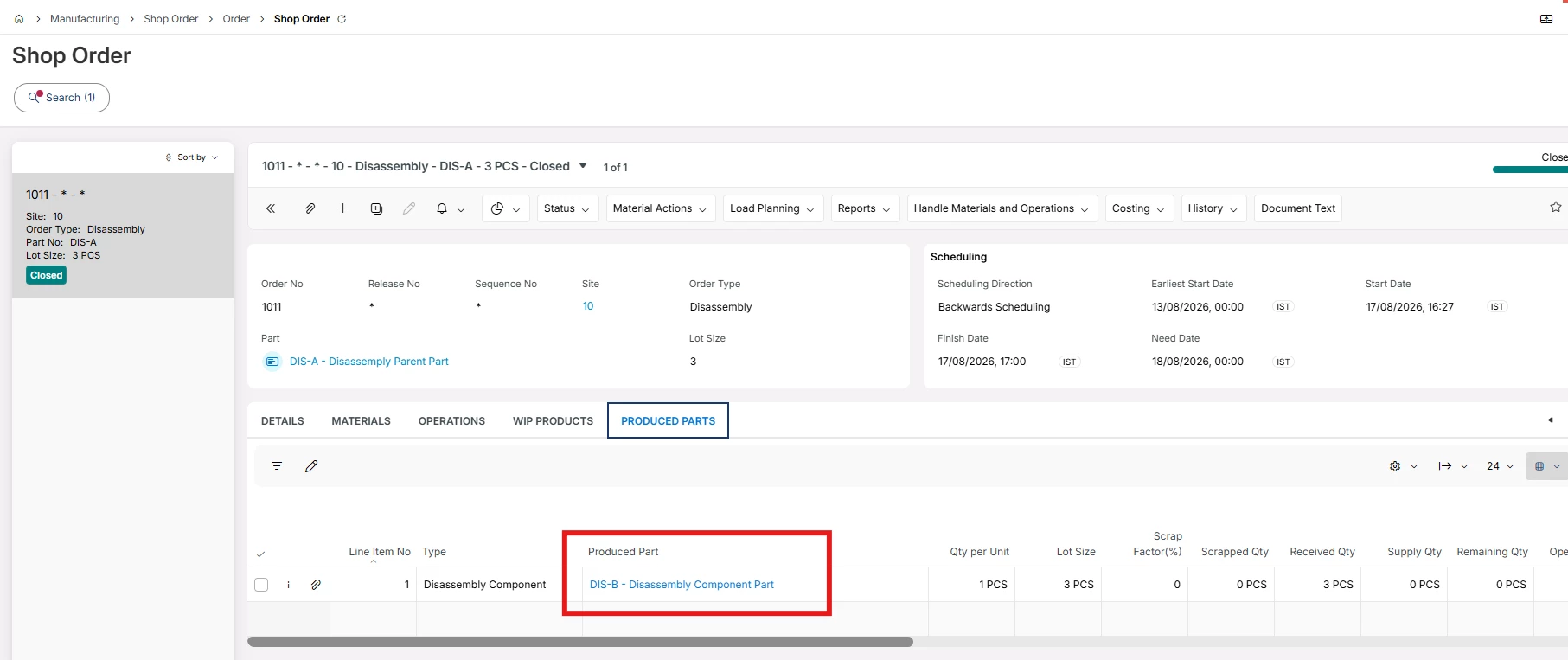
Please refer to the screenshots below and confirm whether your Product structure configured accordingly.

  1. No need to add any component for Disassembly type Product Structure.
  1. Component(s) needs to be added in Produced Parts tab which will be received after Disassembly Shop Order execution.
  1. Parent Part will automatically be added in material tab for Disassembly Shop Order.


  1. Likewise, Component will be added in Product Part tab as per Product Structure configuration and system will allow to receive the component accordingly.


Hope this will help.