


Question

My Absence Calendar - Confirm Button is not showing

  • Nov 26, 2026 11:28 AM UTC
  • 1 reply
  • 12 views

Forum|alt.badge.img
  • Do Gooder (Partner)

Hi,

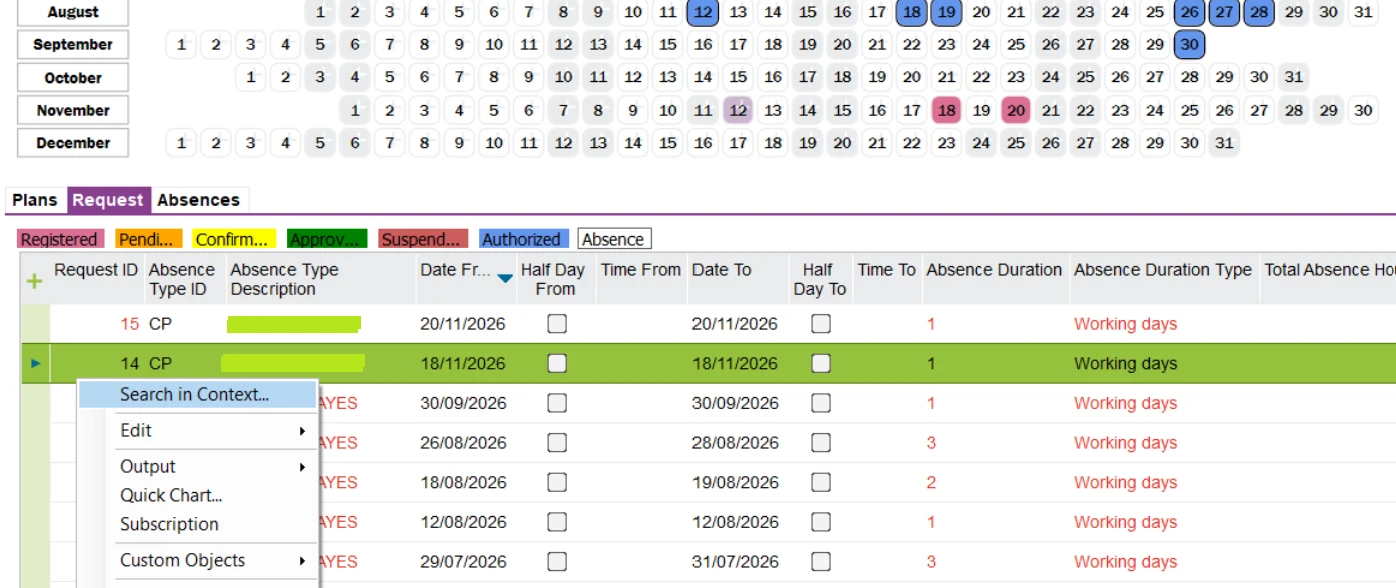
We have an employee who was previously able to confirm absences in My Absence Calendar (IEE), but the Confirm button is no longer visible.

We have verified that:

  • The employee is active.
  • The employee is not in an active absence period.
  • Access roles and permissions appear correct.
  • Other employees with the same setup can still confirm absences.

Since the issue is isolated to a single user and the functionality worked previously, I'm struggling to identify a configuration-related cause. Aside from comparing the affected user's permissions, projections, and user setup with a working user, are there any other areas we should investigate?

Any suggestions would be appreciated. Thanks!
 

1 reply

richardwoods
Do Gooder (Partner)
Forum|alt.badge.img+6
  • Do Gooder (Partner)
  • Nov 26, 2026 11:09 PM UTC

I'm not 100% sure what is behind this one, but since you have already ruled out the obvious ones, here are some areas which may be worth a look-see when a single user loses the button and others with the same setup keep it.

Short answer: with the user and roles ruled out, my best guesses are the state of the particular absence, which absence type it sits on and who has data access to that type, and the employee's employment periods. The Confirm option on a calendar entry may well follow the status of the absence record, in which case a user can look identical to a colleague and still see a different command set.

A checklist, most likely first

  1. The status of the absence itself. Confirm probably only makes sense on an absence that has been registered but not yet confirmed. If the entry is already Confirmed, or has moved on to Approved, Rejected, Cancelled and so on, there is nothing left to confirm and the button may well be absent. Open the entry in My Absences or the manager's Absence Requests page and look at the Status, and use Status Change History to see who moved it and when.
  2. Plan or request. Absence plans and absence requests are separate records with their own statuses and their own flags on the absence type. Check which of the two the calendar entry actually is, then look at the status on the matching page (Absence Plans or Absence Requests). The "Confirm Registered Absence Plan" and "Confirm Registered Absence Request" steps are different activities.
  3. The absence type and its toggles. In Absence Type (under Schedules and Rules, Absence Administration Basic Data) look at Requested Absence Type, Planned Absence Type and the two "Confirm Only by Employee" toggles. If a type was edited after the employee last used it, entries on that type can behave differently from entries on a type your working user uses.
  4. Data access groups on absence types. Access to absence types can be granted per data access group (Absence Type Access Definition: Data Access Group Definition, then Define Access to Absence Types, with Granted, Can Modify and Can Remove). If the company uses extended data security, two people with identical roles can still differ here. Compare which group each person belongs to and whether the absence type in question is granted to it.
  5. Employment periods. Absence can only sit inside an employment period. Look in Employment Periods for the affected employee for an end date, a gap, or a newer period that starts after the absence dates.
  6. Already authorised or transferred time. If the dates fall in a period that has already been authorised or transferred to payroll, what a user may change can depend on access role authority levels. Worth comparing against the working user if the absence is in an older period.

A quick way to narrow it

  • Pick one absence where the button is missing and look at it from the manager side (Absence Calendar, then Absence Requests). If the manager can see a Confirm option there, the status is fine and the cause sits on the employee side.
  • Create a new test absence on a different type for the same employee. If Confirm appears, think type or data access. If it does not, think employee-level items such as the employment period.
  • Try the same absence type for the working user on a comparable date.

Things to know

  • Plans and requests are tracked separately, so a missing button on one does not say anything about the other.
  • Confirm and Approve are two steps. Approve is a manager action and expects the absence to be Confirmed first.
  • Behaviour can differ a little between releases, so it helps to know which one you are on.

Worth a look: the IFS Cloud documentation topics for Register Absence Requests, My Self-Service, Register and Confirm Absence Plan, and Absence Type Access Definition.

Which release are you on, is the button missing on every absence for this employee or only some, and what status and absence type do the affected entries have?

Created with the help of Ask Olive.