Question

Unable to open entities in core file in Developer Studio

  • March 30, 2026
  • 14 replies
  • 59 views

Forum|alt.badge.img+1
  • Do Gooder (Customer)

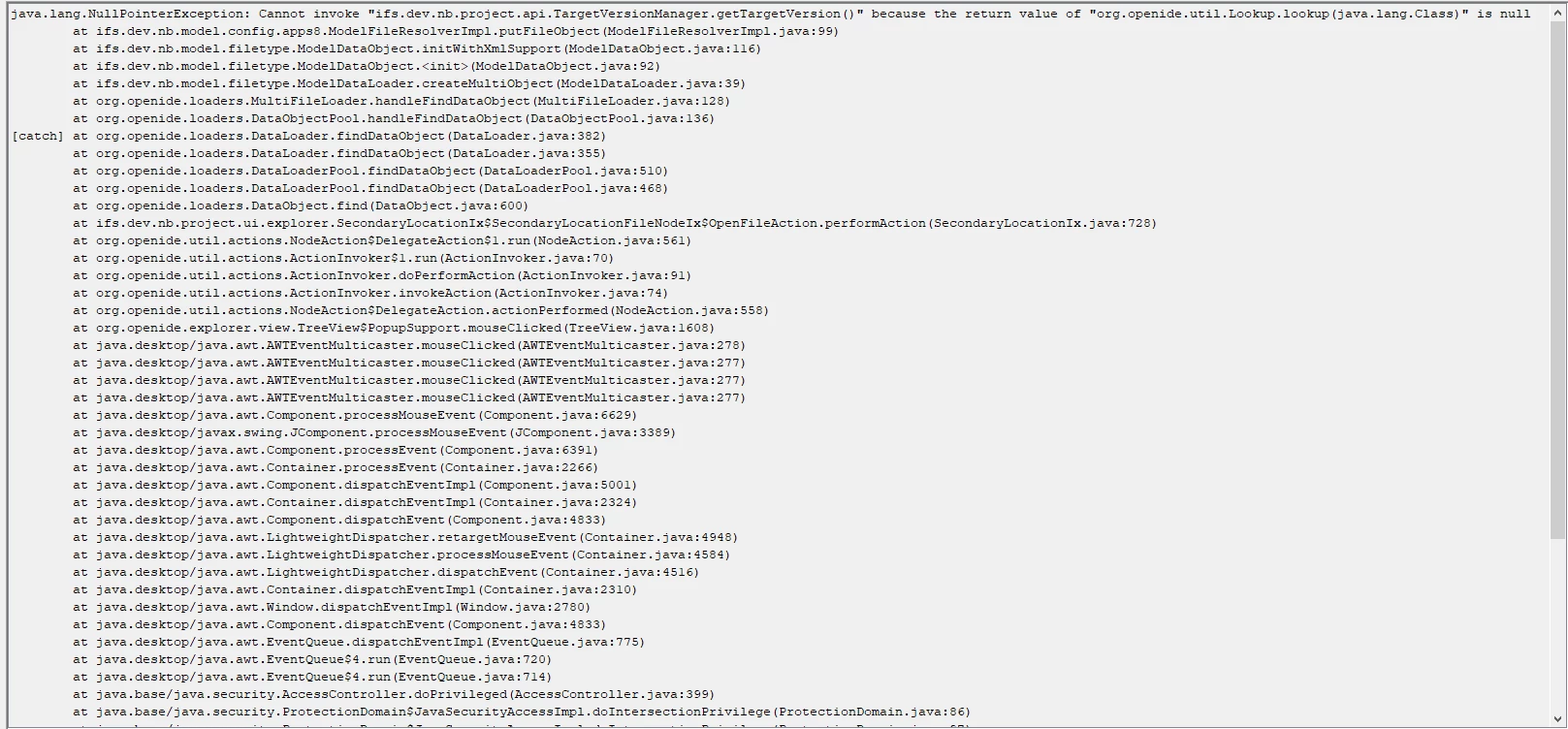
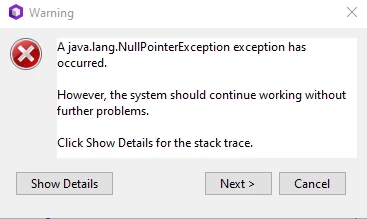
Every time I tried and click to open an entity within the IFS core files nothing happens and I get this silent error. I’m on Developer studio version 25.2.1048 and core file is 25.2.3



14 replies

hamalk
Superhero (Employee)
Forum|alt.badge.img+14
  • Superhero (Employee)
  • March 31, 2026

Hi ​@eguz4 

What is the Target version you have set in the project ? Is it 25R2 ? 


/Harshini


Forum|alt.badge.img+8
  • Do Gooder (Partner)
  • March 31, 2026

Hi ​@eguz4 ,

  This is a known issue in Developer Studio 25.2 when the target version is not properly set or workspace metadata is corrupted. The error TargetVersionManager.getTargetVersion() is null indicates the core version is not registered correctly.

Fix by re-importing the core using the official import option, ensuring the target version is set, and clearing the workspace (.metadata). Also verify that Developer Studio and core files are from the same build stream.


Forum|alt.badge.img+4

Hi,

This might indicate that the core files location itself is set up as a project, with a project file, eg C:\IFSCloudCore\nbproject\project.properties.


The core files location should be pointing to the version of the code that is found on build place in form of a zip file. The location where these files are unzipped should not have any project files, or be set up as a project of its own, it might interfere with the functionality.


/Andreas


Forum|alt.badge.img+8
  • Do Gooder (Partner)
  • March 31, 2026

Hi ​@eguz4 ,

  Thanks, this seems to be the issue. The core location appears to have been set up with project metadata, which likely caused Developer Studio to treat the core folder as a project.


     After checking the folder structure, I’ll re-extract a clean copy of the 25.2.3 core zip from build place and make sure the target core location contains no nbproject or other project files before reconfiguring it in Developer Studio.


Forum|alt.badge.img+4

Forum|alt.badge.img+1
  • Author
  • Do Gooder (Customer)
  • March 31, 2026

Hi ​@eguz4 

What is the Target version you have set in the project ? Is it 25R2 ? 


/Harshini

Yes 25R2


Forum|alt.badge.img+1
  • Author
  • Do Gooder (Customer)
  • March 31, 2026

Hi,

This might indicate that the core files location itself is set up as a project, with a project file, eg C:\IFSCloudCore\nbproject\project.properties.


The core files location should be pointing to the version of the code that is found on build place in form of a zip file. The location where these files are unzipped should not have any project files, or be set up as a project of its own, it might interfere with the functionality.


/Andreas

I unzipped it in its own folder. There is no project files in it. I’ve also tried uninstalling and reinstalling / clearing the cached data


Forum|alt.badge.img+8
  • Do Gooder (Partner)
  • April 1, 2026

Hi,

This might indicate that the core files location itself is set up as a project, with a project file, eg C:\IFSCloudCore\nbproject\project.properties.


The core files location should be pointing to the version of the code that is found on build place in form of a zip file. The location where these files are unzipped should not have any project files, or be set up as a project of its own, it might interfere with the functionality.


/Andreas

I unzipped it in its own folder. There is no project files in it. I’ve also tried uninstalling and reinstalling / clearing the cached data

Hi ​@eguz4 

If the core folder is clean and reinstall didn’t help, the issue is likely that Developer Studio still cannot resolve the target version. Please check under Tools → Options → IFS → Versions that the core is correctly registered and active. Also try creating a completely new workspace and re-registering the core. The error TargetVersionManager.getTargetVersion() is null typically indicates a target version mapping issue rather than a core file issue.


Forum|alt.badge.img+1
  • Author
  • Do Gooder (Customer)
  • April 1, 2026

Hi,

This might indicate that the core files location itself is set up as a project, with a project file, eg C:\IFSCloudCore\nbproject\project.properties.


The core files location should be pointing to the version of the code that is found on build place in form of a zip file. The location where these files are unzipped should not have any project files, or be set up as a project of its own, it might interfere with the functionality.


/Andreas

I unzipped it in its own folder. There is no project files in it. I’ve also tried uninstalling and reinstalling / clearing the cached data

Hi ​@eguz4 

If the core folder is clean and reinstall didn’t help, the issue is likely that Developer Studio still cannot resolve the target version. Please check under Tools → Options → IFS → Versions that the core is correctly registered and active. Also try creating a completely new workspace and re-registering the core. The error TargetVersionManager.getTargetVersion() is null typically indicates a target version mapping issue rather than a core file issue.

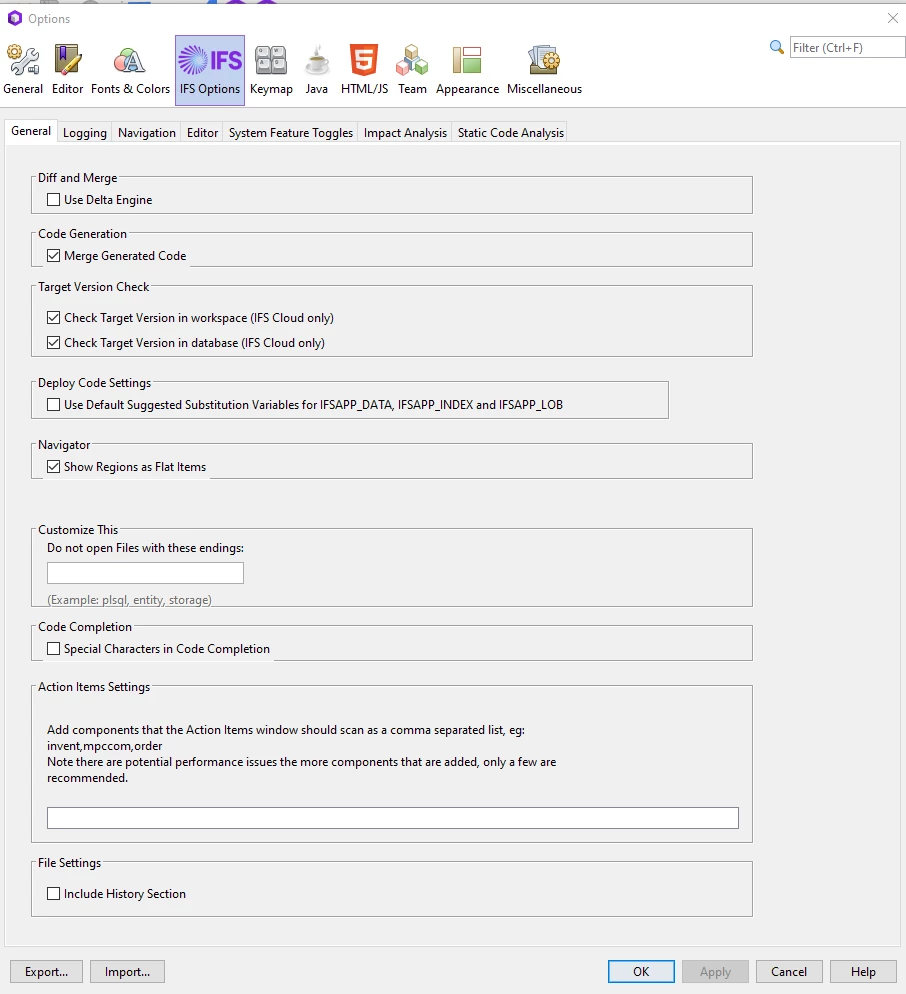
I don’t think I have that option. See screenshot below


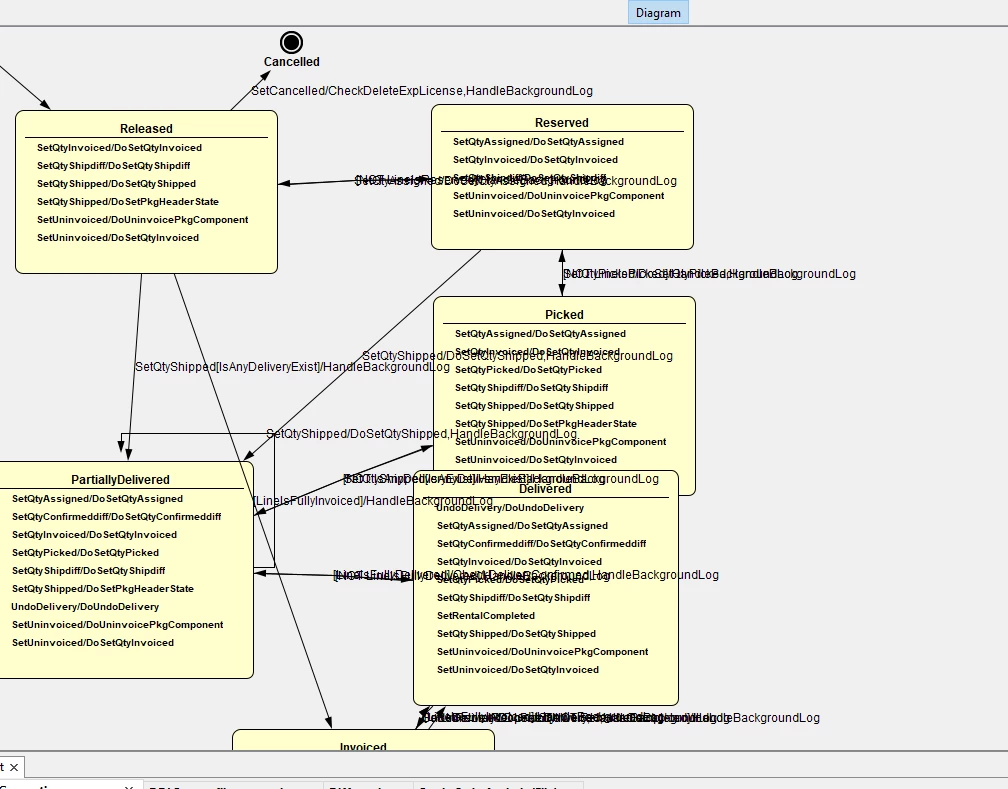
Here’s also a screenshot of what my entity looks like when I’m able to open it


Forum|alt.badge.img+8
  • Do Gooder (Partner)
  • April 2, 2026

Hi,

This might indicate that the core files location itself is set up as a project, with a project file, eg C:\IFSCloudCore\nbproject\project.properties.


The core files location should be pointing to the version of the code that is found on build place in form of a zip file. The location where these files are unzipped should not have any project files, or be set up as a project of its own, it might interfere with the functionality.


/Andreas

I unzipped it in its own folder. There is no project files in it. I’ve also tried uninstalling and reinstalling / clearing the cached data

Hi ​@eguz4 

If the core folder is clean and reinstall didn’t help, the issue is likely that Developer Studio still cannot resolve the target version. Please check under Tools → Options → IFS → Versions that the core is correctly registered and active. Also try creating a completely new workspace and re-registering the core. The error TargetVersionManager.getTargetVersion() is null typically indicates a target version mapping issue rather than a core file issue.

I don’t think I have that option. See screenshot below


Here’s also a screenshot of what my entity looks like when I’m able to open it


@eguz4 ,

Thanks for sharing the screenshot — that actually clarifies the situation 

What you are showing under:

 Tools → Options → IFS Options

is not the place where core versions are registered, which is why you don’t see the “Versions” section mentioned earlier.

🔍 Key Point

In IFS Developer Studio, the core version is NOT configured in Options UI.

 It is instead resolved through:

  • Workspace setup
  • Project import
  • Internal metadata

 What your screenshot tells us

  • You don’t have version registered manually
  • Developer Studio is trying to resolve it automatically
  • And failing → causing:

    TargetVersionManager.getTargetVersion() is null

 Real Root Cause (Based on Your Case)

Since:

  • Core folder is clean ✅
  • No nbproject
  • Reinstall done ✅
  • Options screen doesn’t show version config ✅

 The issue is most likely:

❗ Core was not imported using the correct “IFS Core Import / Workspace setup flow”

 What you should do (Working Fix)

✅ Step 1: Start with a NEW workspace

  • Close Developer Studio
  • Create a brand new empty workspace

✅ Step 2: Import Core Correctly

Do NOT:

  • Open core as folder
  • Copy manually

Instead use:

 File → Import → IFS → IFS Cloud Core (or similar option)

If not visible:
 Use:

  • “Import Project” → select correct root (not appsrv directly)

✅ Step 3: Verify Structure

Your core root should look like:


<core_root>/
appsrv/
database/
foundation/

 If you opened only appsrv → ❌ wrong
 Must point to root of extracted core

✅ Step 4: Test

  • Open any .entity file
  • Should open without error

 Important Clue from Your Last Screenshot

You mentioned:

“Here’s what entity looks like when I’m able to open it”

 That means:

  • Core itself is OK ✅
  • Issue is workspace/session-specific

Forum|alt.badge.img+4

The original stack trace implied the core files had a project file. If this has been removed, can you check if the stack trace for the error has changed. Are we looking at a different error now perhaps?


Forum|alt.badge.img+8
  • Do Gooder (Partner)
  • April 3, 2026

The original stack trace implied the core files had a project file. If this has been removed, can you check if the stack trace for the error has changed. Are we looking at a different error now perhaps?

@Andreas Dahllöf ,

Hi,

Since the core folder is already confirmed as clean and reinstall did not help, this now looks less like a core file issue and more like a target version resolution / workspace metadata issue.

What I would suggest checking next:

1. Verify the path being used for the core

Please make sure Developer Studio is pointing to the root of the extracted core, i.e. the folder that contains:

  • appsrv
  • database
  • foundation

and not directly to appsrv.
This is a very common reason for TargetVersionManager.getTargetVersion() is null.

2. Use a fully clean workspace

Not just a new workspace name — remove the cached metadata as well:

  • Close Developer Studio
  • Delete the workspace .metadata folder
  • Open Developer Studio with a brand new workspace
  • Re-import the core again

3. Recheck import method

Make sure the core is not being opened as a normal project/folder in a way that creates project metadata.
It should be imported through the proper Developer Studio / IFS core workflow, with the core root as the location.

4. Confirm version alignment

Please also confirm that:

  • Developer Studio = 25.2.x
  • Core files = 25.2.x from the same build stream

If those are slightly out of line, version resolution can fail even though the core itself looks fine.

5. Share the latest stack trace

As Andreas mentioned, if the original cause was cleaned up, the error may now be different.
So it would be useful to reproduce it again and share the latest stack trace, to confirm whether we are still looking at the same issue.


Forum|alt.badge.img+1
  • Author
  • Do Gooder (Customer)
  • April 3, 2026

The original stack trace implied the core files had a project file. If this has been removed, can you check if the stack trace for the error has changed. Are we looking at a different error now perhaps?

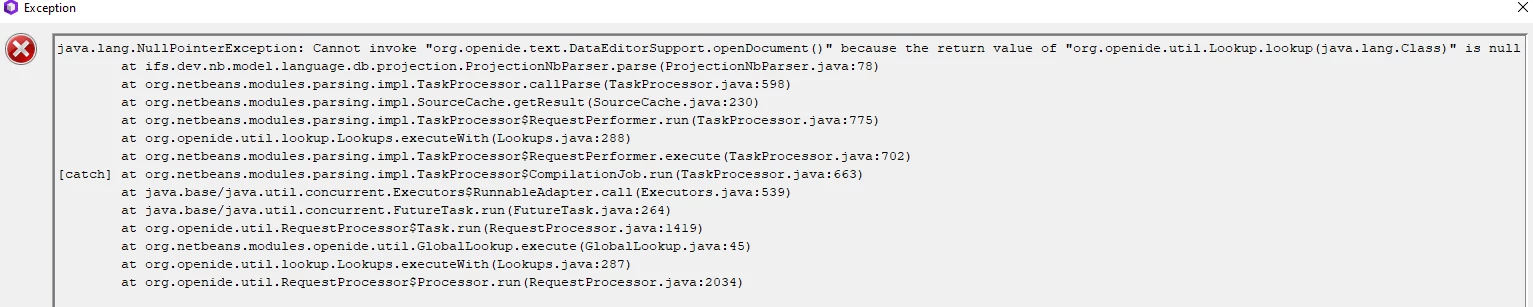
New stack trace


Forum|alt.badge.img+8
  • Do Gooder (Partner)
  • April 5, 2026

The original stack trace implied the core files had a project file. If this has been removed, can you check if the stack trace for the error has changed. Are we looking at a different error now perhaps?

New stack trace


@eguz4 ,

From that last log, the error is now more specific than before. The screenshot shows a java.lang.NullPointerException when Developer Studio tries to open the entity editor: it fails in org.openide.text.DataEditorSupport.openDocument() because a lookup result is null, and the call path includes ifs.dev.nb.model.language.dbprojection.ProjectionNbParser.parse(...) before the NetBeans parser/editor stack continues.

That matters because it shifts the diagnosis slightly. Earlier in the thread, the suspected cause was “core folder contains project metadata” or a bad project setup, but later the user confirmed the core folder is clean, there is no nbproject, and reinstall/cache clearing did not fix it. Andreas then explicitly asked whether the error had changed, which it did, and the newer guidance in the thread points more toward workspace metadata / project import / target-version resolution than toward a bad core zip itself.

The best-supported conclusion from the full thread and the final log is:

The problem is most likely not the entity file itself and not simply a corrupt core file.
It is more likely a Developer Studio workspace/import/state issue, where the entity editor/parser is being invoked without the expected project context or version metadata being resolved correctly.


This is the order I would recommend, based on the final stack trace and the most credible replies in the thread:

  1. Create a completely fresh workspace
    • Close Developer Studio.
    • Delete the existing workspace .metadata.
    • Start with a brand-new empty workspace.
  2. Re-import the core using the proper IFS workflow
    • Do not open the core as a normal folder/project.
    • Import from the core root, not a subfolder. The root should contain folders like appsrv, database, and foundation.
  3. Verify the path points to the extracted core root
    • A very likely mistake is pointing Developer Studio directly to appsrv instead of the extracted top-level core folder. The thread specifically calls this out as a common reason for TargetVersionManager.getTargetVersion() is null.
  4. Reconfirm version alignment
    • Keep Developer Studio and the core on the same 25.2 stream/build line as closely as possible. The thread notes that even slight misalignment can break version resolution.
  5. Retest with the same entity
    • If the same entity opens in one workspace/session but not another, that strongly confirms a workspace/import-state issue rather than a broken entity file.