Solved

View only related items for a Custom Entity on a page

  • September 16, 2026
  • 2 replies
  • 41 views

Forum|alt.badge.img+6

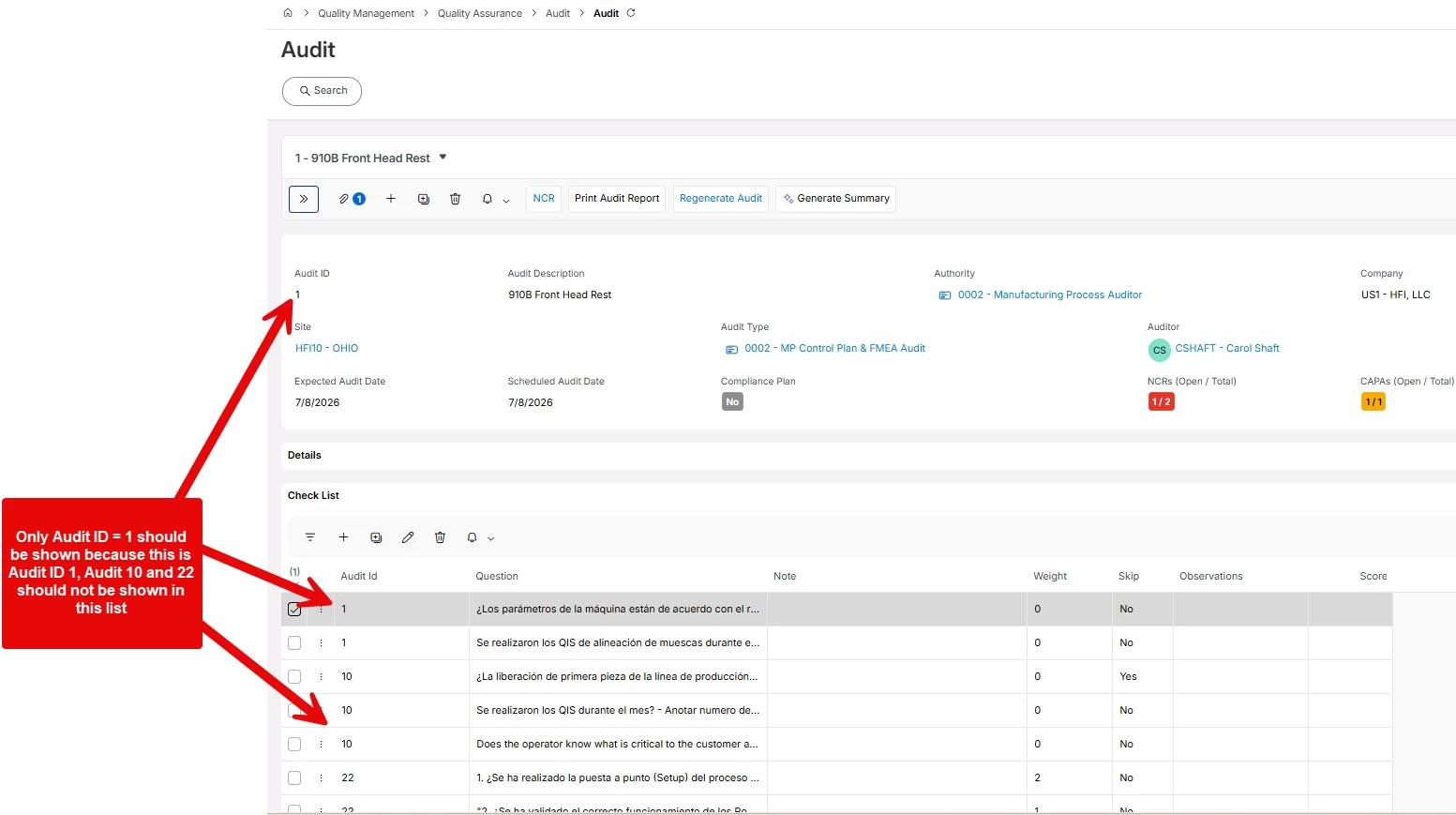
Hello IFS Community, im fairly new at working with Custom Entities and we are currently trying to add a new custom entity to Audits, we are copying this new rows from a different custom entity using a Custom Event, in this custom Entity we are adding rows and one of columns is  the Audit ID, the goal is that the user only see the Rows with the Audit ID related to the Actually Audit where this new row is being added.


as you can tell in the picture below, the user can see Audit ID from different audits, in the example below, we are in Audit ID = 1 and in this list below, the user should only see Audit ID = 1.


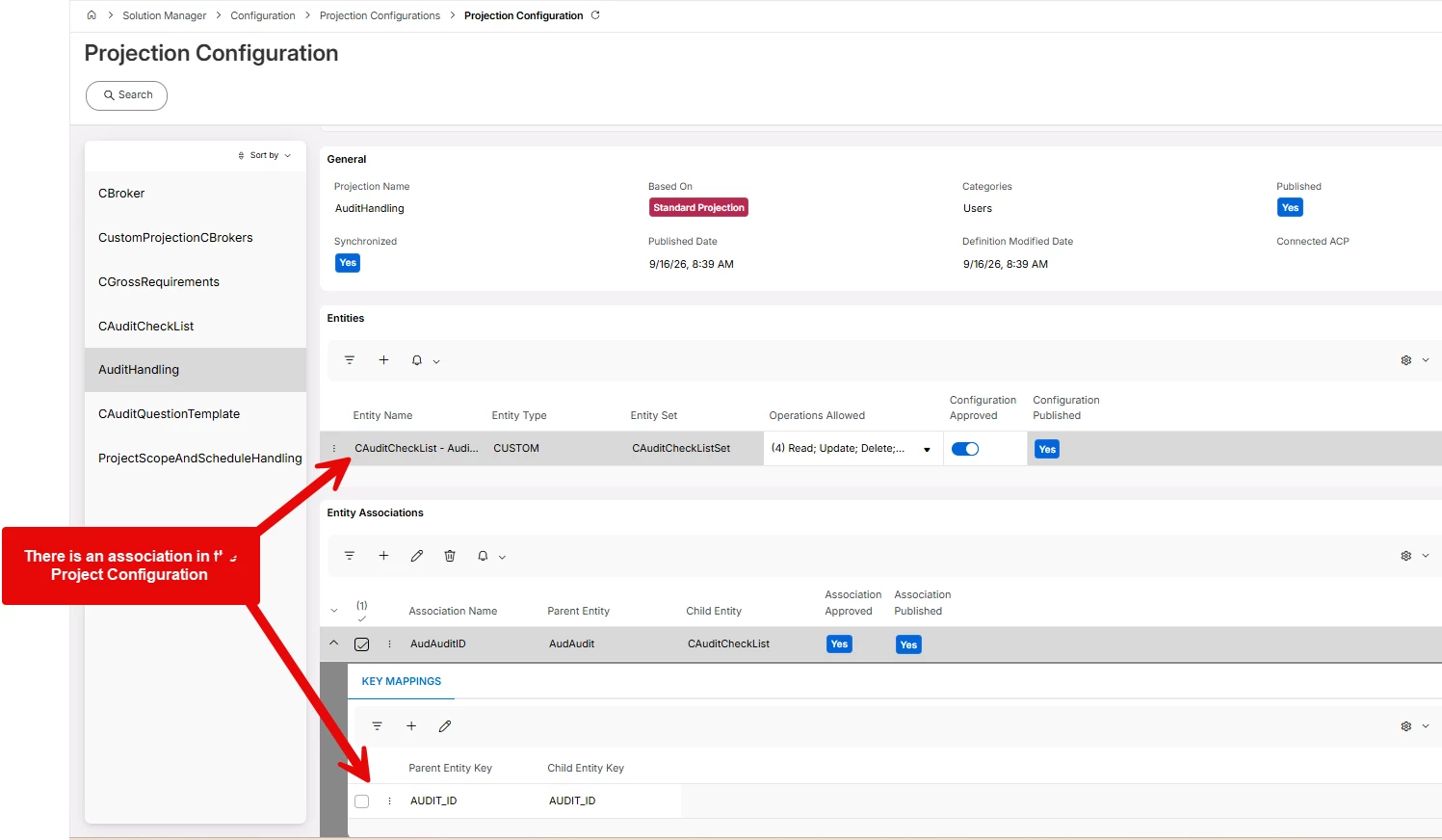
i was told that using a Entity Association in the Projection Configuration would do it, but it still doesn't work, what am i missing, your help will be truly appreciated. 

we are in 25R2.


Best answer by gleb.batov

Hi ​@QHFJESP,


Your projection config looks right. The association is not what filters the list though, it only makes the relationship available to the client. The filtering happens on the page, and that part is missing.

Right now your list is most likely pointed directly at CAuditCheckListSet as its data source, so it loads every row in the table. You need to bind the list to the Audit record on the page instead.

In Page Designer on the Audit page:

  1. Turn off the preview first. If you leave it on you get a runtime error when you create the Binding object.
  2. In the Active Page structure, find the element that holds the current Audit record (the selector/singleton the header fields sit on) and note its name. That is your Bindname.
  3. Select the reference to your Check List list in the page content.
  4. Expand the optional attributes and create the Binding object.
  5. Set Bindname to that Audit selector element, and set Property to AudAuditID (your association name).
  6. Do not also set a fixed Data Source on that list reference pointing at the entity set. The binding supplies the data.
  7. Save and publish, turn the preview back on, then reload the page with a hard refresh.

Two things to check if it still shows everything after that:

  • What type is the Audit ID column on CAuditCheckList? If it was created as a Reference field, it can store the object key rather than the plain value, and the key mapping will never match. A plain number or text field that your custom event fills with the Audit ID works reliably.
  • Confirm the value your custom event writes is identical in format to AudAudit.AUDIT_ID, no padding or type difference.

Once the binding works you can hide the Audit Id column in the list, it becomes redundant.

If you can post a screenshot of the list reference in Page Designer showing the Binding and Data Source properties, easy to confirm from there.


Thanks,

Gleb

2 replies

Forum|alt.badge.img+3
  • Do Gooder (Employee)
  • Answer
  • September 16, 2026

Hi ​@QHFJESP,


Your projection config looks right. The association is not what filters the list though, it only makes the relationship available to the client. The filtering happens on the page, and that part is missing.

Right now your list is most likely pointed directly at CAuditCheckListSet as its data source, so it loads every row in the table. You need to bind the list to the Audit record on the page instead.

In Page Designer on the Audit page:

  1. Turn off the preview first. If you leave it on you get a runtime error when you create the Binding object.
  2. In the Active Page structure, find the element that holds the current Audit record (the selector/singleton the header fields sit on) and note its name. That is your Bindname.
  3. Select the reference to your Check List list in the page content.
  4. Expand the optional attributes and create the Binding object.
  5. Set Bindname to that Audit selector element, and set Property to AudAuditID (your association name).
  6. Do not also set a fixed Data Source on that list reference pointing at the entity set. The binding supplies the data.
  7. Save and publish, turn the preview back on, then reload the page with a hard refresh.

Two things to check if it still shows everything after that:

  • What type is the Audit ID column on CAuditCheckList? If it was created as a Reference field, it can store the object key rather than the plain value, and the key mapping will never match. A plain number or text field that your custom event fills with the Audit ID works reliably.
  • Confirm the value your custom event writes is identical in format to AudAudit.AUDIT_ID, no padding or type difference.

Once the binding works you can hide the Audit Id column in the list, it becomes redundant.

If you can post a screenshot of the list reference in Page Designer showing the Binding and Data Source properties, easy to confirm from there.


Thanks,

Gleb


Forum|alt.badge.img+6
  • Author
  • Do Gooder (Customer)
  • September 17, 2026

Hi ​@QHFJESP,


Your projection config looks right. The association is not what filters the list though, it only makes the relationship available to the client. The filtering happens on the page, and that part is missing.

Right now your list is most likely pointed directly at CAuditCheckListSet as its data source, so it loads every row in the table. You need to bind the list to the Audit record on the page instead.

In Page Designer on the Audit page:

  1. Turn off the preview first. If you leave it on you get a runtime error when you create the Binding object.
  2. In the Active Page structure, find the element that holds the current Audit record (the selector/singleton the header fields sit on) and note its name. That is your Bindname.
  3. Select the reference to your Check List list in the page content.
  4. Expand the optional attributes and create the Binding object.
  5. Set Bindname to that Audit selector element, and set Property to AudAuditID (your association name).
  6. Do not also set a fixed Data Source on that list reference pointing at the entity set. The binding supplies the data.
  7. Save and publish, turn the preview back on, then reload the page with a hard refresh.

Two things to check if it still shows everything after that:

  • What type is the Audit ID column on CAuditCheckList? If it was created as a Reference field, it can store the object key rather than the plain value, and the key mapping will never match. A plain number or text field that your custom event fills with the Audit ID works reliably.
  • Confirm the value your custom event writes is identical in format to AudAudit.AUDIT_ID, no padding or type difference.

Once the binding works you can hide the Audit Id column in the list, it becomes redundant.

If you can post a screenshot of the list reference in Page Designer showing the Binding and Data Source properties, easy to confirm from there.


Thanks,

Gleb

 

Hello gleb.batov, you have no idea how gratful i am with your detailed response, this worked great, the fact that you spend the time giving all of this details, its outstanding.


thank you very much for all your help! im good now, your teachings got me past this hurdle. 


have a great day and thank you again!