Solved

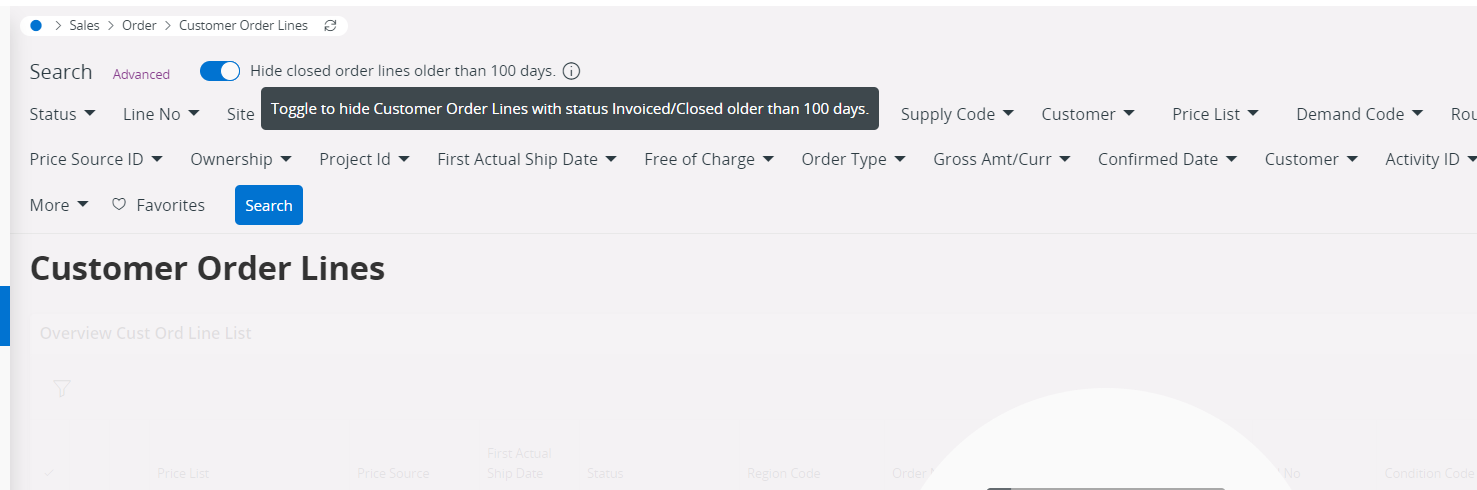
Turn off Show only current results in Customer Order Lines

  • March 11, 2025
  • 5 replies
  • 165 views

ashenfdo
Sidekick (Customer)
Forum|alt.badge.img+8

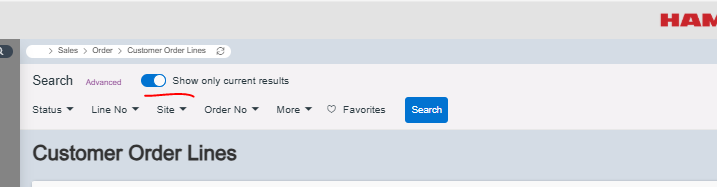
Can you turn off (default) the Show only current results in Customer Order Lines?



Best answer by david.harmer

Hi ​@Nikila Dis , whilst R&D might have thought that is helpful, there are many industries where this is a hindrance. If the “strain” on the database is too great because of this flag, then i’d suggest that the database is not designed or optimised correctly. 

@ashenfdo , what you may notice is in the URL, the “usedefaultfilter” option is added, 

/main/ifsapplications/web/page/CustomerOrderLines/List;usedefaultfilter=true

If you alter this to false, it will toggle the search to off, so you can use it in Lobby or Bookmarks, but not the native navigator (again, a design limitation IMHO). 

Hope that helps.

David,


5 replies

Nikila Dis
Superhero (Employee)
Forum|alt.badge.img+14
  • Superhero (Employee)
  • March 11, 2025

Hi ​@ashenfdo,

The primary purpose of this feature is to enhance search performance by guiding users away from conducting searches that could strain the database by fetching outdated data that they likely aren't interested in anyway. By automatically filtering out irrelevant records, the feature reduces strain on your database and accelerates the search process.

The toggle is set to ON by default to improve performance and expedite searches. Maintaining it ON ensures the smooth operation of your system, guaranteeing optimal search results. Changing the default setting could potentially decrease efficiency and lead to slower performance.

In earlier versions preceding 23R1, the toggle lacked clear meaning. However, starting with IFS Cloud 23R1 and onward, most windows now provide meaningful guidance to assist users in understanding the purpose of the toggle.

Regards,

Nikila Dissanayake


Forum|alt.badge.img+11
  • Hero (Customer)
  • Answer
  • March 11, 2025

Hi ​@Nikila Dis , whilst R&D might have thought that is helpful, there are many industries where this is a hindrance. If the “strain” on the database is too great because of this flag, then i’d suggest that the database is not designed or optimised correctly. 

@ashenfdo , what you may notice is in the URL, the “usedefaultfilter” option is added, 

/main/ifsapplications/web/page/CustomerOrderLines/List;usedefaultfilter=true

If you alter this to false, it will toggle the search to off, so you can use it in Lobby or Bookmarks, but not the native navigator (again, a design limitation IMHO). 

Hope that helps.

David,


ashenfdo
Sidekick (Customer)
Forum|alt.badge.img+8
  • Author
  • Sidekick (Customer)
  • March 11, 2025

Hi ​@david.harmer thanks a lot for the idea, I have tried saved filters with unchecked toggle button but it didn't work, But saving bookmark is working.

I totally agree with your point this is not a helpful feature for users, I have had complains from the users that they have missed some important orders because of this feature 

@Nikila Dis its better to optimize the database queries as ​@david.harmer  suggest rather than limiting the amount of data which users are seeing. 


Forum|alt.badge.img+8
  • Do Gooder (Customer)
  • September 2, 2026

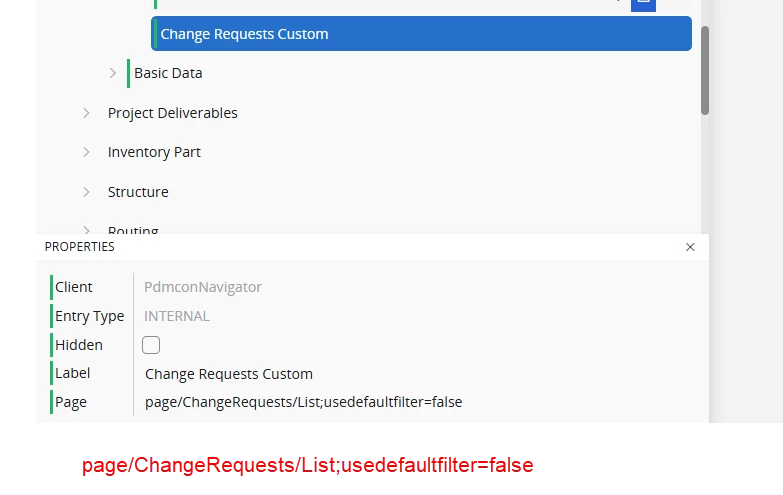
I am plying with an alternative solution to the Toggle being set to on for a given page.

It appears by creating a custom menu to navigate to a Internal page I can control the parameter.

This is the text of the Page URL used:  page/ChangeRequests/List;usedefaultfilter=false


Initial testing on this is working and keeping the toggle turned off.

What are the downsides of this approach?


Forum|alt.badge.img+8
  • Sidekick (Employee)
  • September 3, 2026

Additional information -

Step 1: Create a Custom Configuration Context

  1. Log in as a System Administrator or UI Configuration Manager.

  2. Navigate to Solution Manager > User Interface > Configuration > Contexts (or search for Custom Contexts in the Navigator).

  3. Create a new record:

    • Context ID: Enter a unique identifier (e.g., ROLE_SALES_REP or SITE_US_01).

    • Description: Enter a clear label (e.g., "Custom Customer Order Lines for Sales Reps").

Step 2: Define Context Conditions (Scoping Rules)

In the Conditions section of your new Context record, define who this configuration applies to:

Option A: Scoping by User Role / Permission Set

Add a condition based on the user's assigned security role or permission set:

  • Attribute / Expression: UserRole (or PermissionSet)

  • Operator: Equals (or In)

  • Value: Name of the target IFS Role / Permission Set (e.g., SALES_REPRESENTATIVE_ROLE).

Option B: Scoping by Site (User Allowed Site)

Add a condition based on session attributes or default user site:

  • Attribute / Expression: UserAllowedSite or Contract

  • Operator: Equals

  • Value: The site code (e.g., 100 or US_MAIN).

💡 Combining Conditions: You can add multiple rows to combine conditions (e.g., PermissionSet = 'SALES_REP' AND Site = 'US_01').

Step 3: Apply the Context in Navigator Designer

  1. Open Navigator Designer from the profile menu.

  2. Look at the top bar of the Navigator Designer where the Context Selector dropdown is displayed (default is usually Global).

  3. Switch the Context Selector from Global to your newly created Context (e.g., ROLE_SALES_REP).

  4. Locate and edit the Customer Order Lines node (update the Target URL / filter as needed).

  5. Click Save and then Publish.