



Question

Scheduled quick report - error message in print manager

  • Nov 25, 2026 7:35 AM UTC
  • 1 reply
  • 17 views

Link
Superhero (Customer)
Forum|alt.badge.img+23
  • Superhero (Customer)

Hello all,

we have scheduled a quick report.

If the report is empty, an error message appears on the 'Print Manager' page. The Print Job can not be printed. The selected printer is not mapped to any Print Agent.
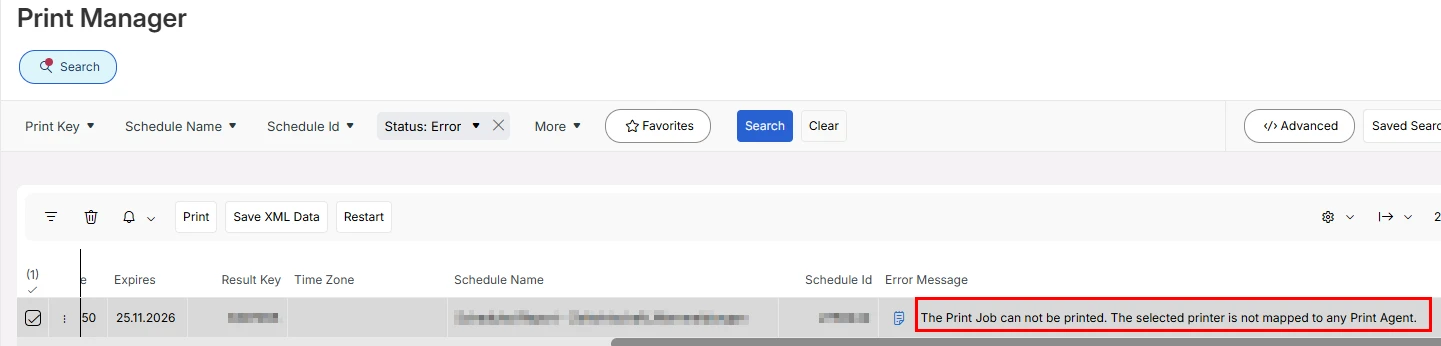


The background job has been processed successfully.

What is the best way to handle this issue?


Thank you in advance.

 

1 reply

richardwoods
Do Gooder (Partner)
Forum|alt.badge.img+6
  • Do Gooder (Partner)
  • Nov 25, 2026 2:18 PM UTC

Short answer: that message is about the printer mapping rather than the report itself. A scheduled print goes to a logical printer, and a logical printer only prints if a Print Agent has a mapping for it. So there are two ways to deal with it: map the printer properly, or send the scheduled output somewhere that does not need a printer.

Why the print job fails

Scheduled printouts can only go to logical printers, and a logical printer is just a name inside IFS Cloud. The link to a real device is made in the Print Agent configuration, which is a separate service running close to the printer. If the logical printer chosen for the schedule has no entry there, the print job cannot be handed to any agent, which is what the Print Manager is telling you.

Option 1: make the printer printable

  • Application Base Setup > System Setup > Printer Definitions > Logical Printers: confirm the logical printer used by the schedule exists (Printer ID and Description).
  • In the Print Agent configuration, open the PRINTERS parameter and add a line mapping that logical printer to the physical or network printer visible from the machine running the agent. The drop-down lists the logical printers already defined.
  • Make sure the same logical printer is also listed on the Report Formatter template that processes print jobs (the one often called something like Processing Print Jobs). The logical printer has to be listed there for the job to be picked up at all; the physical mapping itself belongs in the Print Agent, not the formatter.
  • Check the agent is running and its monitor/log shows it looking for jobs.
  • Then let the next schedule run.

Option 2: do not print at all

If nobody actually needs paper from this schedule, change the printer on the schedule to one of the standard logical printers that are not tied to a device, for example NO_PRINTOUT or PDF_PRINTER. These are never mapped to a physical printer, so they do not need a Print Agent entry. If the result should reach people, the email or Document Management delivery options on the schedule may suit better than paper.

The awkward case

You mention it only shows up when the report is empty. The empty run may not be the cause. A quick check is whether the runs that do return rows produced a print job too, and whether those jobs went to the same logical printer. If they print fine, compare the printer on the print job that failed with the one on the jobs that worked.

Things to know

  • A job can be created simply because the schedule has a print option selected, so the background job can finish successfully while the print job fails afterwards.
  • Mapping logical to physical printers in the Report Formatter is only meant for demo and test set-ups; in production it is the Print Agent that does it.
  • The Print Agent runs as a Windows service, so the account it runs under needs access to the printers.

Worth a look: the IFS Cloud technical documentation on Logical Printers, Print Agent Configuration and Print Jobs, and the Schedule Quick Report activity.

Which logical printer is selected on the schedule, and do the runs that return data print without complaint?

Created with the help of Ask Olive.