



Question

Conditional formatting of a field

  • October 2, 2026
  • 3 replies
  • 36 views

NovPeterR
Sidekick (Partner)
Forum|alt.badge.img+6

Does anyone here know if it is possible to color code a field based on the value entered in the field?

Like my example below where I want to add conditional formatting based on the value the user entered.
If it is below a certain value, green. if above, red.
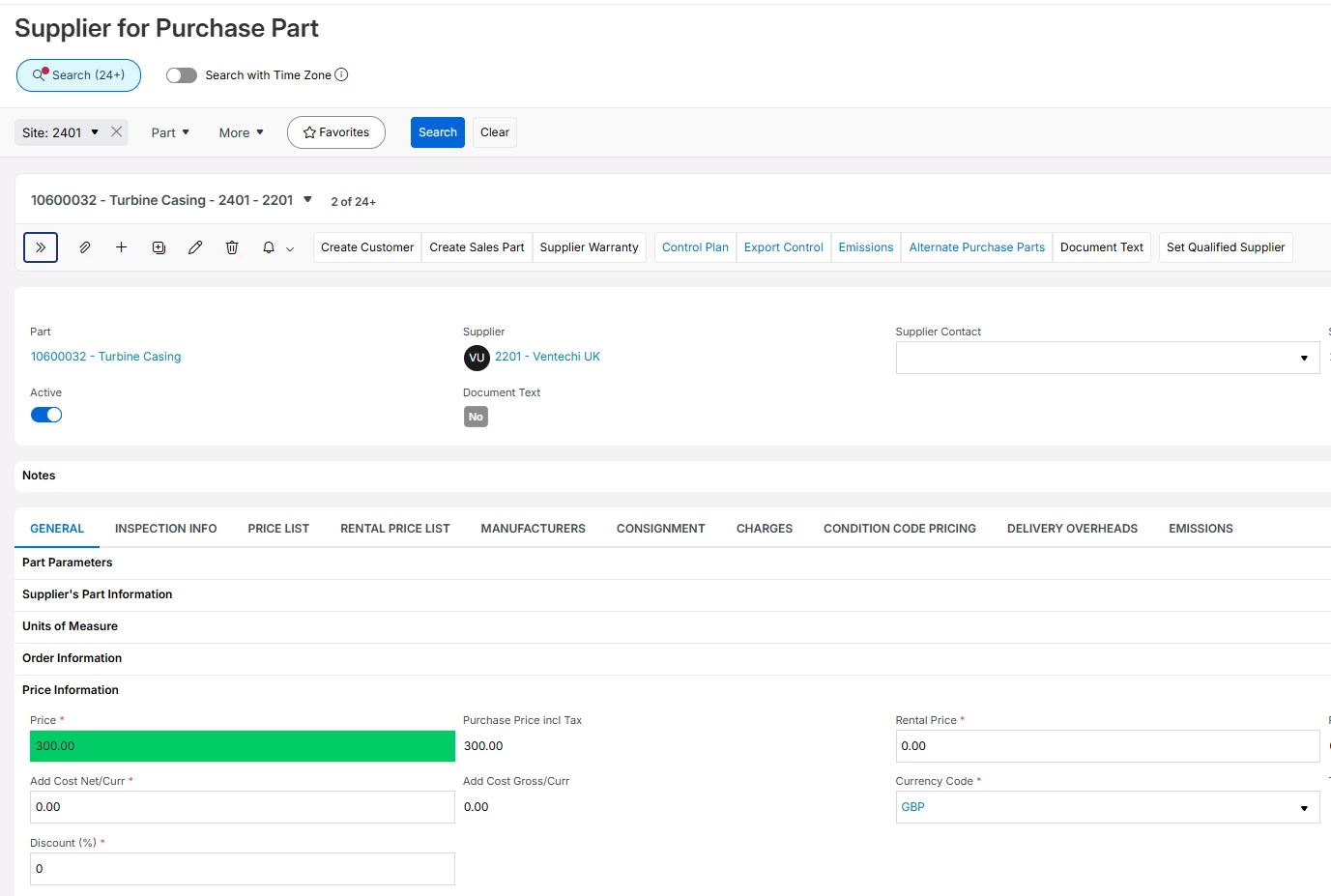
The example above is hypothetical. The actual use case involve custom fields that are looking at values in a separate table for validation.


3 replies

Forum|alt.badge.img+4
  • Do Gooder (Employee)
  • October 8, 2026

Hi ​@NovPeterR,


Not on a detail page field like the Price one in your screenshot. Conditional formatting in IFS Cloud only works on list (table) columns. The docs up to 26R2 still describe it that way.


If the data can sit in a list, it works:

*Only you (24R1+): List Settings > New Formatting. Pick the column, condition and color. It's stored in your user profile.
*All users (25R1+): Page Designer > All Elements > Lists > your list. Toggle additional attributes, add a conditional format, set the case (condition) and the formatting, then save and publish.
*Custom fields are supported.
*Make one rule for green and one for red. Conditions inside a rule are AND only.


For your real case with limits in another table: the condition can't query another table. Get the limit onto the same record as a read-only custom attribute, then compare the two fields in the Page Designer rule:

*Green: Cf_Value <= Cf_Limit
*Red: Cf_Value > Cf_Limit


Swap in your own attribute names. Keep the limit as a custom attribute, not a Page Designer computed field. Computed fields aren't supported by conditional formatting.

If it has to be on the detail page: there's no standard way to color the input field itself. The closest you'll get is a separate read-only badge next to it (say "Within limit" / "Over limit") with an emphasis color. Badges are always read-only, and emphasis is documented as a developer (Marble) property. Check that your version's Page Designer lets you set it before you plan around it.

​

Best,

Gleb


NovPeterR
Sidekick (Partner)
Forum|alt.badge.img+6
  • Author
  • Sidekick (Partner)
  • October 8, 2026

Hi ​@NovPeterR,


Not on a detail page field like the Price one in your screenshot. Conditional formatting in IFS Cloud only works on list (table) columns. The docs up to 26R2 still describe it that way.


If the data can sit in a list, it works:

*Only you (24R1+): List Settings > New Formatting. Pick the column, condition and color. It's stored in your user profile.
*All users (25R1+): Page Designer > All Elements > Lists > your list. Toggle additional attributes, add a conditional format, set the case (condition) and the formatting, then save and publish.
*Custom fields are supported.
*Make one rule for green and one for red. Conditions inside a rule are AND only.


For your real case with limits in another table: the condition can't query another table. Get the limit onto the same record as a read-only custom attribute, then compare the two fields in the Page Designer rule:

*Green: Cf_Value <= Cf_Limit
*Red: Cf_Value > Cf_Limit


Swap in your own attribute names. Keep the limit as a custom attribute, not a Page Designer computed field. Computed fields aren't supported by conditional formatting.

If it has to be on the detail page: there's no standard way to color the input field itself. The closest you'll get is a separate read-only badge next to it (say "Within limit" / "Over limit") with an emphasis color. Badges are always read-only, and emphasis is documented as a developer (Marble) property. Check that your version's Page Designer lets you set it before you plan around it.

​

Best,

Gleb

Thanks ​@gleb.batov

Looks like the badge solution would fit our purpose the best.

/Peter


Forum|alt.badge.img+4
  • Do Gooder (Employee)
  • October 8, 2026

Great! Please mark the answer as resolved when you have a chance.


Best,

Gleb