

Question

'Tax details does not exist for Item No 1' error on External Supplier Invoices window

  • March 25, 2026
  • 1 reply
  • 19 views

Forum|alt.badge.img+6

Hi, 

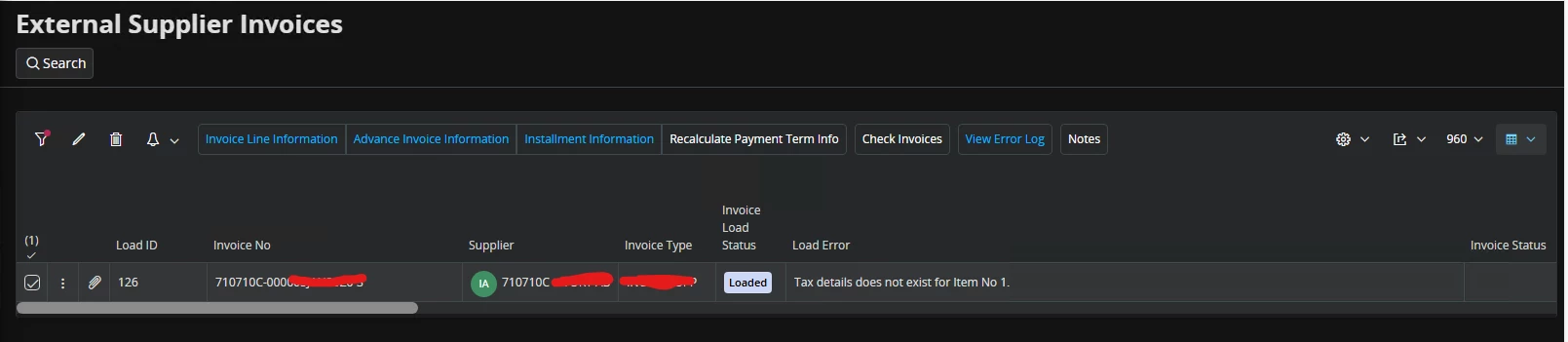
When loading supplier invoices into External Supplier Invoices window and if the Supplier ID does not exist in the system…. once the Supplier ID is corrected, the following error is received:

Tax details does not exist for Item No 1.

We are using line types H, I and P to load invoices. 
 

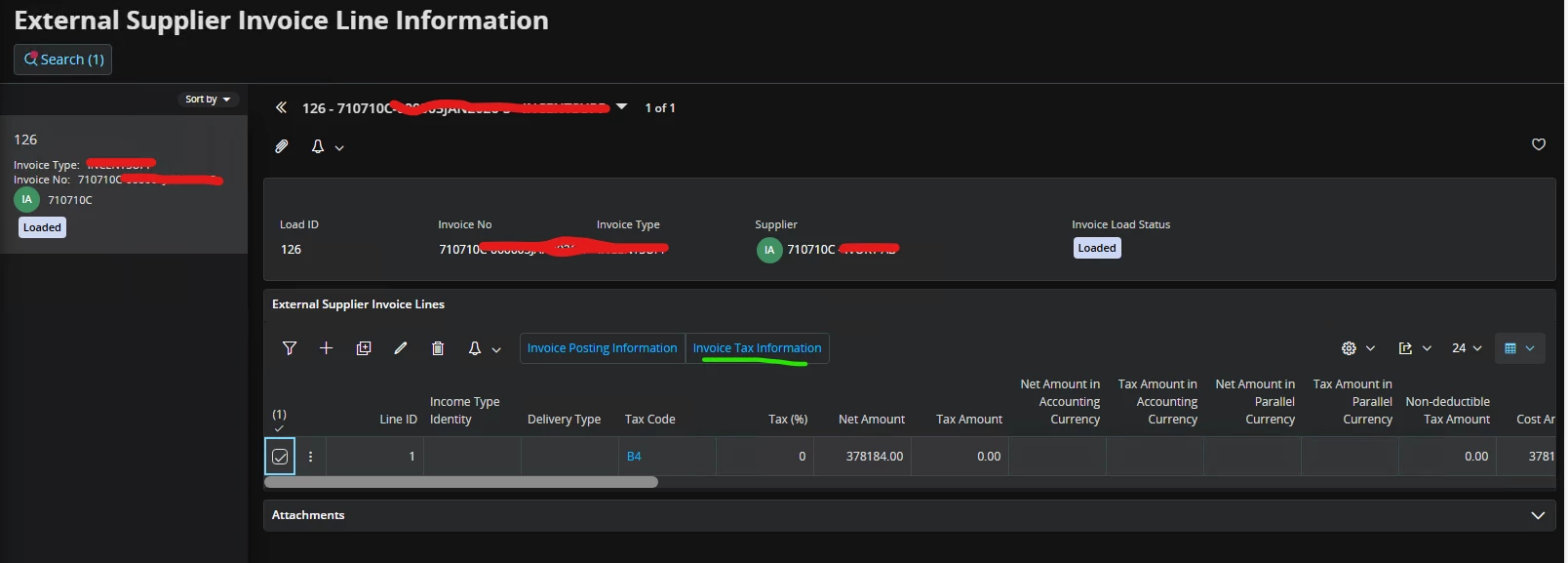
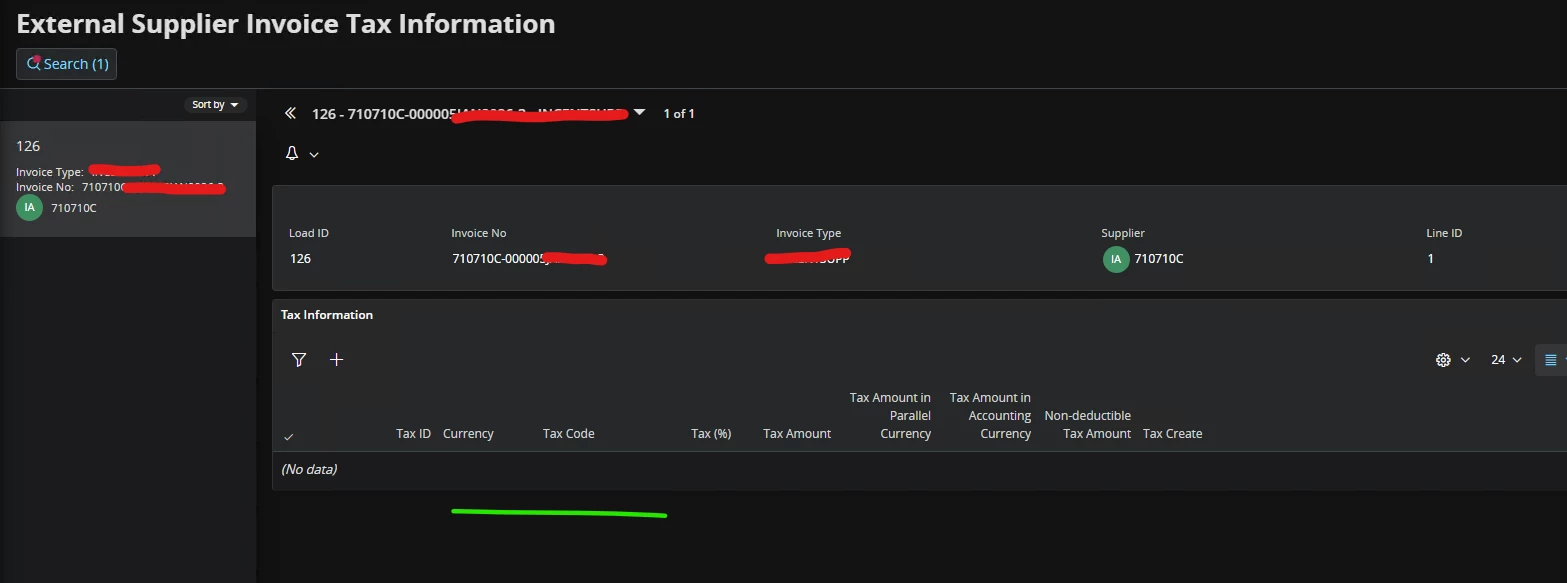
When clicked on ‘Invoice Tax Information’ on ‘External Supplier Invoice Line Information page, there is no record found:


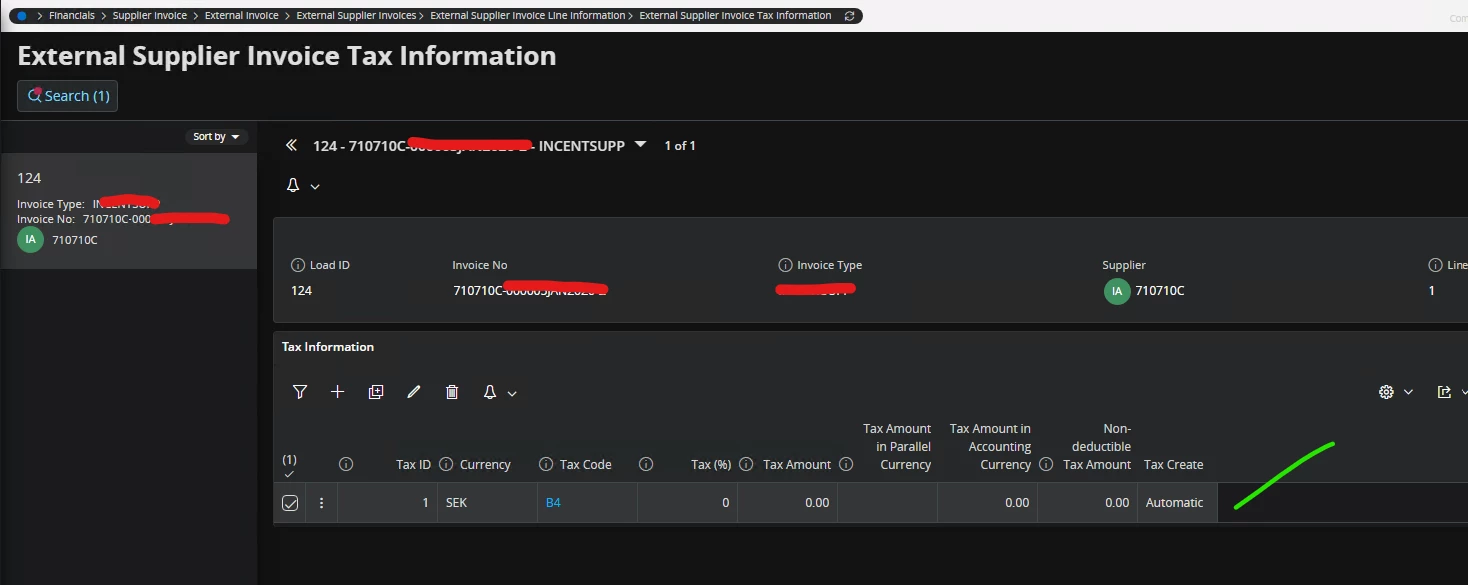
If I load another invoice with same dataset again with the correct ‘Supplier ID’ (Different Invoice number), there is no error and the invoice is getting created successfully with tax information being automatically created:
 

Can someone help me understand the reason behind why the Tax Details are not being created when the invoice is loaded? 


BR,
Peshala. 

 

1 reply

Forum|alt.badge.img+7
  • Do Gooder (Partner)
  • April 2, 2026

Hi ​@PathiranaPeshala ,

This is a known behavior in IFS Cloud External Supplier Invoice load process, especially when the Supplier ID is initially invalid and then corrected.

 Root Cause

From your scenario:

  1. Invoice is loaded with incorrect / non-existing Supplier ID
  2. System creates invoice header/lines partially
  3. You correct Supplier ID later
  4. Error appears:

    Tax details does not exist for Item No 1

 Reason:

Tax calculation does not re-trigger automatically after correcting Supplier ID

 Why it works on second load

When you reload the same dataset:

  • Supplier is already valid ✅
  • System performs:
    • Tax code derivation
    • Tax calculation

 So tax lines are created correctly

 Key Behavior

IFS External Invoice Load:

  • Tax is calculated:
    • During initial load
  • If master data (like Supplier) is wrong:
    • Tax step is skipped
  • Later corrections:
    • Do NOT trigger recalculation

 How to Fix

 Option 1: Re-trigger Tax Calculation (Manual)

After correcting Supplier:

  • Open invoice line
  • Use:
    • Recalculate Tax (if available)
    • Or update line (trigger recalculation)

 Option 2: Reload the Invoice (Cleanest)

Best practice:

  • Delete incorrect invoice
  • Reload with correct Supplier ID

 Ensures:

  • Full process executes properly

 Option 3: Ensure Correct Data Before Load (Recommended)

Validate before sending:

  • Supplier ID exists
  • Tax setup is valid

 Avoids partial processing

 Option 4: Custom Event (Advanced)

You can implement:

  • Event on:
    • Supplier change
  • Trigger:
    • Tax recalculation

 Important Insight

External Supplier Invoice load is not fully dynamic

 It behaves like:

  • One-time processing
  • Not reactive to later corrections