
Question

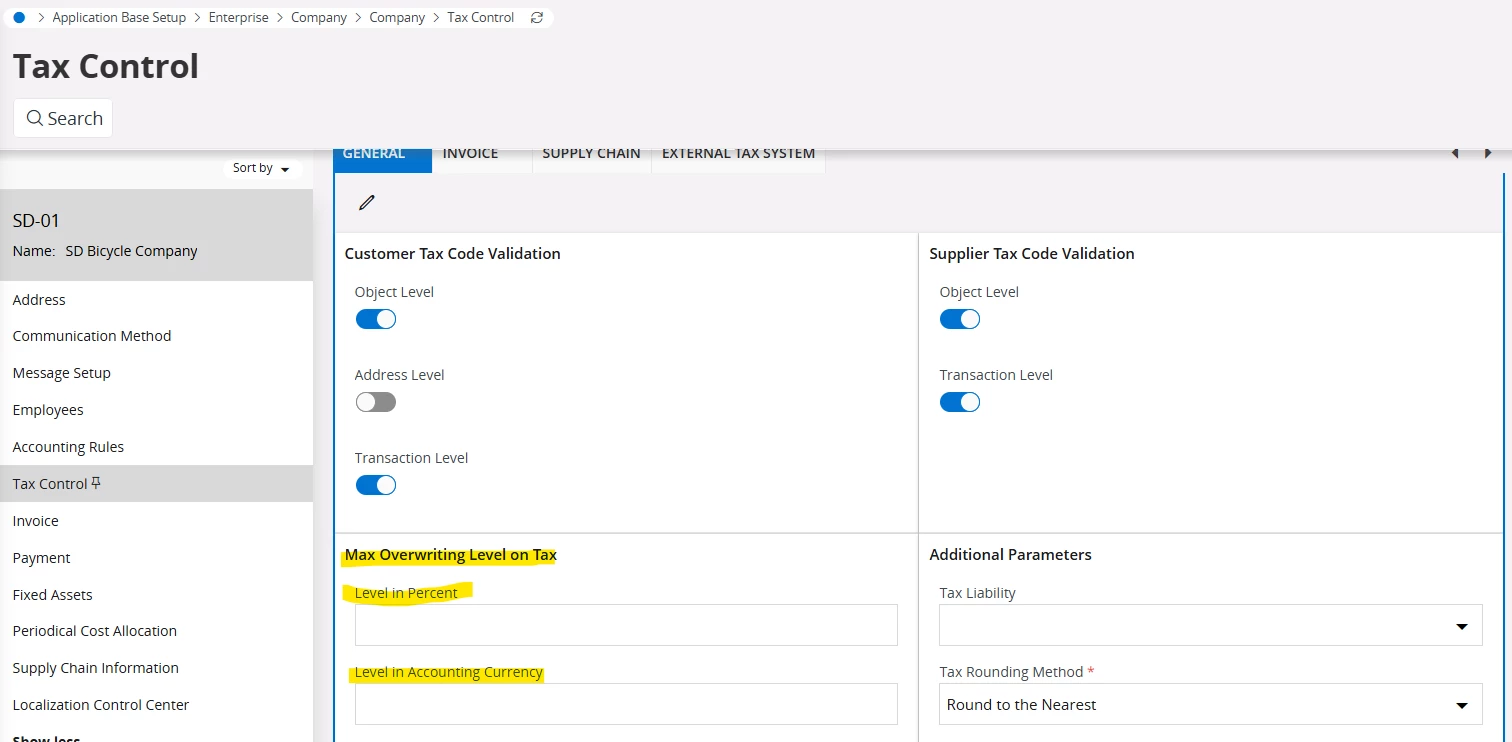
Maximum overwriting level on tax

  • September 8, 2026
  • 5 replies
  • 23 views

Forum|alt.badge.img

Hi,

I would like to know more detail about Maximum overwriting level on tax in Company setup-Tax Control.

  1. How the functionality works
  2. Windows Applicable
  3. Negative Consequences


Thanks in Advance,

Vismini

5 replies

Forum|alt.badge.img+8
  • Sidekick (Employee)
  • September 8, 2026

I hope the following information helps - 


In IFS Cloud (and IFS Applications), the Maximum Overwriting Level on Tax setting in Company Setup → Tax Control (or Company / Tax Control) is a corporate governance and validation parameter that governs how much users can manually adjust or override system-calculated tax amounts on transactions.

Below is a detailed breakdown covering how this functionality operates, where it applies across IFS, and the potential negative consequences of misconfiguring it.

1. How the Functionality Works

In IFS, when financial transactions (such as Purchase Orders, Supplier Invoices, Customer Invoices, or Vouchers) are created, the system automatically calculates tax using the configured Tax Code, Tax Rate (%), and Tax Rules (e.g., Tax Basis, Deductible %, Gross/Net calculation).

However, external documents—most notably Supplier Invoices—frequently have slight tax differences due to vendor rounding rules, regional tax calculation methods, or multi-line aggregation.

System Logic & Validation Flow:

  1. Calculation: The system calculates the expected tax amount:
    $$\text{System Tax} = \text{Tax Base Amount} \times \text{Tax Rate %}$$

  2. Manual Override Attempt: A user attempts to manually enter or edit the Tax Amount on a document line or header.

  3. Variance Check: The system computes the absolute difference:
    $$\text{Tax Variance} = |\text{Manual Tax Amount} - \text{System Tax Amount}|$$

  4. Tolerance Validation: The variance is compared against the Maximum Overwriting Level on Tax (which can be configured as a fixed currency amount, a percentage tolerance, or a control level such as Not Allowed, Warning, or Error):

    • Within Tolerance / Allowed Level: The manual tax entry is accepted, and posting lines are updated accordingly.

    • Exceeds Tolerance / Level: The system triggers an error message blocking the save/posting, or requires administrative override/authorization depending on the rule configuration.

2. Windows and Pages Applicable

This parameter affects pages across Financials, Procurement, Sales, and Logistics where tax amounts can be entered or modified:

A. Basic Data & Configuration

  • Company / Tax Control (or Company / Invoice / Tax Control) — Where the maximum tax overwriting tolerance/level is defined per company and currency.

B. Supplier Invoicing (Accounts Payable)

  • Manual Supplier Invoice

  • Instant Supplier Invoice

  • Posting Proposal (Matching PO receipts to vendor invoices where tax differs from calculated values)

  • Subcontract Payment Order / Invoicing

C. Customer Invoicing & Sales (Accounts Receivable & Order Management)

  • Instant Customer Invoice

  • Direct Customer Invoice

  • Customer Order / Customer Order Lines

  • Project Invoicing

D. General Ledger & Accounting

  • Manual Voucher / Voucher Entry (when posting to tax-related accounts or entering manual tax transactions)

  • Tax Proposal / Tax Ledger Adjustments

3. Negative Consequences of Setting High or Uncontrolled Overwriting Levels

While allowing tax overwriting is necessary to reconcile minor vendor invoice rounding differences (e.g., $$0.01$–$$0.05$), setting the tolerance too high—or disabling restriction checks altogether—introduces significant operational and financial risks:

  1. Inaccurate Statutory Tax Reporting & Returns:

    • Tax returns (VAT/GST returns, Sales Tax filings, SAF-T reports) rely on the relationship between the Taxable Base and the Tax Code Rate.

    • Overwriting the tax amount without changing the Tax Code creates a mismatch where reported tax does not equal $\text{Base} \times \text{Rate}$. This triggers audit flags with revenue authorities.

  2. Subledger to General Ledger (GL) Reconciliation Mismatches:

    • Manual overrides can cause discrepancies between the Tax Ledger, Accounts Payable / Receivable Subledgers, and the General Ledger Tax Accounts, making periodic tax account reconciliation difficult and labor-intensive.

  3. Risk of Disallowed Input Tax Credits & Fines:

    • In Accounts Payable, if a user manually inflates the tax amount to match an incorrect supplier invoice, your company may over-claim Input Tax Credit (ITC / Recoverable VAT).

    • Upon statutory audit, tax authorities will disallow the excess claim and impose penalties, interest, and fines.

  4. Internal Control Breakdown & Fraud Risk:

    • Unrestricted tax overwriting removes internal controls, allowing users to alter tax values to cover up data entry errors, misallocate expenses, or manipulate net invoice totals without supervisor visibility or authorization.

  5. Downstream Automation Blockers:

    • In automated invoicing flows (e.g., e-Invoicing, Supplier OCR Scanning, Optical Character Recognition matching), excessive manual tax overrides degrade automated matching algorithms, increasing exception queues for finance teams.

Thanks!  Jane


piswpl
Hero (Partner)
Forum|alt.badge.img+5
  • Hero (Partner)
  • September 9, 2026

Hi Jane,

I am assuming your answer was AI assisted.

I would like to clarify how these things can be achieved:

  1. “ (which can be configured as a fixed currency amount, a percentage tolerance, or a control level such as Not AllowedWarning, or Error):”
  2. “or entering manual tax transactions)”
  3. Tax Proposal / Tax Ledger Adjustments”

Would you mind explaining these or review/update your answer?

Thanks,

Piotr


Forum|alt.badge.img+8
  • Sidekick (Employee)
  • September 9, 2026

Hi Piotr.  These responses are specific to IFS.


Here is a detailed explanation of how each of these tax governance and handling mechanisms is configured and executed in IFS Cloud / IFS Financials:

1. Maximum Overwriting Level on Tax (Tax Control & Tolerances)

In IFS Cloud, when users enter vouchers, supplier invoices, or customer invoices, the system automatically calculates tax based on tax codes. However, users often need to override the calculated tax (e.g., to match a supplier's paper invoice with minor rounding differences).

To govern and restrict these manual overrides, IFS provides Tax Control Validation settings at the Company level (Financials → Enterprise → Company → Tax Control / Tax Validation).

How it is achieved:

  • Fixed Currency Amount Tolerance:
    You configure a maximum allowed variance between the system-calculated tax amount and the user’s manual entry in the company's accounting currency (e.g., allow a maximum difference of $5.00 or €10.00).

  • Percentage Tolerance:
    You specify a maximum allowed percentage variation between the calculated tax and the overridden tax amount (e.g., a 2% tolerance).

  • Control Level (Action on Exceeding Limit):
    You select the system's enforcement behavior when a user's manual entry exceeds the configured amount or percentage threshold:

    • Not Allowed / Error: The system issues a hard stop error message (TAXOVERWRITEEXCEEDED) and prevents saving or posting the transaction until the tax amount is corrected.

    • Warning: The system displays a warning notification informing the user that the tax override exceeds the established tolerance, but permits them to proceed and save/post the document.

    • No Control: The system allows any tax overwrite without validation or warnings.

2. Entering Manual Tax Transactions

"Manual Tax Transactions" refers to creating or posting tax items directly into the Tax Ledger or General Ledger without originating from a standard purchase order, customer order, or automated sub-ledger flow.

How it is achieved:

  1. Direct Voucher Entry (GL / Manual Vouchers):
    During manual voucher entry (Financials → General Ledger → Manual Voucher), when posting to tax-related accounts or applying specific tax codes directly on journal lines, tax records are generated and posted directly to the Tax Ledger (TAX_LEDGER_ITEM_TAB).

  2. Manual Supplier / Customer Invoices:
    In manual invoice entry screens (Manual Supplier Invoice / Manual Customer Invoice), users can directly adjust line-level tax, add non-deductible tax components, or create standalone tax lines where no sub-ledger inventory or service line exists.

  3. Standalone Tax Ledger Entries:
    Authorized finance users can use dedicated tax entry routines in the Tax Ledger module to enter direct tax liabilities or payments (such as customs duty adjustments or direct tax payments to tax authorities).

3. Tax Proposal & Tax Ledger Adjustments

A Tax Proposal is the core end-of-period routine in IFS Financials used by tax accountants to aggregate, review, adjust, and report tax transactions to tax authorities (e.g., VAT/GST returns or sales tax filings).

How it is achieved:

  1. Creating a Tax Proposal:
    Navigating to Financials → Tax Ledger → Tax Proposal, users create a new proposal by selecting the Company, Tax Office / Report Group, and the relevant Accounting Period / Date Range. The system pulls all unreported tax transactions from the Tax Ledger into the proposal.

  2. Tax Proposal Review & Filtering:
    Before finalizing, tax accountants review individual lines in the proposal. They can exclude specific vouchers from the current report cycle or re-include previously excluded items.

  3. Tax Ledger Adjustments:
    If errors, manual tax adjustments, or audit corrections are required for a period:

    • Manual Adjustments: Users can create manual tax adjustment transactions directly within the Tax Ledger or post offsetting vouchers in GL.

    • Reporting Status Lifecycle: Once a Tax Proposal is acknowledged and set to Reported, the included tax lines are locked against further modification. Any subsequent corrections or late-arriving invoices automatically flow into the next tax proposal cycle.


Please advise if this additional information helps and/or if you have other questions.  Thanks!  Jane


piswpl
Hero (Partner)
Forum|alt.badge.img+5
  • Hero (Partner)
  • September 10, 2026

Hi Jane,

Your response contains descriptions that in my opinion suggest things that are impossible in IFS.

  1. for maximum tax overwriting amount you have no choice for control level you described. There is no warning. It either you can overwrite the tax amount within the certain limit or you cannot.
  2. There is no such thing as “manual tax transactions” - only manual vouchers with tax codes which you have stated separately 
  3. Regarding “Tax Proposal / Tax Ledger Adjustments” - this is part of the “This parameter affects pages across Financials, Procurement, Sales, and Logistics where tax amounts can be entered or modified:” section. How can you enter or modify tax amounts in Tax Proposals or Tax Transactions ??? This is simply impossible.

That was the point of my reply.


piswpl
Hero (Partner)
Forum|alt.badge.img+5
  • Hero (Partner)
  • September 10, 2026

Now you have even repeated this: 

  • Manual Adjustments: Users can create manual tax adjustment transactions directly within the Tax Ledger or post offsetting vouchers in GL.

How can you create manual tax adjustment transactions directly in Tax Ledger?

How can you create Standalone Tax Ledger Entries? What are the dedicated tax entry routines?