Solved

External File Template Directory

  • July 15, 2026
  • 3 replies
  • 45 views

Link
Superhero (Customer)
Forum|alt.badge.img+23
  • Superhero (Customer)

Hello everybody,


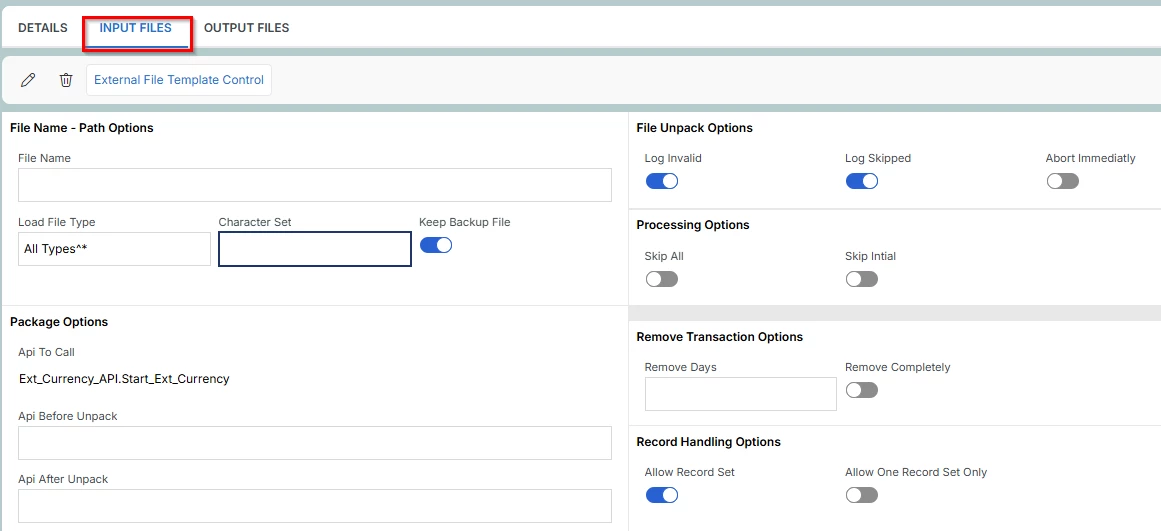
in IFS APPS10 we had a field “Input File Directory”. It is no loger available in IFS Cloud.

How can I define the server directory on this screen?
 

Thank you.

Best answer by Link

OK, I got it.

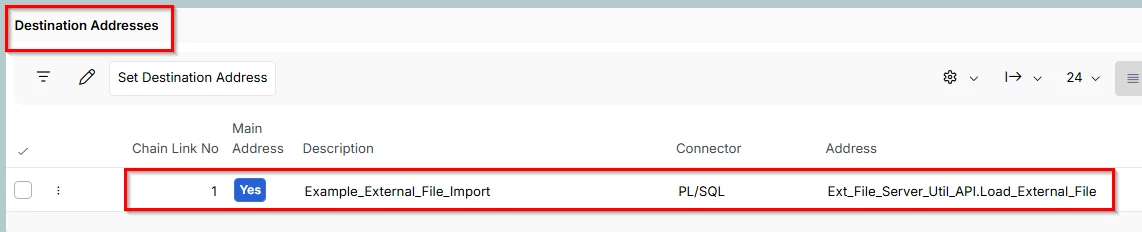
You can read  external files only with a reader and a routing rule with address “Example_External_File_Import”. Now it works.


3 replies

Link
Superhero (Customer)
Forum|alt.badge.img+23
  • Author
  • Superhero (Customer)
  • July 16, 2026

What directory do I need if I type the directory and file name in the “File Name” field?

The directory from the database or application server?


Link
Superhero (Customer)
Forum|alt.badge.img+23
  • Author
  • Superhero (Customer)
  • Answer
  • July 27, 2026

OK, I got it.

You can read  external files only with a reader and a routing rule with address “Example_External_File_Import”. Now it works.


Link
Superhero (Customer)
Forum|alt.badge.img+23
  • Author
  • Superhero (Customer)
  • August 13, 2026

Here is my documentation:


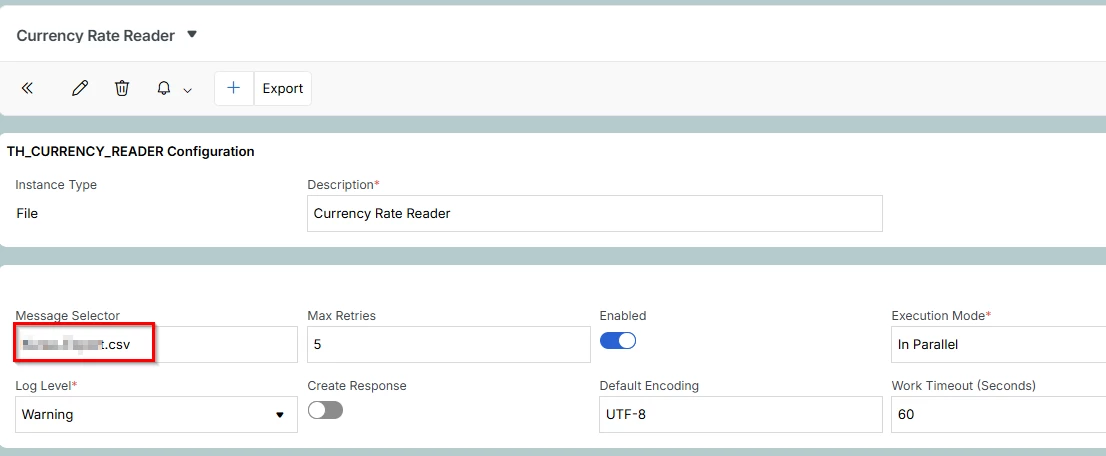
1. Create a reader in IFS Connect:

Enter the name of your file in field “Message Selector”. Exactly the same name like in “External File Template”.


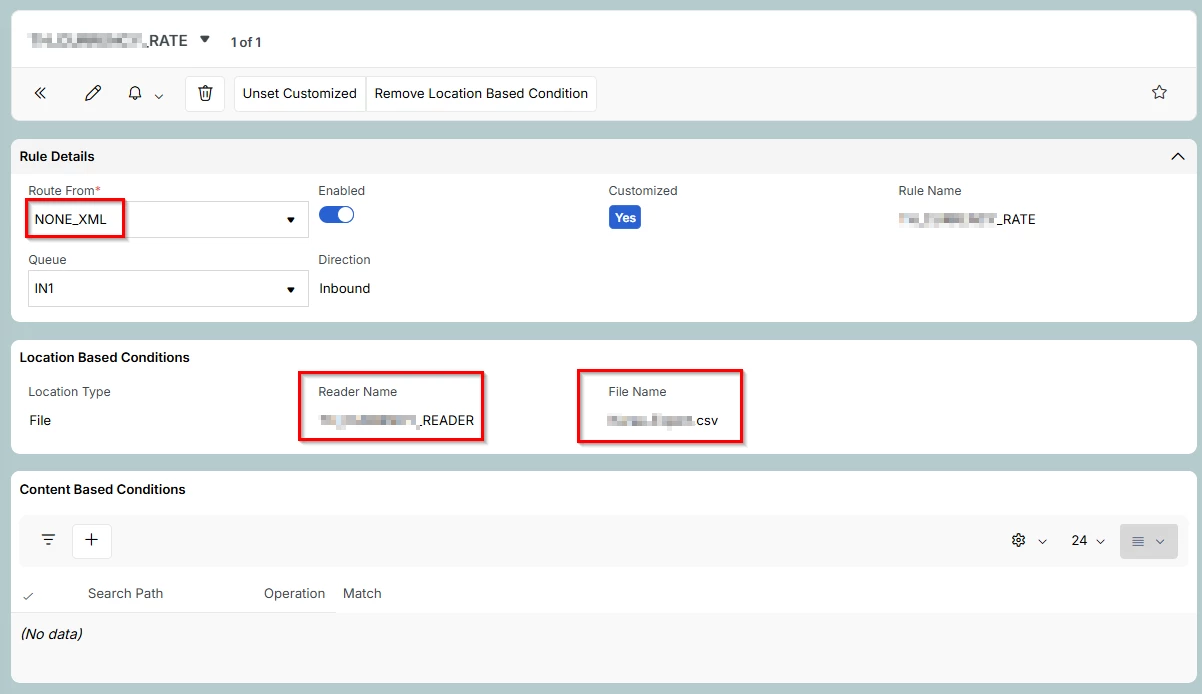
2. Then create the routing rule in IFS Connect:

  • assign the created reader
  • Enter the file name like in the reader
  • The assigned destination address (routing address) is very important.
    • You can create a new one with the same API.


3. If you place a file in your path (see Reader), a message will appear in "Application Messages."


4. Now you can run your background job to import the external file.