

Question

Advanced invoice incorrectly attached to the VAT invoice

  • Nov 18, 2026 10:29 AM UTC
  • 9 replies
  • 29 views

Forum|alt.badge.img+2

Hi 


We have processed an Advance invoice right through to payment. We have then received the VAT invoice and attached the Advanced invoice, but we have noticed something is incorrect, so we need to unpick the Advanced invoice. I cannot see anywhere this is possible, please help!! 

9 replies

Forum|alt.badge.img+8
  • Hero (Partner)
  • Nov 18, 2026 10:39 AM UTC

Hi,


If the Advance Invoice has already been paid, you will first need to reverse the payment before you are able to change/cancel Advance Invoice.


Thanks,
Chris​​​​​​​


Furkan Zengin
Ultimate Hero (Partner)
Forum|alt.badge.img+21
  • Ultimate Hero (Partner)
  • Nov 18, 2026 10:40 AM UTC

Hello ​@Accounts 

If you already know offset voucher details, use Customer Payment Rollback window to cancel matching.

If you don’t know offset voucher then go to Customer Analysis for the customer, find the invoice and select Payments Per Invoice/Prepayment. There you should see offset voucher details. Rollback the voucher on Customer Payment Rollback window.

The VAT invoice should be opened for a new transaction

Hope this helps

Furkan


Forum|alt.badge.img+2
  • Author
  • Do Gooder (Customer)
  • Nov 18, 2026 10:41 AM UTC

Hi Chris,


I don't want to change or cancel the advanced invoice. I just want to un- attach it to the VAT one. Does that make sense?


Kind regards 

Fiona


Forum|alt.badge.img+2
  • Author
  • Do Gooder (Customer)
  • Nov 18, 2026 10:52 AM UTC

Hi Furkan, 


If I use the offset this will roll back the payment. Everything is fine with the Advanced invoice. When we entered the VAT invoice then attached the advanced one, we noticed the VAT was wrong, so we need to amend it but because we attached the advance it won't allow us to cancel it or un attach the advance invoice.


Furkan Zengin
Ultimate Hero (Partner)
Forum|alt.badge.img+21
  • Ultimate Hero (Partner)
  • Nov 18, 2026 11:11 AM UTC

Hi ​@Accounts 

You need to rollback payment that is matched against VAT invoice. It won’t cancel the advance invoice but set status of VAT invoice to PostedAuth, which allows you to cancel it and create again with correct values.

The steps I provided are correct. You did not mention whether it is customer or supplier. If it is about supplier invoice then rollback on Supplier Payment Rollback and go to Supplier Analysis to find matching details.


Forum|alt.badge.img+2
  • Author
  • Do Gooder (Customer)
  • Nov 18, 2026 11:16 AM UTC

So, I need to finish the process on the VAT invoice then post it and then roll it back is that correct. Will I then be able to cancel the VAT invoice to correct our error ? 


Furkan Zengin
Ultimate Hero (Partner)
Forum|alt.badge.img+21
  • Ultimate Hero (Partner)
  • Nov 18, 2026 11:20 AM UTC

Do you want to share a screen shot of what you’re dealing with? It would help a lot to understand where you’re now.

Thanks


Forum|alt.badge.img+2
  • Author
  • Do Gooder (Customer)
  • Nov 18, 2026 11:26 AM UTC

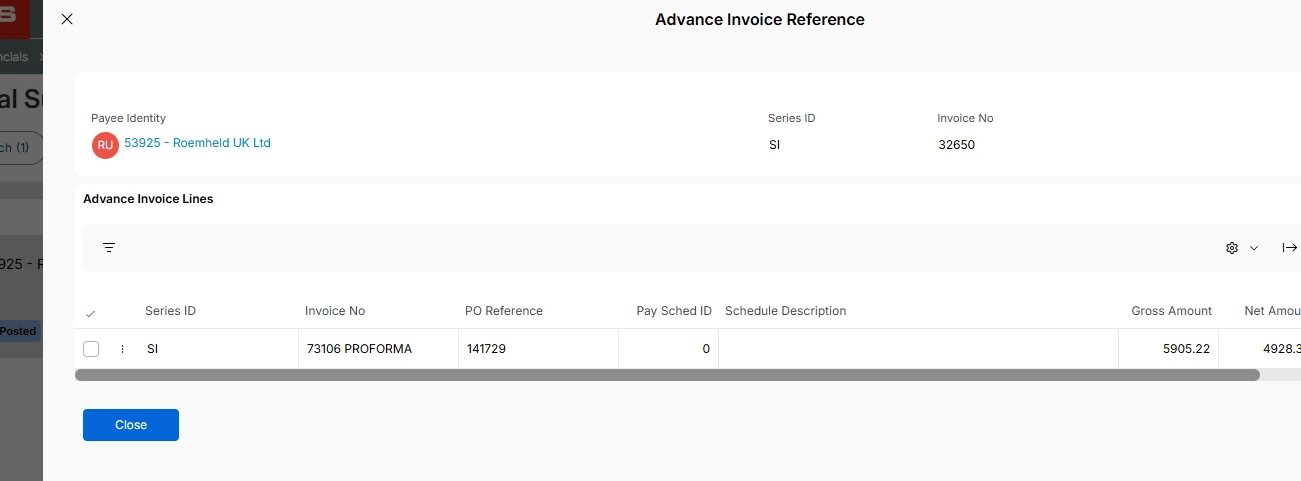
The process for paying the advance has been done and paid. We have now received the VAT, once we enter the info on the front screen, we then attached the advance. This is what we see,


 Next, we attached the stock and finally post the invoice. I need to remove the above or be able to cancel the whole invoice without effecting the paid advance. 


I'm sorry I don't know how to share my screen.


Furkan Zengin
Ultimate Hero (Partner)
Forum|alt.badge.img+21
  • Ultimate Hero (Partner)
  • Nov 18, 2026 11:53 AM UTC

Follow the steps below. Your issue should be resolved.

  1. Go to supplier analysis and find the supplier 53925
  2. Find 73106 PROFORMA invoice and go to Payment per Invoice/Prepayment
  3. You should see U voucher with Payment Type Supplier Offset. Copy the voucher number
  4. Go to Supplier Payment Rollback and search for voucher type U and voucher no you just copied
  5. Click Rollback Complete Payment
  6. Go to VAT invoice and select cancel and new invoice
  7. Fix your values and post
  8. Do Advance Invoice matching one more time