
Question

Object Connection Transformation

  • May 12, 2026
  • 5 replies
  • 45 views

Forum|alt.badge.img+4

We are trying to set up an object connection transformation from the Multi-Company Customer Invoices Analysis screen to the Customer Invoice screen.

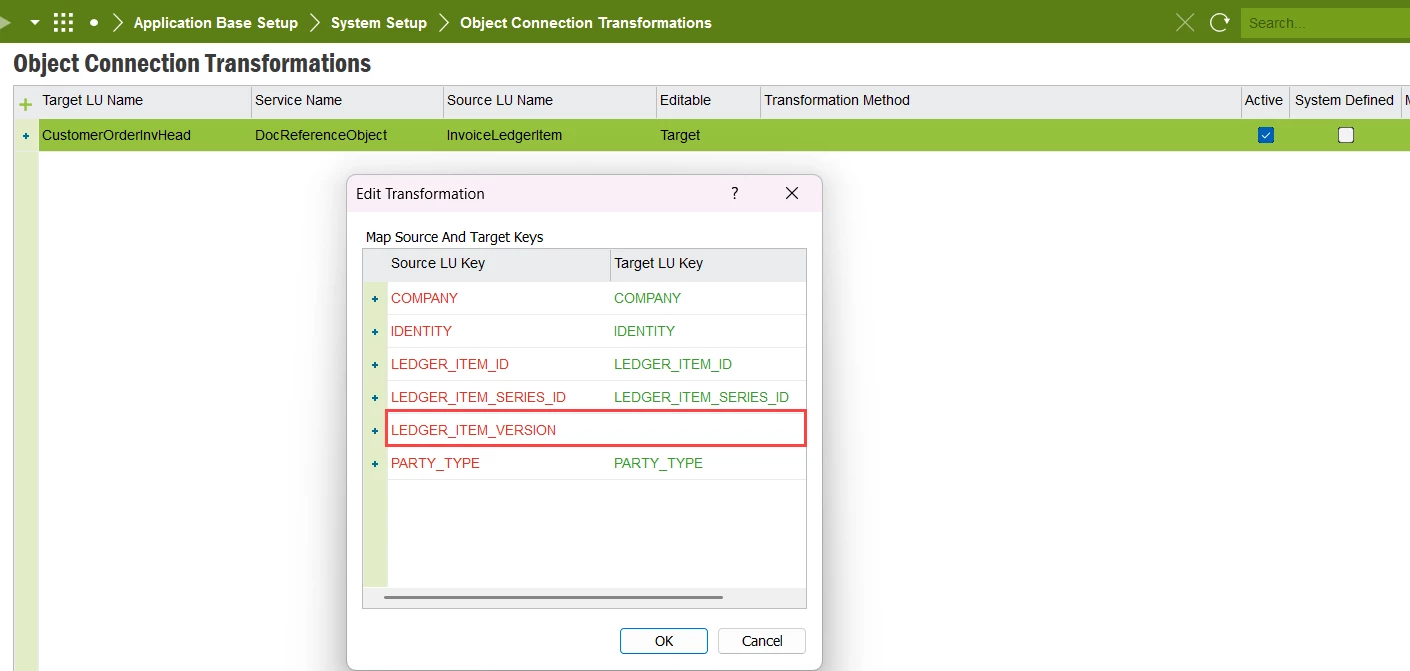
We have configured the following using the standard transformation method.  However, this doesn’t seem to work.

Does anybody have any ideas on how to make this work?

Thanks,

Monique

5 replies

matt.watters
Ultimate Hero (Partner)
Forum|alt.badge.img+26
  • Ultimate Hero (Partner)
  • May 12, 2026

@boomonidamo In Apps10 I attempted the same transformation, but my method looks like this, where the Target LU does not contain the LEDGER_ITEM_VERSION key, so some programming work would be required here.


Forum|alt.badge.img+4
  • Author
  • Do Gooder (Customer)
  • May 13, 2026

Thanks, Matt.  When I click on Edit Transformations in Apps10, the only available Source LU Keys are: Company, Invoice_ID and Party_Type.  How were you able to add the other fields as source keys?  Or was that done with programming as well?

Thanks, 

Monique


matt.watters
Ultimate Hero (Partner)
Forum|alt.badge.img+26
  • Ultimate Hero (Partner)
  • May 13, 2026

@boomonidamo after entering the Source and Target LUs, I right-clicked ‘Edit Transformation’ and that was the dialog that appeared. I did nothing custom, this was the standard list of keys. This was in an Apps10 Upd15 world.


Forum|alt.badge.img+4
  • Author
  • Do Gooder (Customer)
  • May 14, 2026

Thanks, Matt.  That’s interesting.  We are on Apps10 Upd22 and it seems the list of standard keys are different.  I will follow up with IFS directly.

Appreciate the help.

Regards,

Monique


Link
Superhero (Customer)
Forum|alt.badge.img+23
  • Superhero (Customer)
  • June 5, 2026

The problem is that you can't use object connections everywhere. It will only work if the service exists.

Check the list.

For the Object Name You enter the Service List Comment/Description
all services * Only those available in specific executables will be displayed. (Obsolete in UPD8)
Approval Routing ApprovalRouting^ Electronic sign off (‘flexible workflow’) however an in-completed approval from this tab does not stop the object from being used or the order progressed etc.
Characteristics TechnicalObjectReference^ Engineering technical attribute definition based on a technical class - used in the Best Fit Search Wizard feature (not to be confused with the ‘normal’ characteristics tab of information that is available within some forms as a tab on the main form.
Document DocReferenceObject^ Drag/drop or add new documents into this tab, RMB has full access to document management features.
Document Requirement DocRequirementObject^ By document class what documents are required, more typically used in Project Management.
Engineering Requests EcrObjectConn^ RMB can create new and change existing change request information (no Zoom facility defined).
Engineering Change Orders EcoActionObjectConn^ Can add (by using Zoom) or link to an existing Change Order which must have action and order lines defined already, no RMB options defined from the connected object view but a custom menu could be set up.
Linear Asset Element LinastElementObjectConn^ Possibility to connect any LU to Linear Asset Elements.
Nato Commercial Government Reference Object NatoCommGovRefObj^ IFS Aviation & Defence extension related. Similar to Dunn&Bradstreet NATO assigns a unique code to all the enterprises involved in supplying and managing its assets. NCAGE code is the NATO Commercial and Government Entity and can be specified by using this connected object. Connection is only relevant against the following objects: Company, Customer, Supplier, Manufacturer, Owner, Forwarder and Site.
Call Center Case CcCaseObjectConnection^ Use the Case Wizard from an Object and raise a new Case. Many Cases can be raised against the same object. The “connected” box is ticked on the Case heading in Call Centre to indicate this. In addition to the activation in Solution Manager there is specific set up in Call Centre as well. The user/assignee must be linked to a Work Group and this same Work group must be assigned to the Case Issue that has the ‘connected object’ option activated. If this is not done although the Case tab will be displayed the Wizard to open a new case will not be active. It is the exact LUName that needs to be used in the Case Issue set up.
Risk RiskReferenceObject^ Existing Risk analysis Headers can be attached or detached. Object details can be seen through RMB.
Risk Assessment RiskObjectConnection^ This service allows data from the logical unit to be used in the Risk Assessment window. It enables contents of the LU (e.g., incident cases, work orders, company sites) to be linked directly to relevant risk assessments. The connection is then performed on the Connect To tab.
GIS Integration Connections GisintConnections^ Possibility to show any LU on a GIS map.
Map Positions
 
MapPosition^ Enables the map positioning service for an object in which business objects can be placed at positions on a map. Define the longitude and latitude of the business object in the data grid view or navigate to a location in the map view and add a position for the business object on the map.
Map Positions Free  MapPositionFree^  Enables a free attachment map, based on Esri's ArcGIS platform. 
Media Library MediaLibrary^ Create a media library, which is a collection of media items, for the specific object.
Incident Reporting IncidentObjectConnection^ Related with Health & Safety functionality. Enabling “Incident Reporting” would facilitate to attach any of the created incidents to an object or by invoking the Incident Report Assistant, an incident can be reported while working on another object. Incident object can be connected to a specific IFS business object via the Object Connections window. When connected, it can be viewed from both the Incident window Connected To tab and the Object Connections window Attachments panel.
Audit Management AuditObjectConnection^ Enables connecting existing quality audits and adding new quality audits through the Create Audit Assistant, for the specific object. It is possible to view the object connections directly from the Connected To tab in the Audit window. Audit object can be connected to a specific IFS business object via the Object Connections window. When connected, it can be viewed from both the Audit window Connected To tab and the Object Connections window Attachments panel.
Non Conformance Report NcrObjectConnection^ Enables connecting existing non conformance reports and adding new non conformance reports through the Create NCR Assistant, for the specific object. It is possible to view the object connections directly from the Connected To tab in the Non Conformance Report window. Non Conformance Report object can be connected to a specific IFS business object via the Object Connections window. When connected, it can be viewed from both the Non Conformance Report window Connected To tab and the Object Connections window Attachments panel. 
IoT IotObrOprLog^ This is to identify the records created from IoT Observations. (To create records from an IoT Observation, first you need to enable the particular entity to fetch data from IoT.)