
Question

How to Use the Second UoM for Inventory Parts in Register Arrival?

  • October 8, 2026
  • 6 replies
  • 34 views

Forum|alt.badge.img+3

Hi Everyone,

I have an issue/question regarding the Second UoM for Inventory Parts. We would like to use the Second UoM functionality on the Register Arrival page.

In our construction purchasing process, suppliers sometimes deliver materials using a different UoM than the one specified on the Purchase Order.

For example, we may order sand in tons on the Purchase Order, but the supplier may deliver it in m³. We have a defined conversion factor between these two units, and we would like to register the arrival using the second UoM.

Is there a way in IFS Cloud to register the arrival using the Second UoM while keeping the Purchase Order in its original UoM?

I would appreciate any advice or guidance on how this can be configured or handled in IFS Cloud.

Thank you.

6 replies

Jinal
Sidekick (Partner)
Forum|alt.badge.img+6
  • Sidekick (Partner)
  • October 8, 2026

Hi,

Yes, this is possible in standard IFS Cloud. Which option fits depends on whether your ton ↔ m³ ratio is fixed or varies per delivery.

1. Input UoM: recommended if the conversion factor is fixed

This keeps the PO in tons and lets the receiver enter the quantity in m³ at arrival.

  • Create an Input UoM Group with ton (the inventory UoM) as the base and m³ as an input UoM, using your conversion factor.
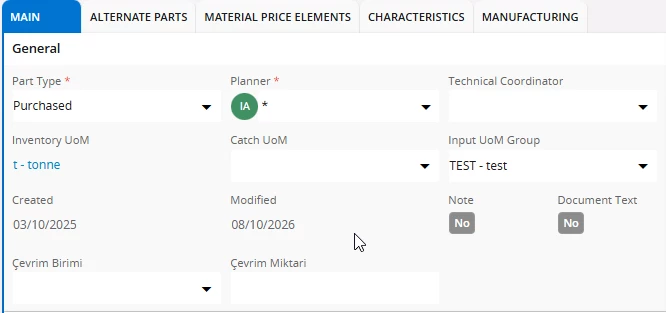
  • Connect the Input UoM Group to the Inventory Part.
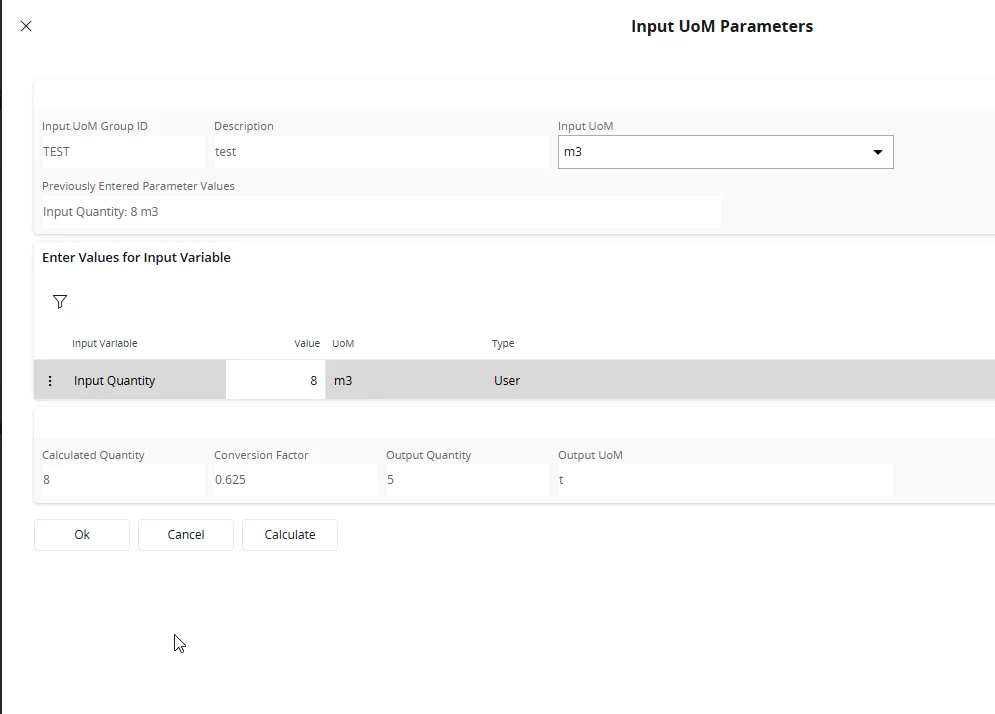
  • In Register Arrival, open the Input UoM parameters for the line. Select m³ as the input UoM and enter the delivered quantity.
  • IFS converts the quantity to tons and registers the arrival against the PO line.

You can't select an input UoM on the PO line itself. Those input UoM columns on a PO line are only filled when the PO was created from a customer order that used GTIN14. For your requirement that doesn't matter, because the conversion happens at arrival.

2. Catch Unit: if the ratio varies per delivery

Sand density can vary with moisture and grading. If a fixed factor isn't reliable, catch unit lets you track m³ as a parallel unit alongside tons.

  • Enable Catch Unit on the Part (Part Catalog) and set m³ as the catch unit code. The part must have no quantity in transit at any site when you do this.
  • At Register Arrival you enter both the quantity in tons and the actual catch quantity in m³. Both are stored on every inventory transaction.
  • Entering the catch quantity is optional if the goods are received into an arrival or QA location. For other receipts both quantities are required.

Be careful before choosing this option:

  • Once set, the catch unit code can't be changed or removed.
  • Catch unit enabled parts aren't intended for some processes, including issues to projects. That is likely a blocker in a construction environment.

3. Change the purchase UoM: only for suppliers who always deliver in m³

  • If a supplier always delivers and invoices in m³, set m³ as the Purchase UoM on Supplier for Purchase Part, with a conversion factor to tons.
  • The PO and arrival are then in m³, and inventory is updated in tons.
  • This changes the PO UoM, so it doesn't meet your requirement of keeping the PO in tons.

Recommendation

Use Input UoM. It is standard, works directly on Register Arrival, and keeps the PO in its original UoM. Consider catch unit only if the conversion varies per delivery and the parts are not issued to projects.

Hope this helps.


Forum|alt.badge.img+3
  • Author
  • Do Gooder (Customer)
  • October 8, 2026

Thank you your reply ​@Jinal,
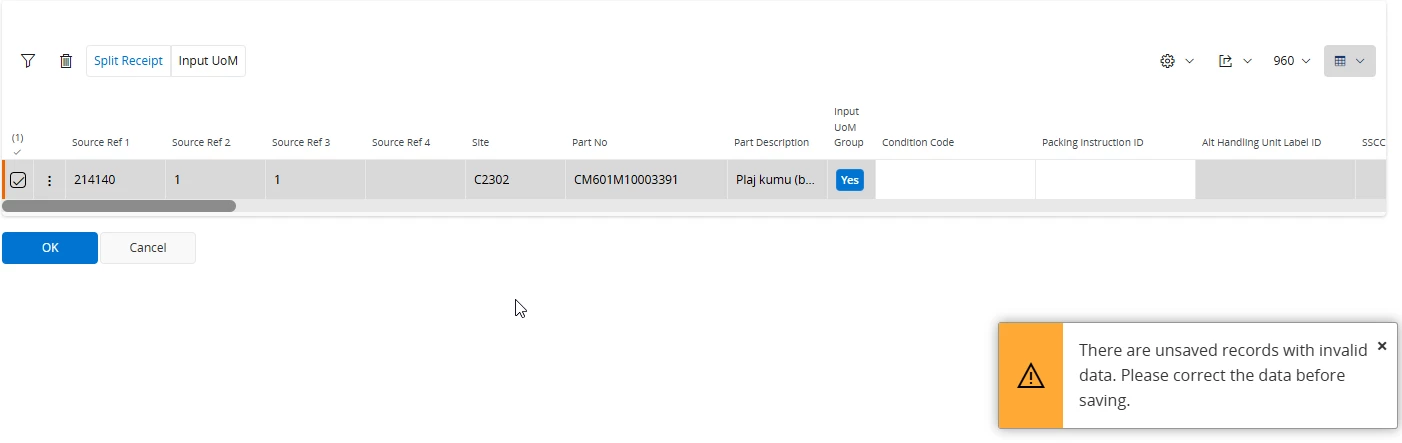
I configured the Input UoM as you suggested. However, when I click OK on the Input UoM page in Register Arrivals, I receive the following warning message:

Could you please advise what might be causing this warning?


Jinal
Sidekick (Partner)
Forum|alt.badge.img+6
  • Sidekick (Partner)
  • October 8, 2026

Hi,

Thanks for the screenshots. The Input UoM part is working correctly: 8 m³ × 0.625 = 5 t is calculated as expected. The warning comes from the receipt line itself, not from the Input UoM conversion.

"There are unsaved records with invalid data" means the line in the Register Arrivals receive grid is still in edit mode, and at least one field on it is missing or invalid. Please check the following:

  1. Scroll right on the line. In your screenshot only the first columns are visible. Look for a field highlighted in red or marked as mandatory, typically Location No, Lot/Batch No, W/D/R No or Qty to Receive.
  2. Check the received quantity against the PO line. The arrival is now 5 t. If that is more than the remaining quantity on the PO line and exceeds the allowed over-delivery tolerance, the line will be invalid. Try a smaller input quantity to test this.
  3. Save the line before clicking OK. After returning from the Input UoM dialog, save the row with the checkmark or Save on the line itself, then click OK. Any field error will then show directly on the line.
  4. Decimals: if the conversion gives a quantity with more decimals than the unit allows, round it and test again.

Forum|alt.badge.img+3
  • Author
  • Do Gooder (Customer)
  • October 8, 2026

Hi ​@Jinal ,

I checked the points you mentioned and found something that may be relevant.

When the Register Arrivals page is initially opened, the only field highlighted in red is Location No. I select the location and save the receipt line.

After that, I open the Input UoM dialog and enter 8 m³. The conversion works correctly and IFS calculates 5 t as expected.

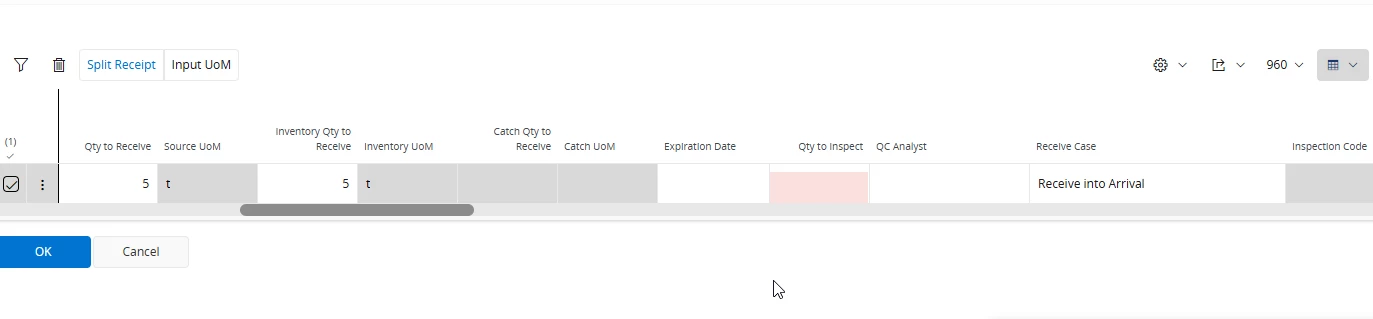
However, after completing the Input UoM operation, the Qty to Inspect field, which initially has a default value of 0, becomes null and is highlighted in pink.

Because of this, when I click OK, I receive the warning:

"There are unsaved records with invalid data."

So it seems that the Input UoM operation is clearing the Qty to Inspect value and making the receipt line invalid.

Could this be related to the Input UoM configuration or a standard behavior/bug in the Register Arrivals page?

Thanks.


Forum|alt.badge.img+3
  • Author
  • Do Gooder (Customer)
  • October 8, 2026

Before Input UoM;

After Input UoM,


Jinal
Sidekick (Partner)
Forum|alt.badge.img+6
  • Sidekick (Partner)
  • October 8, 2026

Hi,

Thanks for the screenshots, they confirm it. Before the Input UoM step, the line is valid (5 t, Qty to Inspect = 0). Afterwards, the quantity is still 5 t, but Qty to Inspect is empty, and that is the only invalid field.

Since the quantity didn't change and Qty to Inspect isn't part of the Input UoM setup, this isn't caused by your configuration. The Input UoM dialog is clearing the field when it writes the quantity back to the line. I'd treat this as a defect in the Register Arrivals receive dialog.

Workaround: after closing Input UoM, type 0 in Qty to Inspect (or the quantity you want sent to inspection), save the line and click OK.

Fix: check whether a newer 24R2 service update resolves it. If not, raise a case with IFS Support with these screenshots and steps:

  1. Set Location No and save the line.
  2. Open Input UoM, enter 8 m³ and click OK.
  3. Qty to Inspect becomes empty and OK is blocked.

If this helped, please mark it as the best answer so others with the same issue can find it.