

Question

Demand planner adjusted Forecast - Imported for MSL1

  • March 1, 2024
  • 11 replies
  • 231 views

MuzYashoN
Sidekick (Partner)
Forum|alt.badge.img+7

Hi ,

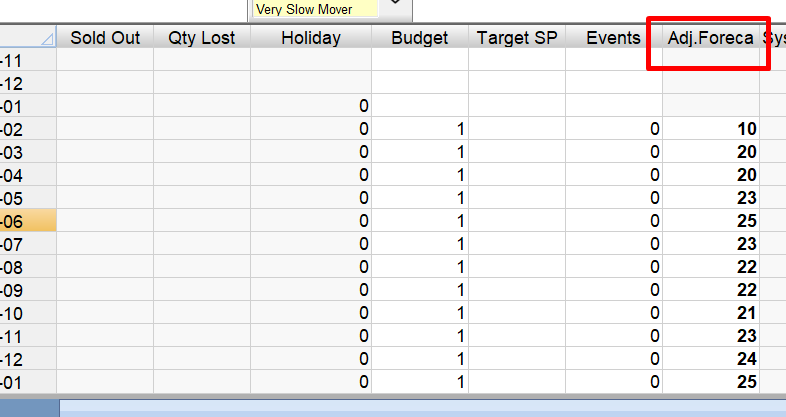
I have a DP forecast which I adjusted manually . Then it was set to ‘reviewed’ (tested both in DP client and as well Demand Planner page) . 

Afterwards I ran the job “Import Demand Planning Forecasts”

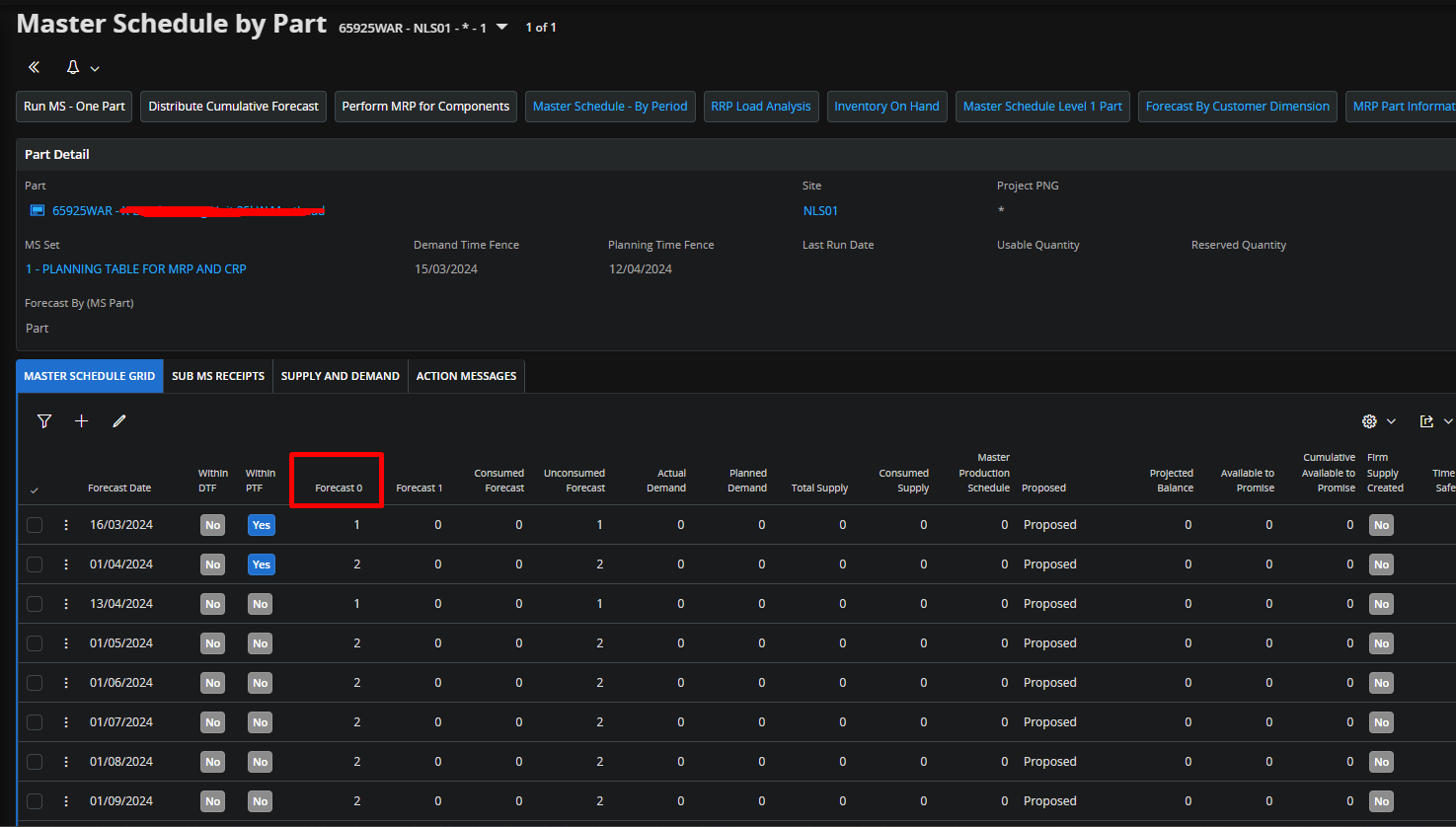
In MSL1 forecast ,  I can only see the original DP forecast (sys forecast)  but not the adjusted forecast. What am I missing ? I am working in the version 23R2
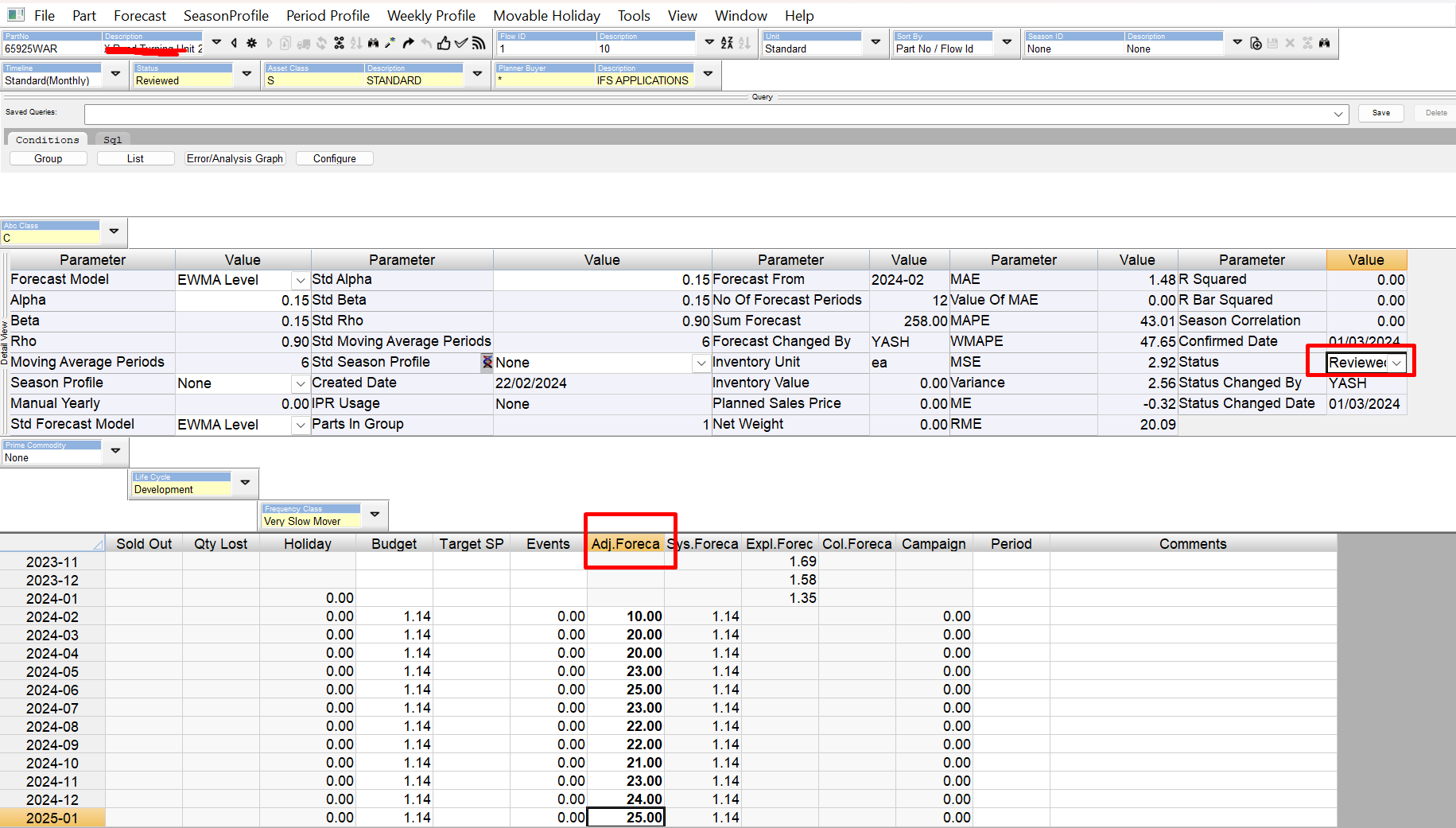
I confirmed as well

Kind Regards

Yashodha


11 replies

Richard Owen
Superhero (Employee)
Forum|alt.badge.img+15
  • Superhero (Employee)
  • March 1, 2024

Hi Yash,

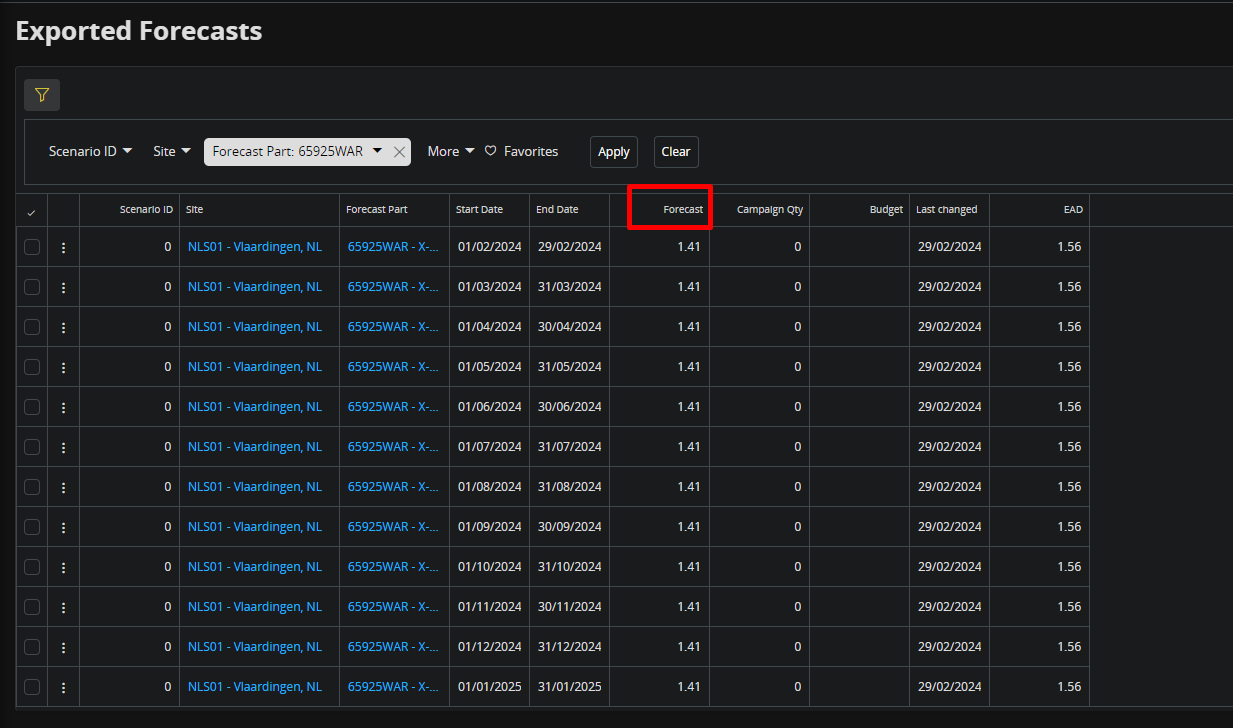
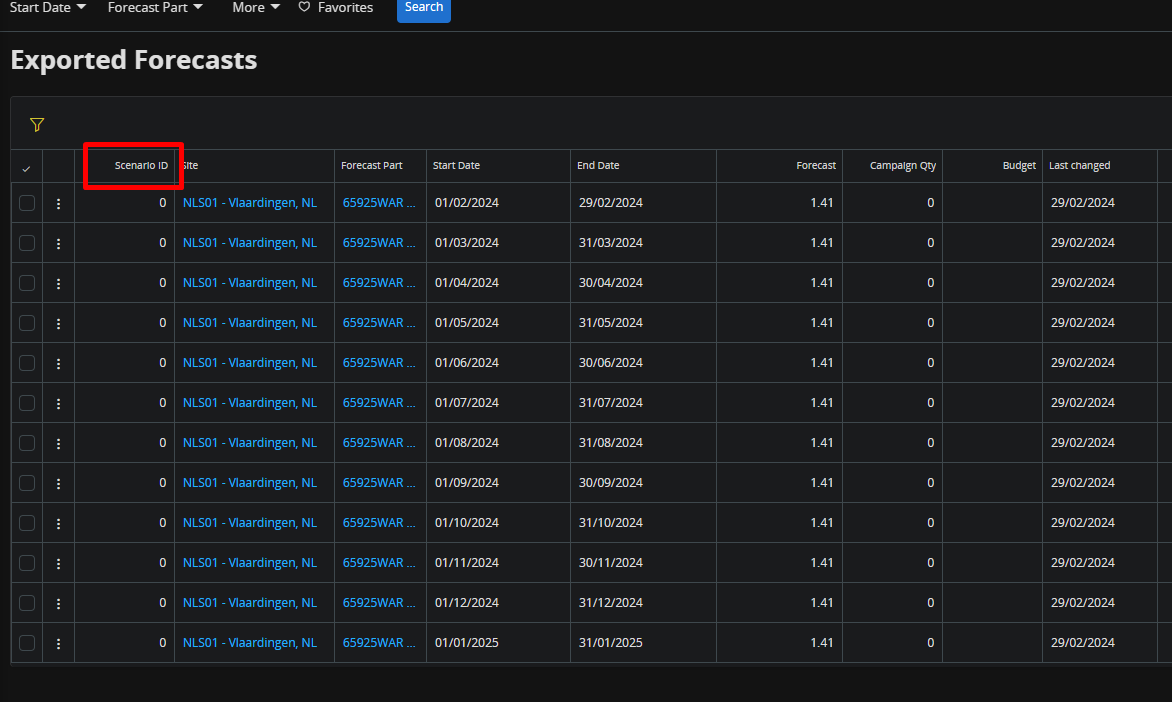
Check the Exported Forecasts screen - this shows the data that will be imported

Regards,

Richard


MuzYashoN
Sidekick (Partner)
Forum|alt.badge.img+7
  • Author
  • Sidekick (Partner)
  • March 1, 2024

Hi @Richard Owen 

Thank you so much for the prompt response. Yes I checked and I still see the same sys forecast (equivalent to MSL1)


My question is why can’t I see the manually adjusted forecast? 


Kind Regards

Yash


Richard Owen
Superhero (Employee)
Forum|alt.badge.img+15
  • Superhero (Employee)
  • March 1, 2024

Try switching the Status = ‘Released’ in the DP Client and then refresh the Exported Forecast screen


MuzYashoN
Sidekick (Partner)
Forum|alt.badge.img+7
  • Author
  • Sidekick (Partner)
  • March 1, 2024

Hi @Richard Owen 

Thanks so much for the fast reply , much appreciated :)

I did try that, but result is same


I logged out and logged into the DP client, even ran the importing background job again . still no change

Are there any specific steps I should follow inorder to get the DP forecast across to MSL1?

This customer I am working with potentially need to work with few planners to adjust the forecast of DP after publishing and then seeing the result in MSL1 to then carry on with rest of  planning... 


Kind Regards

Yash


Richard Owen
Superhero (Employee)
Forum|alt.badge.img+15
  • Superhero (Employee)
  • March 1, 2024

Hi Yash,

Just checking here, but is the Base Flow flagged as the Master Flow or does the Base Flow belong to a Combined Flow that is flagged as a Master Flow?  Either way, it is there a Master Flow?

The problem for me is that the Adjusted Forecast should show in the Exported Forecast screen to start with.  This is the data that is then imported into MS 😊


MuzYashoN
Sidekick (Partner)
Forum|alt.badge.img+7
  • Author
  • Sidekick (Partner)
  • March 1, 2024

Hi @Richard Owen 

Yes there is a Master Flow. 

Does Scenario ID got anything to do with it ? and what exactly does this do ? 


Richard Owen
Superhero (Employee)
Forum|alt.badge.img+15
  • Superhero (Employee)
  • March 1, 2024

Hi Yash,

Thanks for confirming the Master Flow (always good to check, just in case) 😉

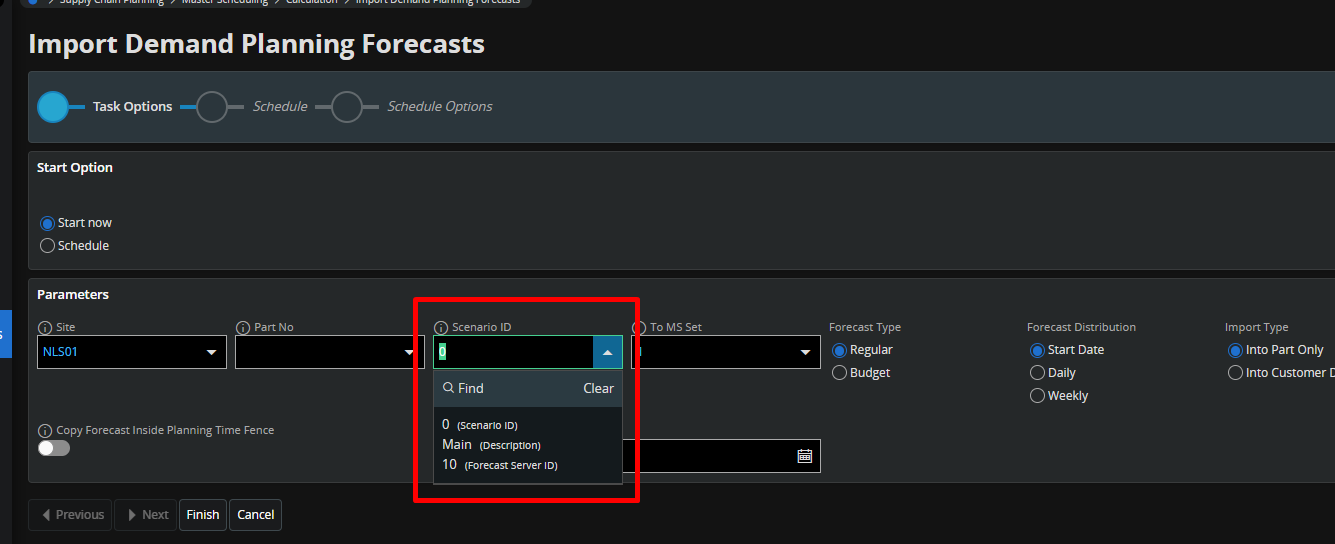
I can’t see the Scenario ID in your DP Client screen shot (it will be in the ‘Detail View’ section), but by default this should be Scenario ‘0’ (which you see in Exported Forecast and in the Import Demand Planning Forecasts dialog).

It is possible to create different Scenarios in the DP Client (it’s available from one of these, but I can’t remember which one and it’s Friday afternoon!) 😅


The idea is that you can have different versions (or Scenarios) of the forecast such as ‘Best Case’, ‘Worst Case’, ‘Budget’, etc. which you can then import into different MS Sets (or ‘Scenario Sets’) for analysis, comparison reporting and such like.

So …. can you check that it is Scenario ‘0’ in the DP Client?

Also, when you make a change to the Adjusted Forecast for Part ‘XXX’, have you tried moving to the next part (Part ‘YYY’) and then moving back again?

The Adjusted Forecast should be automatically updated (you may need to refresh the screen).

Otherwise, I think you may need to try a Complete DP Data Refresh from the Server Dashboard.

The thing is that this functionality should be working, so there’s something funny happening here!

Good luck,

Richard


MuzYashoN
Sidekick (Partner)
Forum|alt.badge.img+7
  • Author
  • Sidekick (Partner)
  • March 7, 2024

Hi @Richard Owen 

Thanks again to your valuable input to my query :)

This test was done in updated in 23.2.1 version of 23R2 and seems like a bug. The same scenario has been tested in 23.2.0 update and works as expected ; the adjusted forecast comes across to Exported Forecasts page and MSL1 forecast grid

A bug report has been sent to IFS and I am now expecting their feedback

Kind Regards

Yash


Richard Owen
Superhero (Employee)
Forum|alt.badge.img+15
  • Superhero (Employee)
  • March 7, 2024

Hi Yash,

Thanks for the feedback which will help others in the Community who may encounter the same problem.

I’m pleased to hear that you’ve got it working. Good luck with the testing!

Best Regards,

Richard.


Forum|alt.badge.img+2
  • Sidekick (Customer)
  • September 23, 2026

Hi all,

We have occasionally experienced a similar issue where the Adjusted Forecast in Demand Planner was inconsistent with the values shown in Exported Forecasts.

We first encountered this behavior in IFS9, later in IFS Cloud 24R2, and we can still reproduce it today in both our production environment running 25R1 and our test environment running 25R2 SU8.

For a long time, we were unable to identify the root cause or create a reliable test scenario that could be reported to our implementation partner or directly to IFS. However, last week we finally identified a trigger and successfully reproduced the issue in a core test environment.

In our case, the following test scenario causes the problem:

Forecast values created in a Base Flow before the flow is assigned to a Master Flow / Write Back Flow are not exported to Exported Forecasts. After the Base Flow is added to the Master / Write Back Flow structure, existing forecast values remain excluded from Exported Forecasts and continue to appear as zero. Only forecast periods that are manually modified after the flow assignment are exported correctly, while previously entered forecast periods remain unprocessed. This indicates that assigning a Base Flow to a Master Flow does not trigger recalculation or re-export of existing forecast data.

It is possible that the issue described by Yashodha two years ago had the same underlying cause.

Since we were able to reproduce the behavior in a core environment, our implementation partner has already raised a ticket with IFS.

@Richard Owen, I can see from many Community discussions that you know this area of the system very well and have helped a lot of users over the years. Have you ever come across this specific behavior, or have you seen any updates, fixes, or workarounds since this discussion was originally created?

Hopefully this information will help others who encounter the same issue, and perhaps it may also help identify the root cause and lead to a permanent fix.

Best regards,


Richard Owen
Superhero (Employee)
Forum|alt.badge.img+15
  • Superhero (Employee)
  • September 28, 2026

Hi Daniela,


After discussion with IFS Product & Tech (IFS R&D), it is recommended to run the ‘Complete DP Data Writeback’ job on a periodic basis to prevent these problems from occurring.


The reason why it happens is because in this scenario, the Base Blow Adjusted Forecast is not changed, so the system will not update the Combined Flow (Master Flow) forecasts until one of its Base Flow members Adjusted Forecast values are changed. The change is then seen and updated on the Combined Flow.


Here is a summary of the functionality and important prerequisites from the IFS Documentation:


​In IFS Cloud Demand Planner, the Complete DP Data Writeback functionality is a critical operation that ensures all forecast data held in the Demand Plan Server's memory is committed to the IFS Applications database. This action is essential for making the forecasts available for further planning processes within the system.​


Key Aspects of Complete DP Data Writeback


  • Comprehensive Data Commit: This function writes all forecast data from the Demand Plan Server to the database, regardless of whether individual records have been changed. It's a full writeback, ensuring that all forecast data is synchronized with the database.
  • Manual Execution: Unlike scheduled jobs, the Complete DP Data Writeback must be started manually through the Demand Plan Server Dashboard. This is typically done after completing forecast adjustments and before initiating subsequent planning activities. ​
  • System Locking: To prevent data inconsistencies, the Demand Plan Server should be locked during this process. This lock ensures that no forecast changes are made while the writeback is in progress. ​
  • Pre-Writeback Requirements: Before performing a writeback, it's recommended to exit the Demand Plan Client and ensure that the server is not actively processing other tasks. This precaution helps keep data integrity during the writeback process. ​
  • Scheduling Considerations: The timing of the writeback is crucial. It's advisable to avoid performing writebacks during peak hours or when other critical processes are running to minimize system load and potential conflicts.


In addition, here are the key differences between the Complete DP Data Refresh Job and Complete DP Data Writeback Job


Complete DP Data Refresh Job


•             Purpose: This job is used to refresh the data in the Demand Plan Server.

•             Functionality: It empties all existing data in the Demand Plan Server and reloads all data from the database. This ensures that the Demand Plan Server has the most up-to-date data from the database.

•             When to Use: This job should be run if there are any changes made to the DP Basic Data, such as base flows, combined flows, period versions, new forecast parts, updated seasonal, weekly or period profiles, and updated moveable holidays


Complete DP Data Writeback Job


•             Purpose: This job is used to write back data from the Demand Plan Server to the database.

•             Functionality: It writes back the total contents of the Demand Plan Server to the database, regardless of whether the records have changed (dirty) or not. Essentially, it ensures that all data in the server is synchronized with the database.

•             When to Use: This job is typically used to ensure that all data, including any modifications made in the Demand Plan Server, are accurately reflected in the database


Key Differences


Data Direction:

•             Complete DP Data Refresh: Data is loaded from the database to the Demand Plan Server.

•             Complete DP Data Writeback: Data is written from the Demand Plan Server back to the database.

Scope of Data:

•             Complete DP Data Refresh: Empties and reloads all data in the Demand Plan Server.

•             Complete DP Data Writeback: Writes back all data in the server to the database, regardless of changes.


These jobs are essential for keeping data integrity and ensuring that the Demand Plan Server and the database are synchronized.


I hope that this helps!


Regards,

Richard