Solved

Page Designer Issue: Cannot Locate or Hide “New” Toggle Button in Lead Contacts (assistant/dialogue page)

  • December 12, 2025
  • 1 reply
  • 35 views

ascheeka12
Sidekick (Customer)
Forum|alt.badge.img+8

Environment: IFS Cloud 25R1

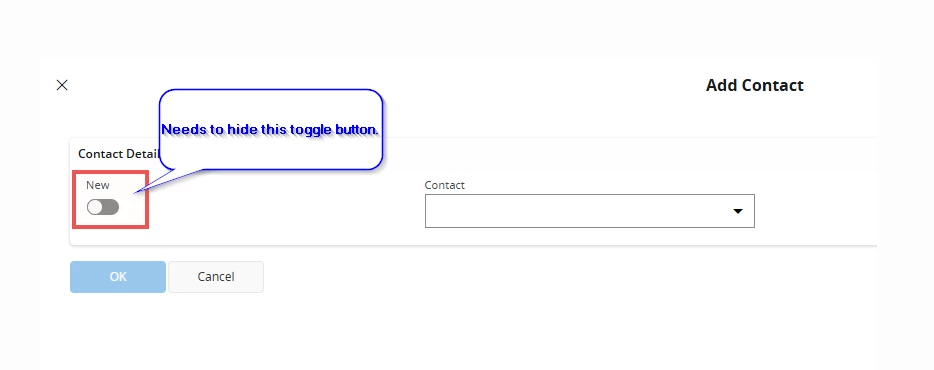
I am unable to remove or hide the new toggle button from the Assistants. There is no corresponding Assistant page available in Page Designer, so I am not sure how to control this element.

Could any expert please guide me on how to achieve this?

Problem description:
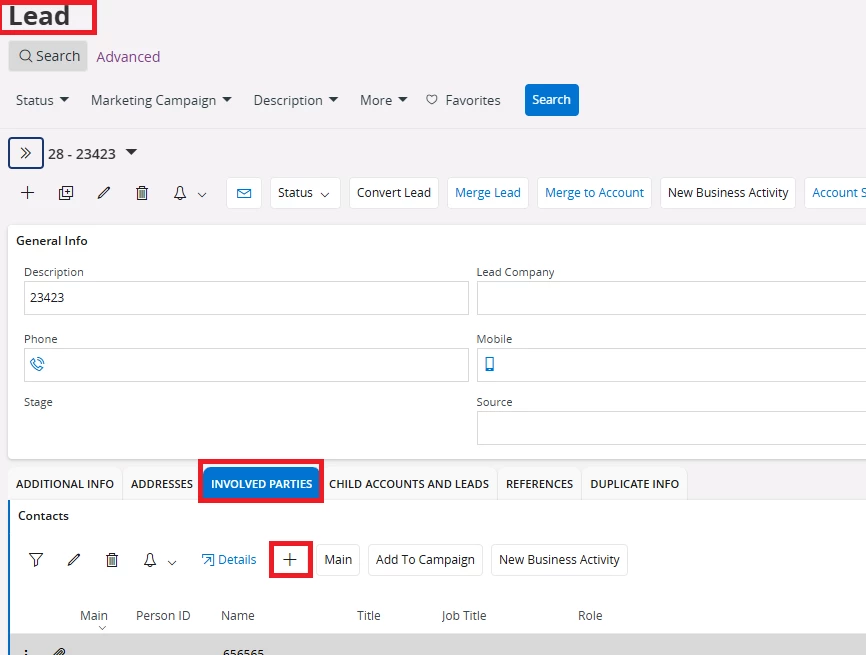
In the Lead screen, under the Involved Parties tab → Contacts, when users click the “+” Add Contact button, the new toggle button appears. I need to hide or remove this toggle button from the page.

Please refer to the attached screenshots for reference. looking for solution or any workaround method for the same.


Best answer by Indika99

Hi ​@ascheeka12 ,


You should be able to handle this via Page Designer. However, this particular assistant is not defined at the Lead page level. It has been defined separately, which is why it is not visible under the Lead page in Page Designer.
The reason for using separate pages for assistants is to improve performance and reduce the size of the main page.

You can follow the workaround below:

Workaround Steps

  1. Identify the client model used by the assistant. Since this assistant has a separate projection and client model, it is not part of the main Lead page.
    In this case, the client model is AddBusinessObjectContact.

  2. Open a “dummy” page using the following URL and configure it via Page Designer:

    <host>/main/ifsapplications/web/page/AddBusinessObjectContact/dummy

    You will receive a 404 – Page Not Found error, which is expected. Despite this, Page Designer can still be opened.

  3. Open Page Designer and navigate to:
    All Pages → Assistants → Create Business Object Contact Assistant → Steps → Customer Contacts → Content → Contact Details → Content → New
    Untick the Visible checkbox, then Save and Publish.

Note:
Since this assistant is reused in multiple places, the change will automatically apply wherever the assistant is invoked, including during Add Contact.

Additional Information (FYI): Identifying Client Models mentioned in above step 1

If you want to identify client models similar to AddBusinessObjectContact, you can follow these steps:

  1. Reload the application (refresh the browser).

  2. Navigate to the required page (for example, the Lead page).

  3. Open Chrome Developer Tools
    (Three dots → More Tools → Developer Tools, or press F12) and go to the Network tab.

  4. Clear the network history by clicking the Clear (no-parking) icon.

  5. Trigger the assistant (for example, click the + icon in the Contacts group).

  6. Once the assistant opens, go back to the Network tab and enter cpi in the filter box.

  7. This will display client models invoked externally. In this case, you should see AddBusinessObjectContact.

This approach is useful when configuring assistant fields that are not part of the main page definition.

A similar issue has been discussed previously in the IFS Community: Editing Fields on Popups/Side Panels in Cloud (23R1) | IFS Community


Best regards,
Indika.

1 reply

Indika99
Hero (Employee)
Forum|alt.badge.img+5
  • Hero (Employee)
  • Answer
  • December 17, 2025

Hi ​@ascheeka12 ,


You should be able to handle this via Page Designer. However, this particular assistant is not defined at the Lead page level. It has been defined separately, which is why it is not visible under the Lead page in Page Designer.
The reason for using separate pages for assistants is to improve performance and reduce the size of the main page.

You can follow the workaround below:

Workaround Steps

  1. Identify the client model used by the assistant. Since this assistant has a separate projection and client model, it is not part of the main Lead page.
    In this case, the client model is AddBusinessObjectContact.

  2. Open a “dummy” page using the following URL and configure it via Page Designer:

    <host>/main/ifsapplications/web/page/AddBusinessObjectContact/dummy

    You will receive a 404 – Page Not Found error, which is expected. Despite this, Page Designer can still be opened.

  3. Open Page Designer and navigate to:
    All Pages → Assistants → Create Business Object Contact Assistant → Steps → Customer Contacts → Content → Contact Details → Content → New
    Untick the Visible checkbox, then Save and Publish.

Note:
Since this assistant is reused in multiple places, the change will automatically apply wherever the assistant is invoked, including during Add Contact.

Additional Information (FYI): Identifying Client Models mentioned in above step 1

If you want to identify client models similar to AddBusinessObjectContact, you can follow these steps:

  1. Reload the application (refresh the browser).

  2. Navigate to the required page (for example, the Lead page).

  3. Open Chrome Developer Tools
    (Three dots → More Tools → Developer Tools, or press F12) and go to the Network tab.

  4. Clear the network history by clicking the Clear (no-parking) icon.

  5. Trigger the assistant (for example, click the + icon in the Contacts group).

  6. Once the assistant opens, go back to the Network tab and enter cpi in the filter box.

  7. This will display client models invoked externally. In this case, you should see AddBusinessObjectContact.

This approach is useful when configuring assistant fields that are not part of the main page definition.

A similar issue has been discussed previously in the IFS Community: Editing Fields on Popups/Side Panels in Cloud (23R1) | IFS Community


Best regards,
Indika.