Question

POD failing to match

  • December 23, 2025
  • 4 replies
  • 22 views

Forum|alt.badge.img+3

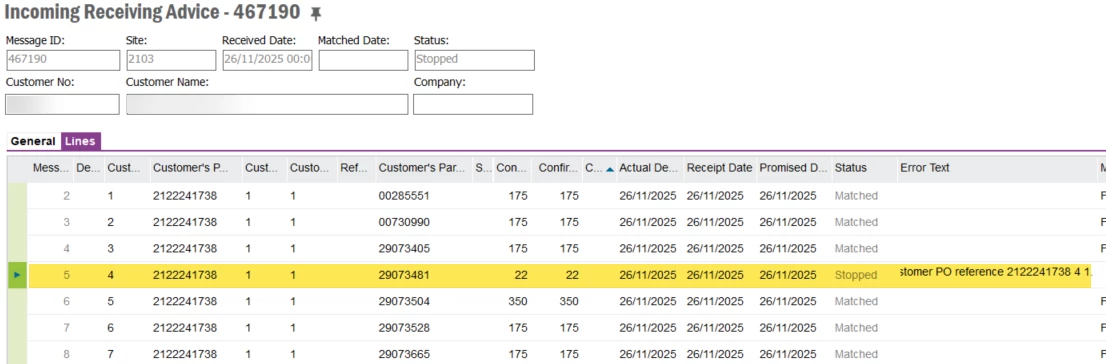
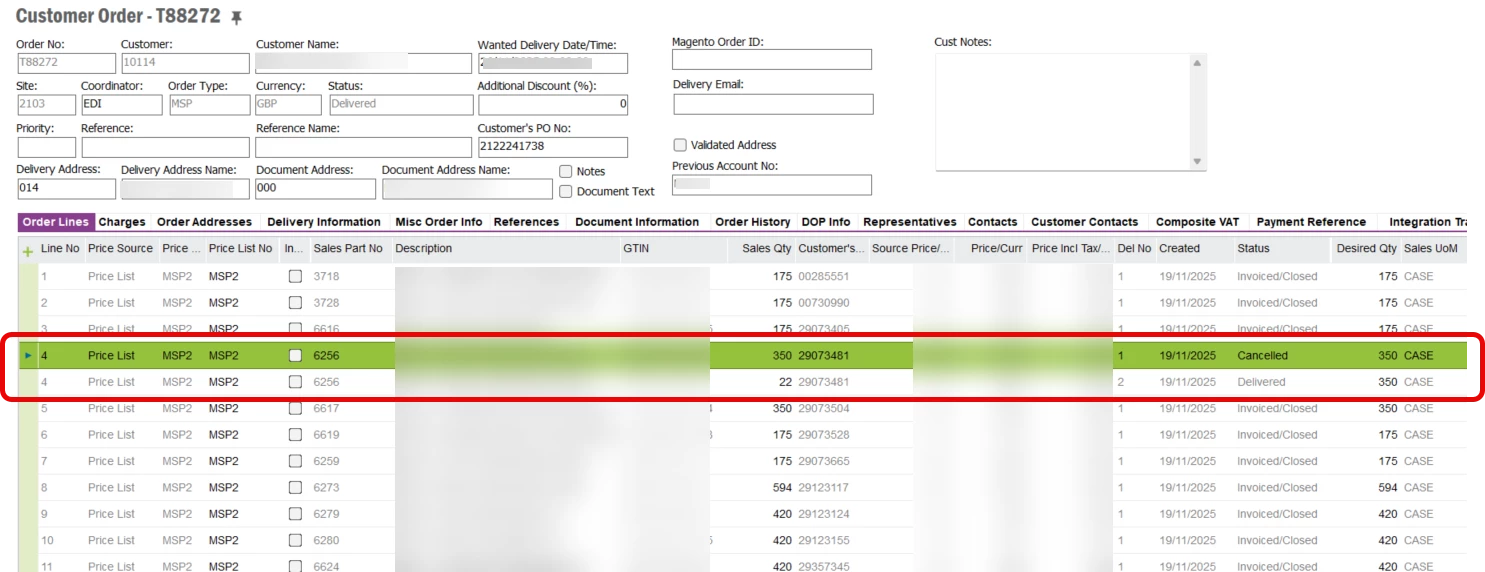
I’m currently unable to complete the POD matching process for the customer. When the order was generated, one line was deleted and replaced due to an incorrect process. As a result, the customer will not accept the POD match, and the invoice cannot be generated.

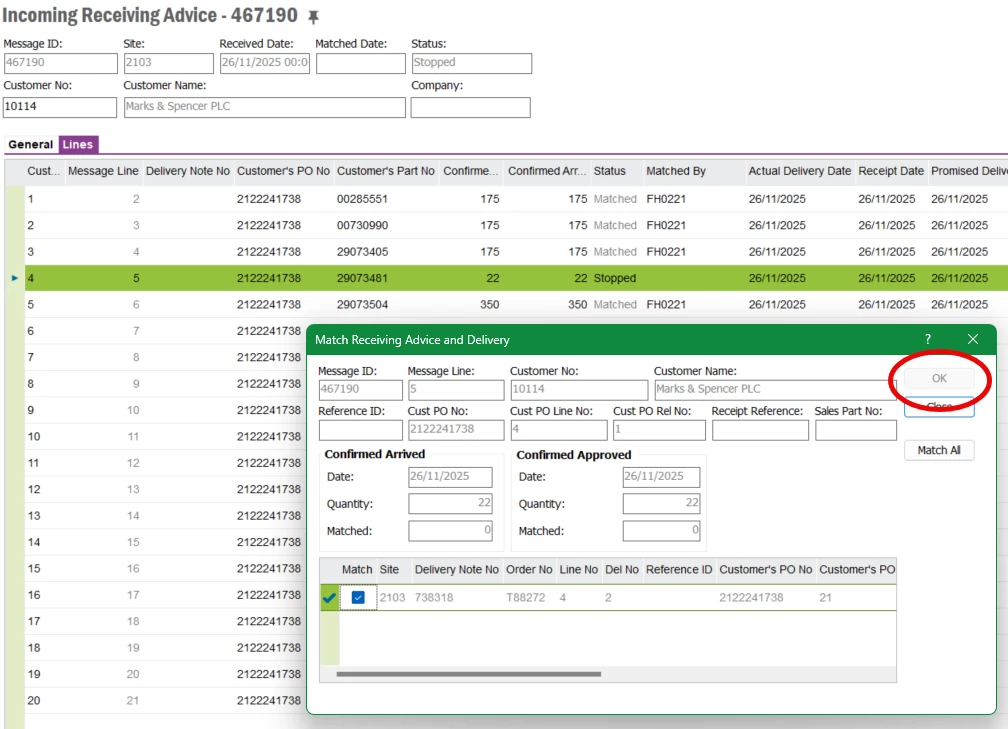
I attempted a manual match for the line item 4 as shown on the screen, but the OK button remains disabled.

Appreciate if anyone got an idea how to help push this through.


Thanks

4 replies

Forum|alt.badge.img+7
  • Do Gooder (Partner)
  • December 24, 2025
  1. Identify the correct delivery line

    • Open the Customer Order → Deliveries / Delivery Lines and find which delivery line corresponds to what the customer’s POD shows (original line vs new replacement line).​

    • Confirm that this delivery line is not already fully matched and is still eligible for invoicing.

  2. Re‑open the POD/manual match with the correct line

    • In the POD / Matching screen, make sure you are matching against the actual existing delivery line (after the line replacement), not the old deleted one.

    • Select exactly one delivery line in the “Matching Lines” or equivalent section, and tick the Match / select toggle on that line; the OK button only activates once a valid line is selected.​

  3. Adjust quantity/amount if allowed

    • If customer POD quantity/amount differs from the delivery, adjust the match quantity/amount (if the screen allows) within your tolerance limits; out‑of‑tolerance can block the OK button.​

    • If mismatch is too big, you may need to credit and re‑invoice using a new, clean delivery that matches what the customer will accept.

  4. If the process is logically broken by the deleted line

    • Consider creating a new corrective delivery (e.g. credit the wrong delivery, re‑deliver using a new CO line that matches the POD) so POD and delivery structures align; then perform POD match on this new delivery line.

    • Document the change for the customer so they can accept the new POD match and allow the invoice.


Forum|alt.badge.img+3
  • Author
  • Sidekick (Customer)
  • December 24, 2025

Hi TntAnnmaS

Thank you for the information.

In the first step, you mentioned opening Customer Order → Deliveries / Delivery Lines. Could you please clarify where I can find the Deliveries / Delivery Lines option? Is it accessed via a right-click menu or is it available as a tab?


Forum|alt.badge.img+7
  • Do Gooder (Partner)
  • December 24, 2025
  • Page: Customer Order

    • Open Sales > Customer Orders > Customer Orders and query your order.

    • Use the Related or Actions menu to navigate to:

      • Deliver Customer Order Lines (page Deliver Customer Order Lines) to see delivery information per line.​

      • Or open Shipment pages (e.g. Shipments, then filter by your customer order) to see the created delivery/shipment lines.​

  • Page: Deliver Customer Order Lines

    • Here you see each order line with its delivered quantity / shipment references; this is effectively the “delivery lines” view for matching against POD.​


Forum|alt.badge.img+3
  • Author
  • Sidekick (Customer)
  • December 24, 2025

I got an error message when attempted to do a manual match with the correct line.

ERROR:ORA-20110: ExtReceivingAdviceLine.NODLFORPOREF: Could not find any unconfirmed customer order delivery line for the customer part 29073481 and customer PO reference 2122241738 4 1.