

Question

Inventory UoM set up issue

  • December 12, 2025
  • 1 reply
  • 45 views

Forum|alt.badge.img+8

We have an issue where a part has been set up on different sites, but the Inventory UoM is different on each site.  This is causing a problem when trying to return stock that was sent out from a Bonded site but is to be returned to a Duty Paid Site.  

Below is the detail of the part that is set up incorrectly across the different sites.

The correct UoM is CS6 which should have been used, not CS3


Overview screen showing the sites and differences in set up.



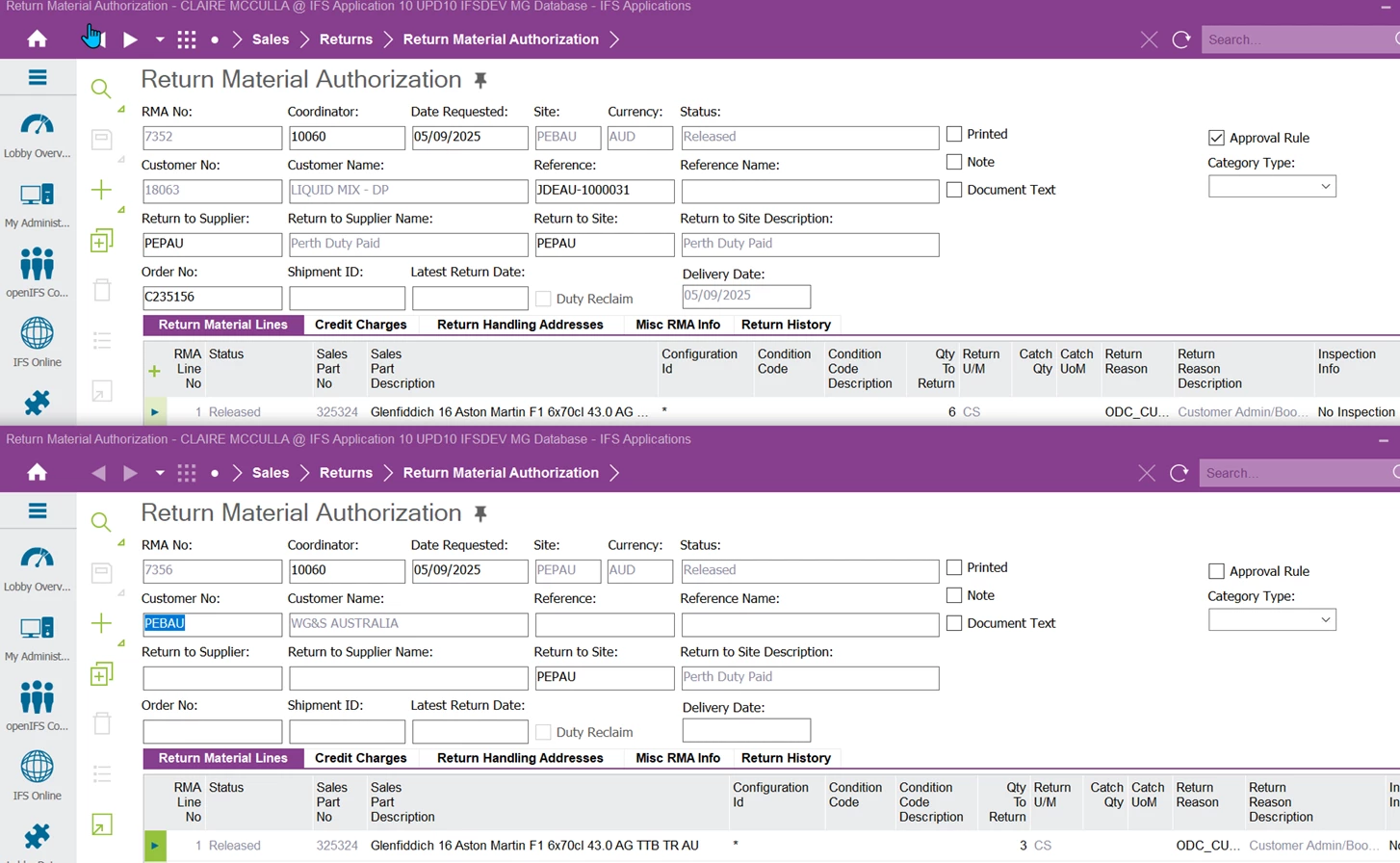
We have an RMA that has been created where the stock was dispatched from PEBAU but is being returned to PEPAU.  We cannot complete this RMA as when we enter the Qty to return on the originating RMA, the volume to return on the receipt RMA is different and cannot be manually amended.


See below:

If we amend the Qty on the originating RMA, this updates the receipt RMA, but the values are not aligned due to the inventory UoM being different.



1 reply

Forum|alt.badge.img+7
  • Do Gooder (Partner)
  • December 24, 2025

1. Check current UoM setup

  1. Page: Inventory Part

    • Open Inventory > Inventory Part and query the part for Site = PEBAU; note the Inventory Unit of Measure (e.g. CS3).​

    • Repeat for Site = PEPAU; here you see the different Inventory UoM (e.g. CS6).​

  2. Page: Part (Part Catalog / Part Basic Data)

    • Check the Base UoM and any Input UoM Group or UoM conversions defined for this part, so you understand how conversions are calculated.​

2. Understand why the RMA quantities differ

  1. Page: Return Material Authorization

    • Open Sales > Customer Returns > Return Material Authorization and query the originating RMA at PEBAU (the site that shipped).​

    • On tab Return Material Lines, look at:

      • Sales Qty to Return (in sales UoM).

      • Inventory Qty to Return (in inventory UoM for PEBAU).​

  2. Page: Receipt RMA (second RMA/site)

    • Open the automatically created RMA at site PEPAU and check the same fields.

    • Because PEPAU has a different Inventory UoM (CS6 vs CS3), the system converts the quantity and locks the inventory quantity so you cannot manually adjust it to a non‑converted value.​

3. Correct the master‑data design (future prevention)

For future RMAs between these sites, align the inventory UoM:

  1. Page: Inventory Part

    • If one of the site instances has no inventory transactions for this part, you can delete the inventory part and recreate it with the correct Inventory UoM (CS6) at that site.​

    • If transactions exist, you cannot change the inventory UoM; instead, consider:

      • Defining an Input UoM Group with both CS3 and CS6 and proper conversion factors, then assigning it to the part so the system converts correctly between UoMs.​

      • Or, if feasible, manage two separate parts (one per UoM) and use cross‑reference/alias, then gradually migrate usage.

  2. Page: Units of Measure / UoM Conversions

    • Verify there is a conversion rule between CS3 and CS6 (e.g. 1 CS6 = 2 CS3) so that any future inter‑site movements and RMAs convert consistently.​

4. Workaround for the current RMA

Because you cannot “force” the receipt RMA inventory quantity to an arbitrary value, typical workarounds are:

  1. Complete the RMA using the system’s conversion, then correct with a manual adjustment:

    • Page: Return Material Authorization (originating and receiving):

      • Adjust Sales Qty to Return on the originating RMA so that the converted Inventory Qty on the receipt RMA matches the actual physical quantity you want to receive at PEPAU as closely as possible.​

      • Complete the receive process (Register Arrivals / Receive Parts against Order Deliveries) at PEPAU.​​

    • Page: Inventory Transaction History / Inventory Adjustment

      • If there is a small difference vs what physically arrived, use an Inventory Adjustment at PEPAU to correct the stock to the correct CS6 count.

  2. Alternatively, bypass the cross‑site RMA and handle as separate flows:

    • Use the RMA only back to the shipping site (PEBAU), then create an inter‑site transfer to PEPAU using the correct UoM/quantities for that site.

    • This splits customer return and bonded→duty‑paid movement into two controlled steps and avoids the direct cross‑site RMA conversion issue.​

  1. Inventory governance:

    • Create a UoM policy: for multi‑site parts, define a single global “inventory UoM” or at least a harmonized UoM family with defined conversions, and enforce it when creating new sites.​

  2. Clean‑up:

    • Identify all parts where Inventory UoM differs by site (via a report over Inventory Part) and decide case‑by‑case whether to fix via deletion/recreation, input UoM, or dual‑part strategy.

If you share whether PEPAU or PEBAU has transactions for this part, a more concrete “exact clicks” path (delete/recreate vs input UoM group configuration) can be outlined for your environment.