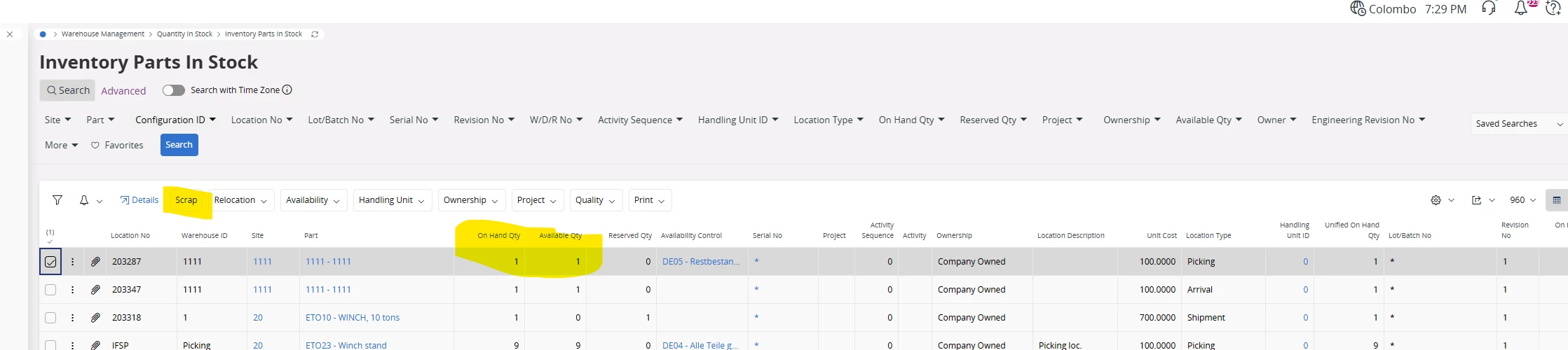
If there are inventory parts that currently have an on-hand quantity in stock, what are the available options to remove or clear those quantities from the system?
Could you please share the recommended approaches or best practices (for example, adjustments, transactions, or any standard processes) to handle this scenario?
Thanks in advance for your support and insights.
Best answer by SNIRLK
Hi @Indika99,
In IFS Applications, if you have inventory parts with on-hand quantity and you want to remove them from stock, there are a few standard options depending on your business rules and the reason for removal:
✅ Options to Remove On-Hand Inventory
Inventory Issue (Manual Issue)
Use the Inventory Issue functionality to manually issue the parts out of stock.
Commonly used when scrapping, consuming for internal use, or adjusting stock.
Navigate to: Inventory → Inventory Transactions → Inventory Issue
Scrap Transaction
If the parts are damaged or obsolete, you can perform a Scrap transaction.
This will reduce the on-hand quantity and record the reason for scrapping.
Navigate to: Inventory → Inventory Transactions → Scrap
Inventory Adjustment
Use Inventory Adjustment to correct stock levels.
This is typically used for discrepancies found during stock counts.
Navigate to: Inventory → Inventory Transactions → Inventory Adjustment
Return to Supplier
If the parts were received incorrectly or need to be returned, use Return Material functionality.
Navigate to: Purchasing → Return Material
Move to Non-Nettable Location
If you don’t want the parts to be considered for planning but still keep them physically, move them to a non-nettable location.
Navigate to: Inventory → Inventory Locations → Move Inventory
In IFS Applications, if you have inventory parts with on-hand quantity and you want to remove them from stock, there are a few standard options depending on your business rules and the reason for removal:
✅ Options to Remove On-Hand Inventory
Inventory Issue (Manual Issue)
Use the Inventory Issue functionality to manually issue the parts out of stock.
Commonly used when scrapping, consuming for internal use, or adjusting stock.
Navigate to: Inventory → Inventory Transactions → Inventory Issue
Scrap Transaction
If the parts are damaged or obsolete, you can perform a Scrap transaction.
This will reduce the on-hand quantity and record the reason for scrapping.
Navigate to: Inventory → Inventory Transactions → Scrap
Inventory Adjustment
Use Inventory Adjustment to correct stock levels.
This is typically used for discrepancies found during stock counts.
Navigate to: Inventory → Inventory Transactions → Inventory Adjustment
Return to Supplier
If the parts were received incorrectly or need to be returned, use Return Material functionality.
Navigate to: Purchasing → Return Material
Move to Non-Nettable Location
If you don’t want the parts to be considered for planning but still keep them physically, move them to a non-nettable location.
Navigate to: Inventory → Inventory Locations → Move Inventory
In IFS Cloud, you can clear or reduce on-hand inventory by using standard inventory transactions. The most common method is an Inventory Adjustment: go to Inventory > Inventory Transactions > Adjust Inventory, select the part, site, location, and lot/serial if applicable, then enter a negative quantity to reduce the on-hand balance and choose a valid reason code before saving. If the stock is damaged or unusable, use the Scrap Inventory option and enter the quantity to be scrapped so the system writes it off correctly. If the stock was already consumed or used in operations, perform an Issue transaction (for example, issue to a work order, project, or cost center). To align system stock with physical stock, run an Inventory Count, enter the counted quantity, and allow the system to automatically adjust the difference. These steps ensure the stock is cleared correctly while maintaining full audit and financial accuracy in IFS Cloud.