

Question

How to add/mapping logical printer to IFS Cloud

  • March 30, 2026
  • 10 replies
  • 75 views

nu_fonka
Do Gooder (Partner)
Forum|alt.badge.img+5

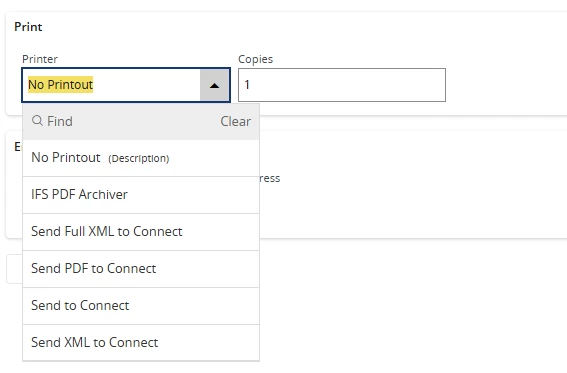
Could you please advise on how to add/map a logical printer from the client machine so that it can be recognized by IFS Cloud during report printing?

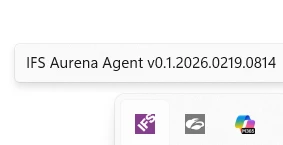
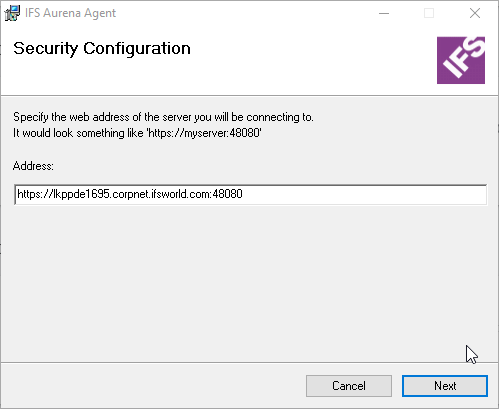
I have already installed the IFS Aurena Agent and verified the setup according to the IFS documentation, but the client machine still cannot detect the logical printer.


10 replies

Forum|alt.badge.img+17
  • Superhero (Partner)
  • March 30, 2026

Hi ​@nu_fonka 

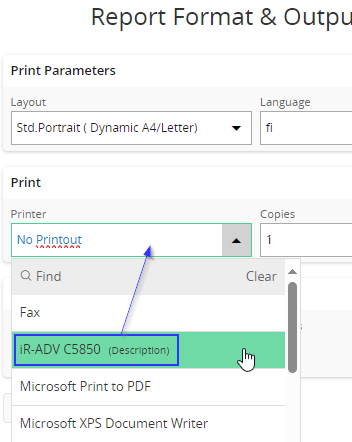
There is a known problem in 25R1 with not showing physical printer on print dialog box. I assume You want to see local printers in print dialog.


Forum|alt.badge.img+6
  • Do Gooder (Partner)
  • March 31, 2026

Hi ​@nu_fonka ,

  In IFS Cloud, logical printers are not detected directly from the client machine just by installing the Aurena Agent. They must be explicitly configured and mapped between:

  • IFS Cloud
  • Aurena Agent
  • Local OS printer

 Key Point (Why it’s not working)

Installing Aurena Agent alone does NOT automatically expose printers to IFS.

IFS only recognizes printers that are:

  • Registered in Logical Printer setup
  • Mapped to an Aurena Agent
  • And matched with a local printer name

 Step-by-Step Fix

🔹 Step 1: Verify Local Printer

On client machine:

  • Go to Windows → Printers & Scanners
  • Confirm:
    • Printer is installed
    • Printer name is correct (copy exact name)

🔹 Step 2: Check Aurena Agent

On client machine:

  • Open Aurena Agent UI
  • Verify:
    • Agent is Running
    • Status = Connected
    • User is logged in

 Also check:

  • Agent shows available printers

🔹 Step 3: Configure Logical Printer in IFS

In IFS Cloud:

  1. Go to:
     Solution Manager → Output Management → Logical Printers
  2. Create new Logical Printer:
    • Printer ID: (any name)
    • Printer Type: PDF / Report
    • Output Channel: Aurena Agent

🔹 Step 4: Map to Aurena Agent Printer

Inside Logical Printer:

  • Set:
    • Destination = Aurena Agent
    • Agent ID / Machine
    • Printer Name = EXACT Windows printer name

Must match 100% (case-sensitive sometimes)

🔹 Step 5: Assign to User

  • Go to:
     User → Default Printer
  • Assign your Logical Printer

🔹 Step 6: Test Printing

  • Run a report
  • Select your logical printer
  • Check if print is triggered on client machine

 Common Issues

Issue Cause Fix
Printer not visible Not mapped in Logical Printer Configure mapping
No print triggered Agent not connected Restart agent
Wrong printer name Name mismatch Copy exact Windows name
Works for some users Missing user mapping Assign printer to user

matt.watters
Ultimate Hero (Partner)
Forum|alt.badge.img+26
  • Ultimate Hero (Partner)
  • March 31, 2026

@Lingesan08 from your Step 2 above, could you provide a screenshot of the Aurena Agent UI and where in this UI one would see logical printers?


nu_fonka
Do Gooder (Partner)
Forum|alt.badge.img+5
  • Author
  • Do Gooder (Partner)
  • April 1, 2026

Hi ​@nu_fonka ,

  In IFS Cloud, logical printers are not detected directly from the client machine just by installing the Aurena Agent. They must be explicitly configured and mapped between:

  • IFS Cloud
  • Aurena Agent
  • Local OS printer

 Key Point (Why it’s not working)

Installing Aurena Agent alone does NOT automatically expose printers to IFS.

IFS only recognizes printers that are:

  • Registered in Logical Printer setup
  • Mapped to an Aurena Agent
  • And matched with a local printer name

 Step-by-Step Fix

🔹 Step 1: Verify Local Printer

On client machine:

  • Go to Windows → Printers & Scanners
  • Confirm:
    • Printer is installed
    • Printer name is correct (copy exact name)

🔹 Step 2: Check Aurena Agent

On client machine:

  • Open Aurena Agent UI
  • Verify:
    • Agent is Running
    • Status = Connected
    • User is logged in

 Also check:

  • Agent shows available printers

🔹 Step 3: Configure Logical Printer in IFS

In IFS Cloud:

  1. Go to:
     Solution Manager → Output Management → Logical Printers
  2. Create new Logical Printer:
    • Printer ID: (any name)
    • Printer Type: PDF / Report
    • Output Channel: Aurena Agent

🔹 Step 4: Map to Aurena Agent Printer

Inside Logical Printer:

  • Set:
    • Destination = Aurena Agent
    • Agent ID / Machine
    • Printer Name = EXACT Windows printer name

Must match 100% (case-sensitive sometimes)

🔹 Step 5: Assign to User

  • Go to:
     User → Default Printer
  • Assign your Logical Printer

🔹 Step 6: Test Printing

  • Run a report
  • Select your logical printer
  • Check if print is triggered on client machine

 Common Issues

Issue Cause Fix
Printer not visible Not mapped in Logical Printer Configure mapping
No print triggered Agent not connected Restart agent
Wrong printer name Name mismatch Copy exact Windows name
Works for some users Missing user mapping Assign printer to user


Hi ​@Lingesan08  Cloud you please share the screenshot Step 2: Check Aurena Agent UI and Step 4: Map to Aurena Agent Printer , Step 5: Assign to User


nu_fonka
Do Gooder (Partner)
Forum|alt.badge.img+5
  • Author
  • Do Gooder (Partner)
  • April 1, 2026

Hi ​@nu_fonka 

There is a known problem in 25R1 with not showing physical printer on print dialog box. I assume You want to see local printers in print dialog.


Hi ​@knepiosko  Yes, in my screen i can’t see any logical printer.


Forum|alt.badge.img+6
  • Do Gooder (Partner)
  • April 1, 2026

Hi ​@nu_fonka ,

 This is a known issue in 25R1 where physical printers may not appear in the Aurena print dialog. Please check that:

  • Aurena Agent is running and connected
  • Logical printers are configured and mapped to physical printers
  • The user is assigned to the printer

Aurena only shows logical printers, not direct Windows printers.


nu_fonka
Do Gooder (Partner)
Forum|alt.badge.img+5
  • Author
  • Do Gooder (Partner)
  • April 1, 2026

Hi ​@Lingesan08 


   Aurena agent is running as normal.

  • Logical printers are configured and mapped to physical printers
  • The user is assigned to the printer

Could you please show example screen for 2 topic


Forum|alt.badge.img+6
  • Do Gooder (Partner)
  • April 1, 2026

Hi ​@Lingesan08 


   Aurena agent is running as normal.

  • Logical printers are configured and mapped to physical printers
  • The user is assigned to the printer

Could you please show example screen for 2 topic

@nu_fonka 

Thanks for confirming  — since:

  • Aurena Agent is running normally ✅
  • Logical printers are configured and mapped ✅
  • User is assigned to printer ✅

 Then configuration looks correct from your side.

To help identify the issue further, could you please share screenshots of the following screens?

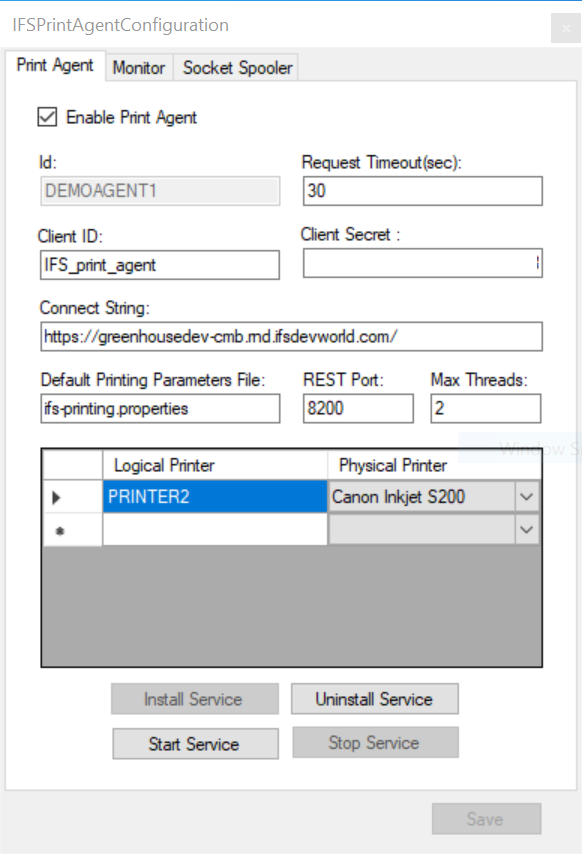
1. Aurena Agent – Printer List

Please open IFS Aurena Agent UI and share:


https://uploads-eu-west-1.insided.com/ifs-en/attachment/838a1b4a-57e2-4938-8845-9349ba8b6a7e.png


https://docs.ifs.com/techdocs/23r2/070_remote_deploy/400_installation_options/040_aurena_agent/images/agent_setup_program_first_step.png


 We need to confirm:

  • Agent is Connected
  • Physical printers are listed correctly

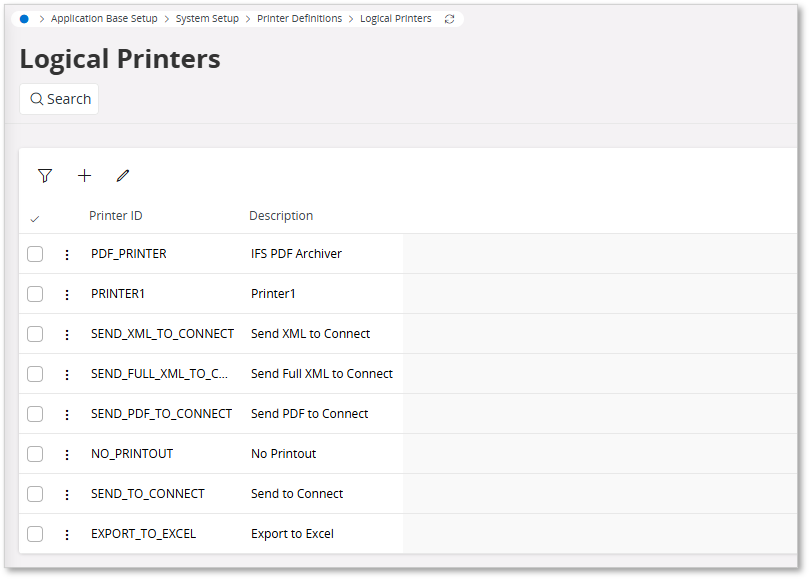
 2. Logical Printer Configuration (IFS)

Go to:
 Solution Manager → Output Channels / Printers


https://docs.ifs.com/techdocs/25r2/050_reporting/000_reporting/251_operational_reporting/011_setup/220_setup_report_rendering/050_logical_printers/images/LogicalPrinters.png


https://uploads-eu-west-1.insided.com/ifs-en/attachment/838a1b4a-57e2-4938-8845-9349ba8b6a7e.png


https://docs.ifs.com/techdocs/24R1/070_remote_deploy/400_installation_options/005_operational_reporting/020_install_print_agents/configuration.png

 Please include:

  • Logical printer name
  • Output type (e.g., Aurena Agent)
  • Mapping to physical printer

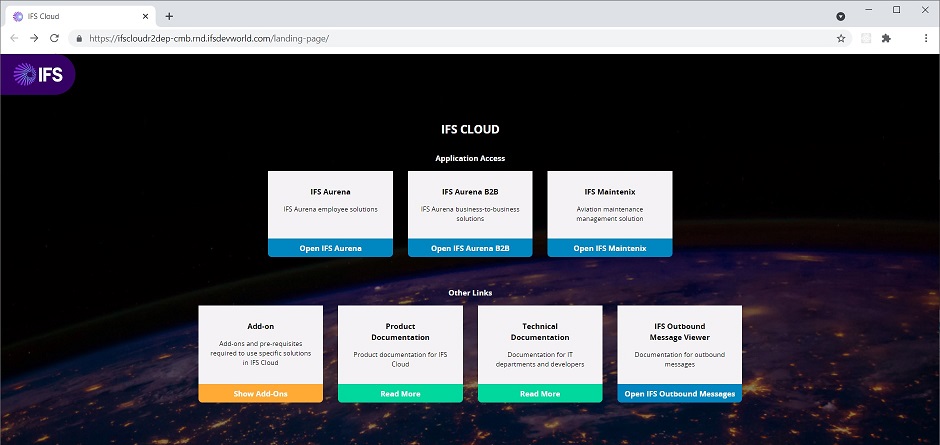
 3. User Printer Mapping

Go to:
 User → Printer Mapping


https://docs.ifs.com/techdocs/25r1/070_remote_deploy/400_installation_options/005_operational_reporting/020_install_print_agents/images/landingpage.jpg


https://docs.ifs.com/techdocs/25r2/050_reporting/000_reporting/251_operational_reporting/011_setup/220_setup_report_rendering/050_logical_printers/images/LogicalPrinters.png


https://docs.ifs.com/techdocs/24R1/070_remote_deploy/400_installation_options/005_operational_reporting/020_install_print_agents/configuration.png

 We need to verify:

  • User is assigned to correct logical printer

 Why this helps

Even if everything looks configured:

  • A mismatch in:
    • Printer name
    • Output channel
    • Agent registration

can still prevent printers from appearing in dropdown


Forum|alt.badge.img+17
  • Superhero (Partner)
  • April 1, 2026

Issue

Issue with Physical Printers Not Listed in Print Dialog (25R1)

Reproduction Steps: 

1.Install the Aurena Agent Follow the official IFS documentation to install the Aurena Agent. https://docs.ifs.com/techdocs/25r1/070_remote_deploy/400_installation_options/040_aurena_agent/installation/

2.Verify Aurena Agent Installation After installation, navigate to the 'User Settings' page in Aurena to confirm that the Aurena Agent is correctly installed and running.

3.Execute a Print Job Perform a print action to trigger the print dialog.

4.Check for Physical Printers When the print dialog opens:

5.Observe whether physical printers are listed.

In 24R2, all physical printers are displayed correctly in the dialog.
In 25R1 Track, physical printers are not listed in the print dialog.
 

Environment

 IFS Cloud 25 R1

Cause

Core Bug

Resolution

IFS Fixed Verion

25.1.5 - 25R1 SU5


matt.watters
Ultimate Hero (Partner)
Forum|alt.badge.img+26
  • Ultimate Hero (Partner)
  • April 1, 2026

I believe in some of these replies, the term Aurena Agent was used where Print Agent should have been used. There is nothing related to local/logical printer setup in the Aurena Agent.