
Question

BPA called through button displays only generic error messages

  • July 20, 2023
  • 4 replies
  • 249 views

Forum|alt.badge.img+6

Hi,

Since we installed 23R1 we have the possibility to create a button linked to a BPA.

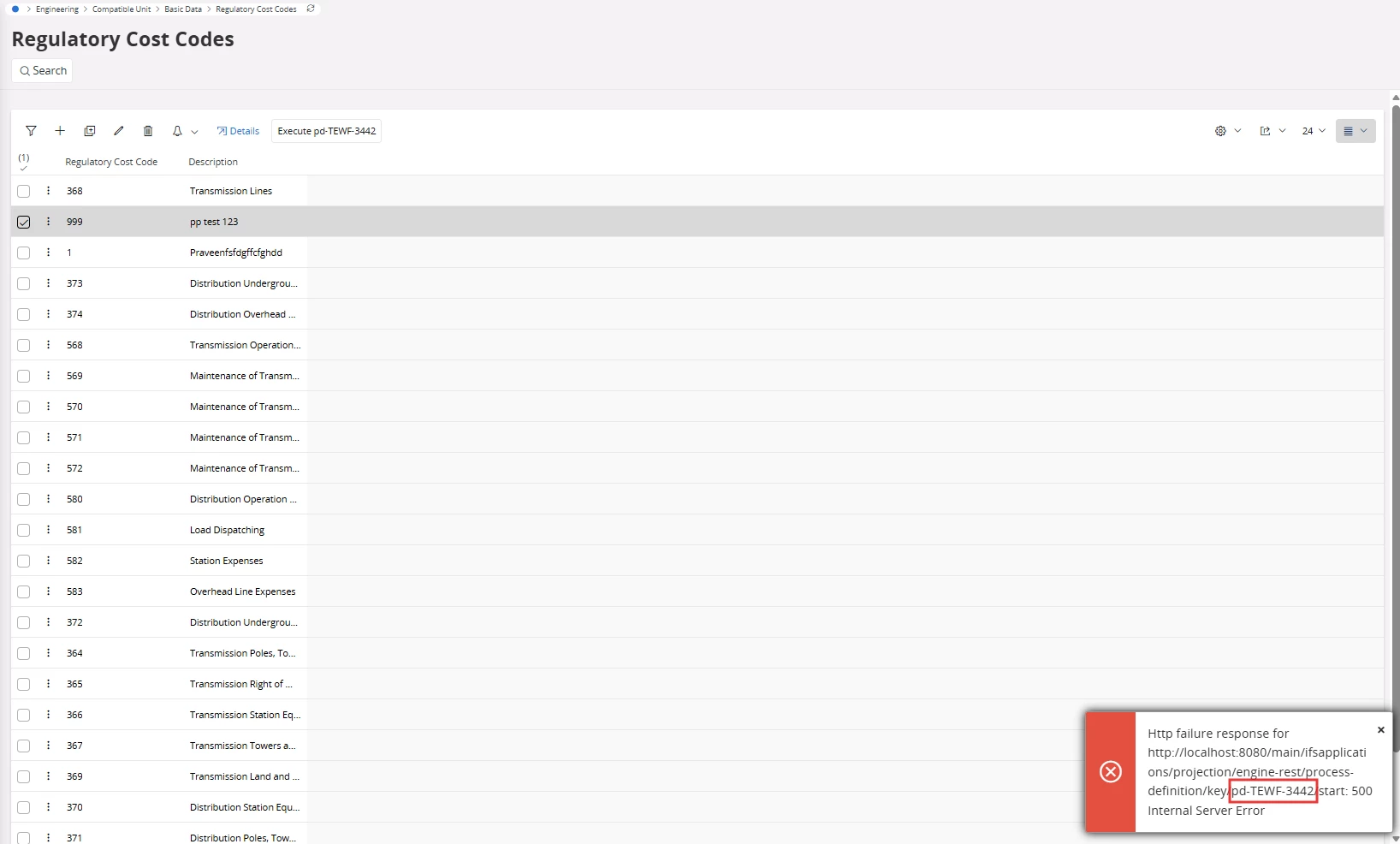
But we noticed that in this case all the errors will be raised with the same message : 
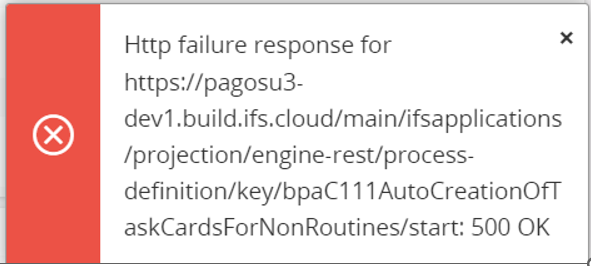
If you launch a standard flow with standard errors you won’t see the right message. Instead you have this generic message shown in the screen shot.

Is there a way to show the right error message or is this a bug that should be fixed ?

Thank you

Fabrice

4 replies

Dilhara Ranasinghe
Do Gooder (Employee)
Forum|alt.badge.img

Hi @Fabrice,

This generic message occurs even when there's something wrong with the workflow. It's not necessarily a bug with the workflow command; rather, it appears when the workflow fails to execute. Furthermore, there are technical limitations in making this error message more specific.


Forum|alt.badge.img+6
  • Author
  • Sidekick (Employee)
  • July 24, 2023

Hi Dilhara,

Thank you for your answer.

I understand it’s not a bug but more a lack of detail.

The problem is that without the right error message the user won’t know what is the problem in the flow and it makes it very difficult in some situation to use the BPA. I see that like a limitation in the tool.


Forum|alt.badge.img+1
  • Do Gooder (Partner)
  • June 10, 2026

Is there any solution to this?


Forum|alt.badge.img+5
  • Do Gooder (Employee)
  • June 12, 2026

Hi ​@Chathumini 

It looks like the error message is still being displayed in this way. However, there are a few workarounds to identify the exact reason for the error:

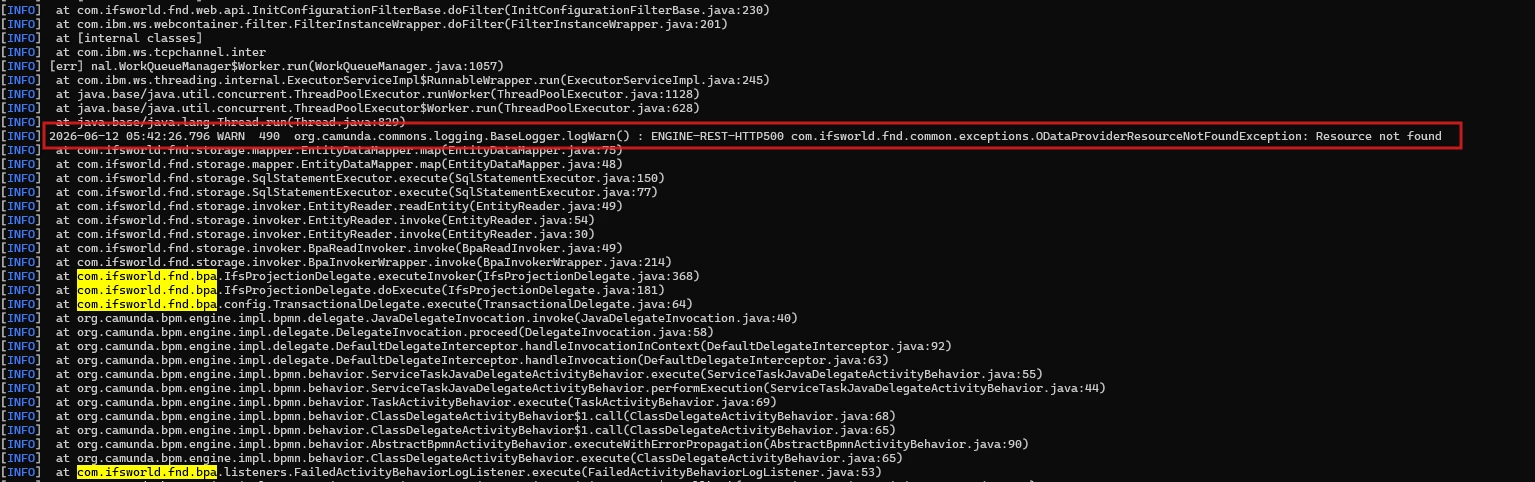
  1. Check the OData logs

    • If you have access to the OData logs, you will be able to see the full detailed error message and identify the exact cause of the issue.


  2. Capture observations and troubleshoot

    • The error message contains the workflow name.


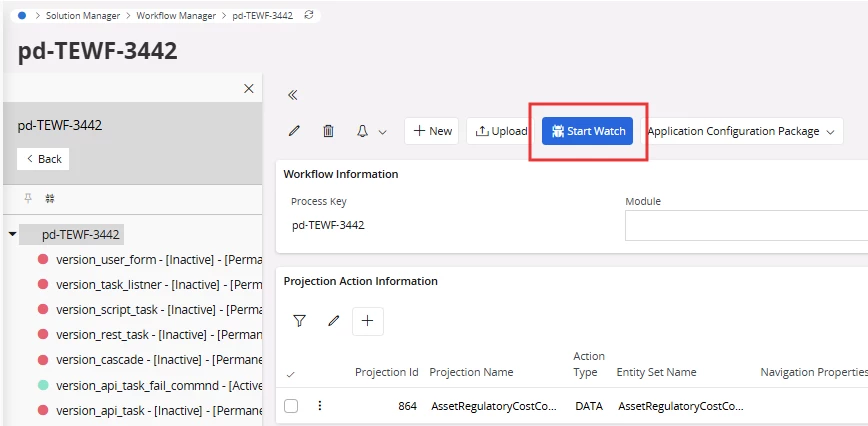
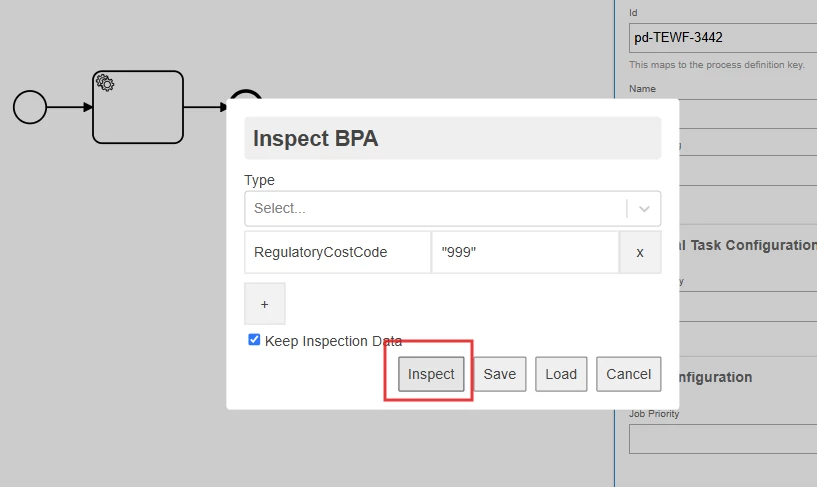
    • Before clicking the command button, start watching the specific workflow so that observations are captured.


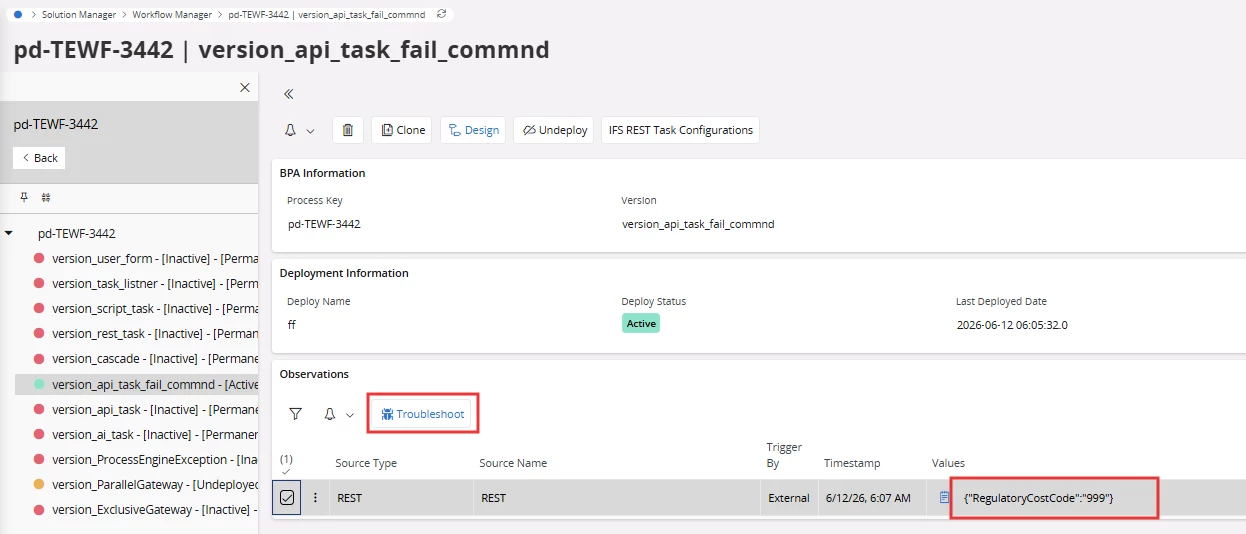
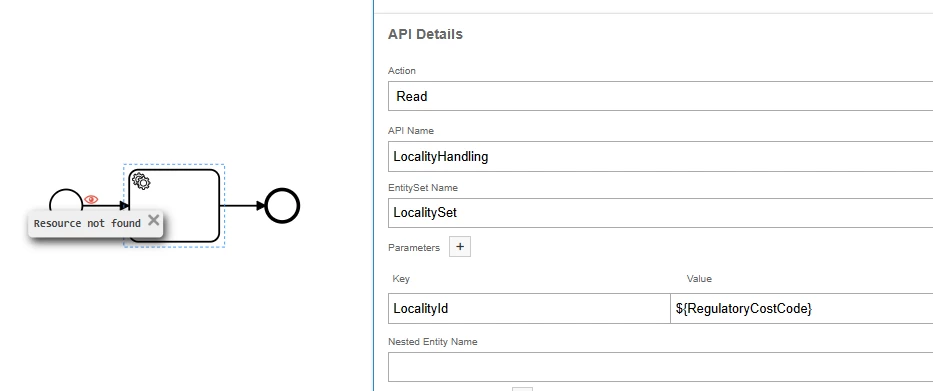
    • Once the error occurs, navigate to the specific workflow and click the Troubleshoot button using the captured observation data.


    • In the next window, you will be able to inspect the workflow execution details and view the exact error that caused the failure.